 Login
Login


Is your personal computer (PC) feeling a bit sluggish? Giving it a good, old-fashioned cleaning can improve its performance, and it only takes minutes. If you’ve never cleaned your PC before, you have a few options to speed up the process.
In this guide, we explain why computers slow down over time, set expectations for what a cleaning routine can and can’t do, and share step-by-step instructions to help you clean your PC and restore optimal performance.
For the most part, PCs don’t slow down on their own. It’s rarely one single problem. It’s how we accumulate apps, files, and services that slow your PC down as it ages. A few examples come to mind:
Cleaning is definitely worth doing, but you should set realistic expectations for how much your PC’s performance can improve. Similar to decluttering your home, you are not rebuilding your house, but it will feel much easier to live in.
PC cleaning addresses software-level performance bottlenecks. When you remove temporary files, clear browser caches, and delete unused applications, you’re freeing up valuable disk space and reducing the workload on your system. This directly impacts how quickly your computer can access and process information.
Startup optimization also delivers some of the most noticeable improvements. If your computer takes several minutes to boot because too many programs are launching automatically, trimming your startup list can cut boot times significantly. You’ll also notice improved responsiveness during everyday tasks when fewer background processes compete for system resources.
You will also notice faster web browsing when you clear accumulated browser data, quicker file searches when your system isn’t indexing thousands of temporary files, and smoother multitasking when background services aren’t consuming unnecessary memory. With proper system maintenance, you can restore 15-30% of lost performance on aging computers.
Hardware limitations represent the biggest constraint on what cleaning can accomplish. If your processor struggles with modern software demands or your RAM is maxed out during normal use, no amount of cleaning will change these hardware realities. Cleaning your PC to make it faster depends largely on whether software bloat or hardware constraints are your primary bottleneck.
Gaming performance, video editing, and other intensive tasks rely heavily on central processing unit (CPU) and graphics processing unit (GPU) capabilities. While a clean system ensures these components aren’t fighting unnecessary background processes, cleaning won’t magically boost frame rates or rendering speeds beyond your hardware’s capabilities.
Any cleanup is safer when you know your important stuff is protected. You don’t have to do a complicated backup routine; just make sure the essentials are safe.
In newer versions of Windows, go to Settings > Update & Security > Backup to set up File History, or use Settings > Accounts > Sync your settings for cloud backup. This ensures you won’t lose important files.
Now that you’ve ensured your important files are safe, you can start the cleanup process that makes a noticeable difference in PC performance. You don’t need advanced technical skills, and you don’t need to do everything at once.
Go to Settings > System > Storage > Temporary files and review the categories. This will take you to a screen that gives you insight into what your drive space looks like and allow you to safely remove many of them with a few clicks, especially cache and old system leftovers.
In Windows 10/11, go to Settings > Apps > Apps & features, then sort apps by size or installation date to identify large or forgotten programs. Click any app and select “Uninstall” to remove it.
You can also use the built-in Disk Cleanup tool by typing “Disk Cleanup” in the Start menu search. Select categories such as “Temporary files,” “Recycle Bin,” and “System cache” to review the files and remove any that are not needed. If you’re unsure what a program does, research it online before removing it, as some applications may be essential for your system’s operation. For example, you might want to keep “Windows update log files,” in case you ever need to troubleshoot Windows.
Instead of performing a manual cleanup, you can use Windows Storage Sense to keep your system clean. Navigate to Settings > System > Storage > Storage Sense to configure this powerful feature. You can set it to automatically remove temporary files, empty your recycle bin, and clear your Downloads folder of files older than 30 days.
Removing old and unused apps benefits you in two ways. First, it frees up disk space. Second, outdated apps can contain security loopholes that hackers may exploit. Older apps might have gone without an update, which can lead to security loopholes that hackers can exploit. Remove the old app, and you remove the loophole.
Disk Cleanup is an older Windows tool, but it’s still reliable. It can clear system files and cached data safely when used carefully. In Disk Cleanup, you can confidently delete Temporary files, Recycle Bin contents, System error memory dump files, and old Windows Update cleanup files. Temporary Internet Files and Downloaded Program Files are also safe to remove, as your browser will recreate what it needs.
To access this tool, search “Disk Cleanup” in the Start menu, and choose your main drive (usually C:) when prompted. Review the temporary file categories before removing them. Just read descriptions, and avoid deleting anything you might need for troubleshooting.
Identify space-consuming files by looking for large video files, old software installers, or duplicate files that you no longer need. Move important large files to external storage or cloud services to free up local space while keeping them accessible.
This one is a bit of a double-edged sword. Your cache and cookies make many web pages load faster. By storing images, preferences, and other info, cookies speed up load times. However, the data that cookies store can get bloated over time. If the disk space they use looks a little high to you, clean them out. You can do this in Windows by typing “Cookies” in your search bar or selecting “Delete browsing data” from your browser’s menu.
Note that this may remove any saved passwords stored in your browser. However, if you’re using a password manager, this isn’t a worry. The manager does the remembering for you.
Windows runs several apps at startup, some of which you certainly need, such as antivirus software or online protection software. Other apps, however, might not be needed to run right away and just slow down startup.
To review your startup apps, type “Startup” in the Windows search bar or press Ctrl + Shift + Esc to open Task Manager. Click the Startup tab to see a list of apps and their impact on performance. Disable programs you don’t need immediately, but keep essential security software enabled. Focus on applications marked with “High” startup impact.
Keep essential security software enabled at startup, and research unfamiliar programs before disabling them or just leave them alone.
You’d think that deleting files in the recycle bin erases them entirely. Not so. It only removes the “pointer” to those files, but the data remains on the drive. The only way to completely remove files is when something new overwrites them, which can take time.
To completely erase files with sensitive info, use a file shredder tool similar to that in McAfee+. Although this doesn’t necessarily improve performance, it helps prevent identity theft.
Ensure optimal performance and security with the latest updates. Go to Settings > Update & Security > Windows Update and click “Check for updates.” For driver updates, visit Settings > Update & Security > Windows Update > View optional updates, or use Device Manager by right-clicking the Start button and selecting it. Updated drivers improve hardware compatibility and can resolve performance issues.
If your PC feels abnormally slow, malware may be the real cause. Complete your cleanup by scanning for malware and other threats that may be causing the slowdown. Some threats run quietly in the background, consuming system resources and compromising privacy.
For a deeper clean, consider PC cleaning software such as McAfee PC Optimizer, designed to detect and clear out unnecessary files, manage startup apps, and even clean the registry at the press of a button. These cleaners usually come with customizable settings to suit your preferences. You can set automatic clean-ups at regular intervals, thus saving time, and freeing you from the hassle of remembering to run the cleanup.
To choose reliable and safe PC cleaning software, read reviews and understand what each feature does. Always use a trusted, reputable security software and avoid downloading PC cleaners from unknown sources, as some may contain malware.
If your PC uses a solid-state drive (SSD), avoid traditional defragmentation as it can reduce the drive’s lifespan without providing performance benefits. Windows automatically runs TRIM commands to instruct your SSD to delete data blocks that are no longer used.
You can manually enable TRIM by opening Command Prompt as an administrator and running “fsutil behavior set DisableDeleteNotify 0” to confirm it’s enabled. However, we do not recommend doing this. It’s best to let Windows handle optimization automatically.
The Windows registry is your computer’s central database, storing critical configuration settings for your operating system and installed programs. Registry cleaning is a misunderstood part of PC optimization. Many people think it’s essential, but modern Windows systems usually don’t benefit from it. In addition, today’s Windows versions manage registry complexity more effectively than older versions.
Unlike clearing temporary files or uninstalling old apps, manual registry changes can have far-reaching consequences and serious issues if done incorrectly. A single incorrect change can prevent apps from opening or cause system instability. Unless you’re troubleshooting a specific issue, it’s safer to skip it.
Restart your computer after completing these steps to ensure all changes take effect properly. Regular maintenance every 3-6 months will help keep your PC running smoothly and securely.
Another aspect of cleaning your PC to improve its performance entails physical cleanup, specifically dust removal. When dust builds up, your PC can’t cool itself properly, leading to slower speeds, louder fans, and random stuttering. Follow this quick guide:
If you’re asking this question, you’re probably gaming — and yes, cleaning can help restore lost frames per second (FPS), but it won’t magically exceed your hardware’s capabilities.
Dust buildup causes thermal throttling, which leads to frame drops and stuttering. Physical cleaning will reduce overheating, improve airflow, and help maintain stable frame rates.
Meanwhile, too many processes can consume CPU time and RAM, hindering your gaming experience. Trimming startup apps and closing unused background tools can improve gaming smoothness.
Remember, though, that cleaning won’t address your PC’s hardware limitations. If your GPU can’t handle your settings, no amount of cleanup will make it a high-end card. Cleaning keeps your current hardware running at its best.
For most users, combining manual cleaning with reputable automated tools provides the best results. Quality PC optimizers can safely handle routine maintenance tasks, but it’s also important to choose trusted solutions that won’t cause more problems than they solve.
The market offers both legitimate optimization software as well as potentially harmful programs that could compromise your system’s security and privacy. Red flags to watch for include solutions that:
If you have done everything you can to clean your PC systemically and physically, and it is still running slow, it might be time to consider a hardware upgrade. Modern computers with sufficient RAM and processing power respond well to maintenance, while older systems may need hardware upgrades to see meaningful improvements. In this day and age, upgrading to 8GB or 16GB will likely deliver more dramatic performance improvements than any cleaning routine.
Similarly, switching from a traditional hard drive to an SSD provides speed boosts that far exceed what software optimization can do. For example, upgrading to an SSD can dramatically reduce boot times, while routine PC cleaning typically produces more modest improvements. The sweet spot for PC cleaning benefits occurs when you can balance adequate hardware and software accumulation.
Cleaning your PC is an essential part of maintaining its performance. While it might not drastically increase your PC’s speed, it contributes to overall efficiency, responsiveness, and longevity.
The key to lasting results is establishing a consistent maintenance routine, whether it means weekly disk cleanups, monthly startup reviews, or quarterly deep cleans with trusted tools. Take note that it is best to approach PC cleaning carefully, deleting with discretion to avoid accidentally removing necessary files or applications. For those who aren’t comfortable doing it manually, reliable PC cleaning software like McAfee+ can simplify the process and save time.
The post Does PC Cleaning Improve Performance? appeared first on McAfee Blog.
Microsoft today pushed updates to fix at least 56 security flaws in its Windows operating systems and supported software. This final Patch Tuesday of 2025 tackles one zero-day bug that is already being exploited, as well as two publicly disclosed vulnerabilities.
Despite releasing a lower-than-normal number of security updates these past few months, Microsoft patched a whopping 1,129 vulnerabilities in 2025, an 11.9% increase from 2024. According to Satnam Narang at Tenable, this year marks the second consecutive year that Microsoft patched over one thousand vulnerabilities, and the third time it has done so since its inception.
The zero-day flaw patched today is CVE-2025-62221, a privilege escalation vulnerability affecting Windows 10 and later editions. The weakness resides in a component called the “Windows Cloud Files Mini Filter Driver” — a system driver that enables cloud applications to access file system functionalities.
“This is particularly concerning, as the mini filter is integral to services like OneDrive, Google Drive, and iCloud, and remains a core Windows component, even if none of those apps were installed,” said Adam Barnett, lead software engineer at Rapid7.
Only three of the flaws patched today earned Microsoft’s most-dire “critical” rating: Both CVE-2025-62554 and CVE-2025-62557 involve Microsoft Office, and both can exploited merely by viewing a booby-trapped email message in the Preview Pane. Another critical bug — CVE-2025-62562 — involves Microsoft Outlook, although Redmond says the Preview Pane is not an attack vector with this one.
But according to Microsoft, the vulnerabilities most likely to be exploited from this month’s patch batch are other (non-critical) privilege escalation bugs, including:
–CVE-2025-62458 — Win32k
–CVE-2025-62470 — Windows Common Log File System Driver
–CVE-2025-62472 — Windows Remote Access Connection Manager
–CVE-2025-59516 — Windows Storage VSP Driver
–CVE-2025-59517 — Windows Storage VSP Driver
Kev Breen, senior director of threat research at Immersive, said privilege escalation flaws are observed in almost every incident involving host compromises.
“We don’t know why Microsoft has marked these specifically as more likely, but the majority of these components have historically been exploited in the wild or have enough technical detail on previous CVEs that it would be easier for threat actors to weaponize these,” Breen said. “Either way, while not actively being exploited, these should be patched sooner rather than later.”
One of the more interesting vulnerabilities patched this month is CVE-2025-64671, a remote code execution flaw in the Github Copilot Plugin for Jetbrains AI-based coding assistant that is used by Microsoft and GitHub. Breen said this flaw would allow attackers to execute arbitrary code by tricking the large language model (LLM) into running commands that bypass the user’s “auto-approve” settings.
CVE-2025-64671 is part of a broader, more systemic security crisis that security researcher Ari Marzuk has branded IDEsaster (IDE stands for “integrated development environment”), which encompasses more than 30 separate vulnerabilities reported in nearly a dozen market-leading AI coding platforms, including Cursor, Windsurf, Gemini CLI, and Claude Code.
The other publicly-disclosed vulnerability patched today is CVE-2025-54100, a remote code execution bug in Windows Powershell on Windows Server 2008 and later that allows an unauthenticated attacker to run code in the security context of the user.
For anyone seeking a more granular breakdown of the security updates Microsoft pushed today, check out the roundup at the SANS Internet Storm Center. As always, please leave a note in the comments if you experience problems applying any of this month’s Windows patches.
 Article tags
Microsoft Corp. today issued security updates to fix more than 80 vulnerabilities in its Windows operating systems and software. There are no known “zero-day” or actively exploited vulnerabilities in this month’s bundle from Redmond, which nevertheless includes patches for 13 flaws that earned Microsoft’s most-dire “critical” label. Meanwhile, both Apple and Google recently released updates to fix zero-day bugs in their devices.
Microsoft assigns security flaws a “critical” rating when malware or miscreants can exploit them to gain remote access to a Windows system with little or no help from users. Among the more concerning critical bugs quashed this month is CVE-2025-54918. The problem here resides with Windows NTLM, or NT LAN Manager, a suite of code for managing authentication in a Windows network environment.
Redmond rates this flaw as “Exploitation More Likely,” and although it is listed as a privilege escalation vulnerability, Kev Breen at Immersive says this one is actually exploitable over the network or the Internet.
“From Microsoft’s limited description, it appears that if an attacker is able to send specially crafted packets over the network to the target device, they would have the ability to gain SYSTEM-level privileges on the target machine,” Breen said. “The patch notes for this vulnerability state that ‘Improper authentication in Windows NTLM allows an authorized attacker to elevate privileges over a network,’ suggesting an attacker may already need to have access to the NTLM hash or the user’s credentials.”
Breen said another patch — CVE-2025-55234, a 8.8 CVSS-scored flaw affecting the Windows SMB client for sharing files across a network — also is listed as privilege escalation bug but is likewise remotely exploitable. This vulnerability was publicly disclosed prior to this month.
“Microsoft says that an attacker with network access would be able to perform a replay attack against a target host, which could result in the attacker gaining additional privileges, which could lead to code execution,” Breen noted.
CVE-2025-54916 is an “important” vulnerability in Windows NTFS — the default filesystem for all modern versions of Windows — that can lead to remote code execution. Microsoft likewise thinks we are more than likely to see exploitation of this bug soon: The last time Microsoft patched an NTFS bug was in March 2025 and it was already being exploited in the wild as a zero-day.
“While the title of the CVE says ‘Remote Code Execution,’ this exploit is not remotely exploitable over the network, but instead needs an attacker to either have the ability to run code on the host or to convince a user to run a file that would trigger the exploit,” Breen said. “This is commonly seen in social engineering attacks, where they send the user a file to open as an attachment or a link to a file to download and run.”
Critical and remote code execution bugs tend to steal all the limelight, but Tenable Senior Staff Research Engineer Satnam Narang notes that nearly half of all vulnerabilities fixed by Microsoft this month are privilege escalation flaws that require an attacker to have gained access to a target system first before attempting to elevate privileges.
“For the third time this year, Microsoft patched more elevation of privilege vulnerabilities than remote code execution flaws,” Narang observed.
On Sept. 3, Google fixed two flaws that were detected as exploited in zero-day attacks, including CVE-2025-38352, an elevation of privilege in the Android kernel, and CVE-2025-48543, also an elevation of privilege problem in the Android Runtime component.
Also, Apple recently patched its seventh zero-day (CVE-2025-43300) of this year. It was part of an exploit chain used along with a vulnerability in the WhatsApp (CVE-2025-55177) instant messenger to hack Apple devices. Amnesty International reports that the two zero-days have been used in “an advanced spyware campaign” over the past 90 days. The issue is fixed in iOS 18.6.2, iPadOS 18.6.2, iPadOS 17.7.10, macOS Sequoia 15.6.1, macOS Sonoma 14.7.8, and macOS Ventura 13.7.8.
The SANS Internet Storm Center has a clickable breakdown of each individual fix from Microsoft, indexed by severity and CVSS score. Enterprise Windows admins involved in testing patches before rolling them out should keep an eye on askwoody.com, which often has the skinny on wonky updates.
AskWoody also reminds us that we’re now just two months out from Microsoft discontinuing free security updates for Windows 10 computers. For those interested in safely extending the lifespan and usefulness of these older machines, check out last month’s Patch Tuesday coverage for a few pointers.
As ever, please don’t neglect to back up your data (if not your entire system) at regular intervals, and feel free to sound off in the comments if you experience problems installing any of these fixes.
Microsoft today released updates to fix more than 100 security flaws in its Windows operating systems and other software. At least 13 of the bugs received Microsoft’s most-dire “critical” rating, meaning they could be abused by malware or malcontents to gain remote access to a Windows system with little or no help from users.
August’s patch batch from Redmond includes an update for CVE-2025-53786, a vulnerability that allows an attacker to pivot from a compromised Microsoft Exchange Server directly into an organization’s cloud environment, potentially gaining control over Exchange Online and other connected Microsoft Office 365 services. Microsoft first warned about this bug on Aug. 6, saying it affects Exchange Server 2016 and Exchange Server 2019, as well as its flagship Exchange Server Subscription Edition.
Ben McCarthy, lead cyber security engineer at Immersive, said a rough search reveals approximately 29,000 Exchange servers publicly facing on the internet that are vulnerable to this issue, with many of them likely to have even older vulnerabilities.
McCarthy said the fix for CVE-2025-53786 requires more than just installing a patch, such as following Microsoft’s manual instructions for creating a dedicated service to oversee and lock down the hybrid connection.
“In effect, this vulnerability turns a significant on-premise Exchange breach into a full-blown, difficult-to-detect cloud compromise with effectively living off the land techniques which are always harder to detect for defensive teams,” McCarthy said.
CVE-2025-53779 is a weakness in the Windows Kerberos authentication system that allows an unauthenticated attacker to gain domain administrator privileges. Microsoft credits the discovery of the flaw to Akamai researcher Yuval Gordon, who dubbed it “BadSuccessor” in a May 2025 blog post. The attack exploits a weakness in “delegated Managed Service Account” or dMSA — a feature that was introduced in Windows Server 2025.
Some of the critical flaws addressed this month with the highest severity (between 9.0 and 9.9 CVSS scores) include a remote code execution bug in the Windows GDI+ component that handles graphics rendering (CVE-2025-53766) and CVE-2025-50165, another graphics rendering weakness. Another critical patch involves CVE-2025-53733, a vulnerability in Microsoft Word that can be exploited without user interaction and triggered through the Preview Pane.
One final critical bug tackled this month deserves attention: CVE-2025-53778, a bug in Windows NTLM, a core function of how Windows systems handle network authentication. According to Microsoft, the flaw could allow an attacker with low-level network access and basic user privileges to exploit NTLM and elevate to SYSTEM-level access — the highest level of privilege in Windows. Microsoft rates the exploitation of this bug as “more likely,” although there is no evidence the vulnerability is being exploited at the moment.
Feel free to holler in the comments if you experience problems installing any of these updates. As ever, the SANS Internet Storm Center has its useful breakdown of the Microsoft patches indexed by severity and CVSS score, and AskWoody.com is keeping an eye out for Windows patches that may cause problems for enterprises and end users.
Windows 10 users out there likely have noticed by now that Microsoft really wants you to upgrade to Windows 11. The reason is that after the Patch Tuesday on October 14, 2025, Microsoft will stop shipping free security updates for Windows 10 computers. The trouble is, many PCs running Windows 10 do not meet the hardware specifications required to install Windows 11 (or they do, but just barely).
If the experience with Windows XP is any indicator, many of these older computers will wind up in landfills or else will be left running in an unpatched state. But if your Windows 10 PC doesn’t have the hardware chops to run Windows 11 and you’d still like to get some use out of it safely, consider installing a newbie-friendly version of Linux, like Linux Mint.
Like most modern Linux versions, Mint will run on anything with a 64-bit CPU that has at least 2GB of memory, although 4GB is recommended. In other words, it will run on almost any computer produced in the last decade.
There are many versions of Linux available, but Linux Mint is likely to be the most intuitive interface for regular Windows users, and it is largely configurable without any fuss at the text-only command-line prompt. Mint and other flavors of Linux come with LibreOffice, which is an open source suite of tools that includes applications similar to Microsoft Office, and it can open, edit and save documents as Microsoft Office files.
If you’d prefer to give Linux a test drive before installing it on a Windows PC, you can always just download it to a removable USB drive. From there, reboot the computer (with the removable drive plugged in) and select the option at startup to run the operating system from the external USB drive. If you don’t see an option for that after restarting, try restarting again and hitting the F8 button, which should open a list of bootable drives. Here’s a fairly thorough tutorial that walks through exactly how to do all this.
And if this is your first time trying out Linux, relax and have fun: The nice thing about a “live” version of Linux (as it’s called when the operating system is run from a removable drive such as a CD or a USB stick) is that none of your changes persist after a reboot. Even if you somehow manage to break something, a restart will return the system back to its original state.
Article tags
New online threats emerge every day, putting our personal information, money and devices at risk. In its 2024 Internet Crime Report, the Federal Bureau of Investigation reports that 859,532 complaints of suspected internet crime—including ransomware, viruses and malware, data breaches, denials of service, and other forms of cyberattack—resulted in losses of over $16 billion—a 33% increase from 2023.
That’s why it is essential to stay ahead of these threats. One way to combat these is by conducting virus scans using proven software tools that constantly monitor and check your devices while safeguarding your sensitive information. In this article, we’ll go through everything you need to know to run a scan effectively to keep your computers, phones and tablets in tip-top shape.
Whether you think you might have a virus on your computer or devices or just want to keep them running smoothly, it’s easy to do a virus scan.
Each antivirus program works a little differently, but in general the software will look for known malware with specific characteristics, as well as their variants that have a similar code base. Some antivirus software even checks for suspicious behavior. If the software comes across a dangerous program or piece of code, the antivirus software removes it. In some cases, a dangerous program can be replaced with a clean one from the manufacturer.
Before doing a virus scan, it is useful to know the telltale signs of viral presence in your device. Is your device acting sluggish or having a hard time booting up? Have you noticed missing files or a lack of storage space? Have you noticed emails or messages sent from your account that you did not write? Perhaps you’ve noticed changes to your browser homepage or settings? Maybe you’re seeing unexpected pop-up windows, or experiencing crashes and other program errors. These are just some signs that your device may have a virus, but don’t get too worried yet because many of these issues can be resolved with a virus scan.
Free virus scanner tools, both in web-based and downloadable formats, offer a convenient way to perform a one-time check for malware. They are most useful when you need a second opinion or are asking yourself, “do I have a virus?” after noticing something suspect.
However, it’s critical to be cautious. For one, cybercriminals often create fake “free” virus checker tools that are actually malware in disguise. If you opt for free scanning tools, it is best to lean on highly reputable cybersecurity brands. On your app store or browser, navigate to a proven online scanning tool with good reviews or a website whose URL starts with “https” to confirm you are in a secure location.
Secondly, free tools are frequently quite basic and perform only the minimum required service. If you choose to go this path, look for free trial versions that offer access to the full suite of premium features, including real-time protection, a firewall, and a VPN. This will give you a glimpse of a solution’s comprehensive, multi-layered security capability before you commit to a subscription.
If safeguarding all your computers and mobile devices individually sounds overwhelming, you can opt for comprehensive security products that protect computers, smartphones and tablets from a central, cloud-based hub, making virus prevention a breeze. Many of these modern antivirus solutions are powered by both local and cloud-based technologies to reduce the strain on your computer’s resources.
This guide will walk you through the simple steps to safely scan your computer using reliable online tools, helping you detect potential threats, and protect your personal data.
When selecting the right antivirus software, look beyond a basic virus scan and consider these key features:
The process of checking for viruses depends on the device type and its operating system. Generally, however, the virus scanner will display a “Scan” button to start the process of checking your system’s files and apps.
Here are more specific tips to help you scan your computers, phones and tablets:
If you use Windows 11, go into “Settings” and drill down to the “Privacy & Security > Windows Security > Virus & Threat Protection” tab, which will indicate if there are actions needed. This hands-off function is Microsoft’s own basic antivirus solution called Windows Defender. Built directly into the operating system and enabled by default, this solution provides a baseline of protection at no extra cost for casual Windows users. However, Microsoft is the first to admit that it lags behind specialized paid products in detecting the very latest zero-day threats.
Mac computers don’t have a built-in antivirus program, so you will have to download security software to do a virus scan. As mentioned, free antivirus applications are available online, but we recommend investing in trusted software that is proven to protect you from cyberthreats.
If you decide to invest in more robust antivirus software, running a scan is usually straightforward and intuitive. For more detailed instructions, we suggest searching the software’s help menu or going online and following their step-by-step instructions.
Smartphones and tablets are powerful devices that you likely use for nearly every online operation in your daily life from banking, emailing, messaging, connecting, and storing personal information. This opens your mobile device to getting infected through malicious apps, especially those downloaded from unofficial stores, phishing links sent via text or email, or by connecting to compromised wi-fi networks.
Regular virus scans with a mobile security software are crucial for protecting your devices. Be aware, however, that Android and IOS operating systems merit distinct solutions.
Antivirus products for Android devices abound due to this system’s open-source foundation. However, due to Apple’s strong security model, which includes app sandboxing, traditional viruses are rare on iPhones and iPads. However, these devices are not immune to all threats. You can still fall victim to phishing scams, insecure Wi-Fi networks, and malicious configuration profiles. Signs of a compromise can include unusual calendar events, frequent browser redirects, or unexpected pop-ups.
Apple devices, however, closed platform doesn’t easily accommodate third-party applications, especially unvetted ones. You will most likely find robust and verified antivirus scanning tools on Apple’s official app store.
Before you open any downloaded file or email attachment, it’s wise to check it for threats. To perform a targeted virus scan on a single file, simply right-click the file in Windows Explorer or macOS Finder and select the “Scan” option from the context menu to run the integrated virus checker on a suspicious item.
For an added layer of security, especially involving files from unknown sources, you can use a web-based file-checking service that scans for malware. These websites let you upload a file, which is then analyzed by multiple antivirus engines. Many security-conscious email clients also automatically scan incoming attachments, but a manual scan provides crucial, final-line defense before execution.
Once the scan is complete, the tool will display a report of any threats it found, including the name of the malware and the location of the infected file. If your antivirus software alerts you to a threat, don’t panic—it means the program is doing its job.
The first and most critical step is to follow the software’s instructions. It might direct you to quarantine the malicious file to isolate the file in a secure vault where it can no longer cause harm. You can then review the details of the threat provided by your virus scanner and choose to delete the file permanently, which is usually the safest option.
After the threat is handled, ensure your antivirus software and operating system are fully updated. Finally, run a new, full system virus scan to confirm that all traces of the infection have been eliminated. Regularly backing up your important data to an external drive or cloud service can also be a lifesaver in the event of a serious infection.
The most effective way to maintain your device’s security is to automate your defenses. A quality antivirus suite allows you to easily schedule a regular virus scan so you’re always protected without having to do it manually. A daily quick scan is a great habit for any user; it’s fast and checks the most vulnerable parts of your system. Most antivirus products regularly scan your computer or device in the background, so a manual scan is only needed if you notice something dubious, like crashes or excessive pop-ups. You can also set regular scans on your schedule, but a weekly full scan is ideal.
These days, it is essential to stay ahead of the wide variety of continuously evolving cyberthreats. Your first line of defense against these threats is to regularly conduct a virus scan. You can choose among the many free yet limited-time products or comprehensive, cloud-based solutions.
While many free versions legitimately perform their intended function, it’s critical to be cautious as these are more often baseline solutions while some are malware in disguise. They also lack the continuous, real-time protection necessary to block threats proactively.
A better option is to invest in verified, trustworthy, and all-in-one antivirus products like McAfee+ that, aside from its accurate virus scanning tool, also offers a firewall, a virtual private network, and identity protection. For complete peace of mind, upgrading to a paid solution like McAfee Total Protection is essential for proactively safeguarding your devices and data in real-time, 24/7.
The post How to Scan for Viruses and Confirm Your Device Is Safe appeared first on McAfee Blog.
Microsoft today released security updates to fix at least 67 vulnerabilities in its Windows operating systems and software. Redmond warns that one of the flaws is already under active attack, and that software blueprints showing how to exploit a pervasive Windows bug patched this month are now public.
The sole zero-day flaw this month is CVE-2025-33053, a remote code execution flaw in the Windows implementation of WebDAV — an HTTP extension that lets users remotely manage files and directories on a server. While WebDAV isn’t enabled by default in Windows, its presence in legacy or specialized systems still makes it a relevant target, said Seth Hoyt, senior security engineer at Automox.
Adam Barnett, lead software engineer at Rapid7, said Microsoft’s advisory for CVE-2025-33053 does not mention that the Windows implementation of WebDAV is listed as deprecated since November 2023, which in practical terms means that the WebClient service no longer starts by default.
“The advisory also has attack complexity as low, which means that exploitation does not require preparation of the target environment in any way that is beyond the attacker’s control,” Barnett said. “Exploitation relies on the user clicking a malicious link. It’s not clear how an asset would be immediately vulnerable if the service isn’t running, but all versions of Windows receive a patch, including those released since the deprecation of WebClient, like Server 2025 and Windows 11 24H2.”
Microsoft warns that an “elevation of privilege” vulnerability in the Windows Server Message Block (SMB) client (CVE-2025-33073) is likely to be exploited, given that proof-of-concept code for this bug is now public. CVE-2025-33073 has a CVSS risk score of 8.8 (out of 10), and exploitation of the flaw leads to the attacker gaining “SYSTEM” level control over a vulnerable PC.
“What makes this especially dangerous is that no further user interaction is required after the initial connection—something attackers can often trigger without the user realizing it,” said Alex Vovk, co-founder and CEO of Action1. “Given the high privilege level and ease of exploitation, this flaw poses a significant risk to Windows environments. The scope of affected systems is extensive, as SMB is a core Windows protocol used for file and printer sharing and inter-process communication.”
Beyond these highlights, 10 of the vulnerabilities fixed this month were rated “critical” by Microsoft, including eight remote code execution flaws.
Notably absent from this month’s patch batch is a fix for a newly discovered weakness in Windows Server 2025 that allows attackers to act with the privileges of any user in Active Directory. The bug, dubbed “BadSuccessor,” was publicly disclosed by researchers at Akamai on May 21, and several public proof-of-concepts are now available. Tenable’s Satnam Narang said organizations that have at least one Windows Server 2025 domain controller should review permissions for principals and limit those permissions as much as possible.
Adobe has released updates for Acrobat Reader and six other products addressing at least 259 vulnerabilities, most of them in an update for Experience Manager. Mozilla Firefox and Google Chrome both recently released security updates that require a restart of the browser to take effect. The latest Chrome update fixes two zero-day exploits in the browser (CVE-2025-5419 and CVE-2025-4664).
For a detailed breakdown on the individual security updates released by Microsoft today, check out the Patch Tuesday roundup from the SANS Internet Storm Center. Action 1 has a breakdown of patches from Microsoft and a raft of other software vendors releasing fixes this month. As always, please back up your system and/or data before patching, and feel free to drop a note in the comments if you run into any problems applying these updates.
Microsoft on Tuesday released software updates to fix at least 70 vulnerabilities in Windows and related products, including five zero-day flaws that are already seeing active exploitation. Adding to the sense of urgency with this month’s patch batch from Redmond are fixes for two other weaknesses that now have public proof-of-concept exploits available.
Microsoft and several security firms have disclosed that attackers are exploiting a pair of bugs in the Windows Common Log File System (CLFS) driver that allow attackers to elevate their privileges on a vulnerable device. The Windows CLFS is a critical Windows component responsible for logging services, and is widely used by Windows system services and third-party applications for logging. Tracked as CVE-2025-32701 & CVE-2025-32706, these flaws are present in all supported versions of Windows 10 and 11, as well as their server versions.
Kev Breen, senior director of threat research at Immersive Labs, said privilege escalation bugs assume an attacker already has initial access to a compromised host, typically through a phishing attack or by using stolen credentials. But if that access already exists, Breen said, attackers can gain access to the much more powerful Windows SYSTEM account, which can disable security tooling or even gain domain administration level permissions using credential harvesting tools.
“The patch notes don’t provide technical details on how this is being exploited, and no Indicators of Compromise (IOCs) are shared, meaning the only mitigation security teams have is to apply these patches immediately,” he said. “The average time from public disclosure to exploitation at scale is less than five days, with threat actors, ransomware groups, and affiliates quick to leverage these vulnerabilities.”
Two other zero-days patched by Microsoft today also were elevation of privilege flaws: CVE-2025-32709, which concerns afd.sys, the Windows Ancillary Function Driver that enables Windows applications to connect to the Internet; and CVE-2025-30400, a weakness in the Desktop Window Manager (DWM) library for Windows. As Adam Barnett at Rapid7 notes, tomorrow marks the one-year anniversary of CVE-2024-30051, a previous zero-day elevation of privilege vulnerability in this same DWM component.
The fifth zero-day patched today is CVE-2025-30397, a flaw in the Microsoft Scripting Engine, a key component used by Internet Explorer and Internet Explorer mode in Microsoft Edge.
Chris Goettl at Ivanti points out that the Windows 11 and Server 2025 updates include some new AI features that carry a lot of baggage and weigh in at around 4 gigabytes. Said baggage includes new artificial intelligence (AI) capabilities, including the controversial Recall feature, which constantly takes screenshots of what users are doing on Windows CoPilot-enabled computers.
Microsoft went back to the drawing board on Recall after a fountain of negative feedback from security experts, who warned it would present an attractive target and a potential gold mine for attackers. Microsoft appears to have made some efforts to prevent Recall from scooping up sensitive financial information, but privacy and security concerns still linger. Former Microsoftie Kevin Beaumont has a good teardown on Microsoft’s updates to Recall.
In any case, windowslatest.com reports that Windows 11 version 24H2 shows up ready for downloads, even if you don’t want it.
“It will now show up for ‘download and install’ automatically if you go to Settings > Windows Update and click Check for updates, but only when your device does not have a compatibility hold,” the publication reported. “Even if you don’t check for updates, Windows 11 24H2 will automatically download at some point.”
Apple users likely have their own patching to do. On May 12 Apple released security updates to fix at least 30 vulnerabilities in iOS and iPadOS (the updated version is 18.5). TechCrunch writes that iOS 18.5 also expands emergency satellite capabilities to iPhone 13 owners for the first time (previously it was only available on iPhone 14 or later).
Apple also released updates for macOS Sequoia, macOS Sonoma, macOS Ventura, WatchOS, tvOS and visionOS. Apple said there is no indication of active exploitation for any of the vulnerabilities fixed this month.
As always, please back up your device and/or important data before attempting any updates. And please feel free to sound off in the comments if you run into any problems applying any of these fixes.
Microsoft today released updates to plug at least 121 security holes in its Windows operating systems and software, including one vulnerability that is already being exploited in the wild. Eleven of those flaws earned Microsoft’s most-dire “critical” rating, meaning malware or malcontents could exploit them with little to no interaction from Windows users.
The zero-day flaw already seeing exploitation is CVE-2025-29824, a local elevation of privilege bug in the Windows Common Log File System (CLFS) driver. Microsoft rates it as “important,” but as Chris Goettl from Ivanti points out, risk-based prioritization warrants treating it as critical.
This CLFS component of Windows is no stranger to Patch Tuesday: According to Tenable’s Satnam Narang, since 2022 Microsoft has patched 32 CLFS vulnerabilities — averaging 10 per year — with six of them exploited in the wild. The last CLFS zero-day was patched in December 2024.
Narang notes that while flaws allowing attackers to install arbitrary code are consistently top overall Patch Tuesday features, the data is reversed for zero-day exploitation.
“For the past two years, elevation of privilege flaws have led the pack and, so far in 2025, account for over half of all zero-days exploited,” Narang wrote.
Rapid7’s Adam Barnett warns that any Windows defenders responsible for an LDAP server — which means almost any organization with a non-trivial Microsoft footprint — should add patching for the critical flaw CVE-2025-26663 to their to-do list.
“With no privileges required, no need for user interaction, and code execution presumably in the context of the LDAP server itself, successful exploitation would be an attractive shortcut to any attacker,” Barnett said. “Anyone wondering if today is a re-run of December 2024 Patch Tuesday can take some small solace in the fact that the worst of the trio of LDAP critical RCEs published at the end of last year was likely easier to exploit than today’s example, since today’s CVE-2025-26663 requires that an attacker win a race condition. Despite that, Microsoft still expects that exploitation is more likely.”
Among the critical updates Microsoft patched this month are remote code execution flaws in Windows Remote Desktop services (RDP), including CVE-2025-26671, CVE-2025-27480 and CVE-2025-27482; only the latter two are rated “critical,” and Microsoft marked both of them as “Exploitation More Likely.”
Perhaps the most widespread vulnerabilities fixed this month were in web browsers. Google Chrome updated to fix 13 flaws this week, and Mozilla Firefox fixed eight bugs, with possibly more updates coming later this week for Microsoft Edge.
As it tends to do on Patch Tuesdays, Adobe has released 12 updates resolving 54 security holes across a range of products, including ColdFusion, Adobe Commerce, Experience Manager Forms, After Effects, Media Encoder, Bridge, Premiere Pro, Photoshop, Animate, AEM Screens, and FrameMaker.
Apple users may need to patch as well. On March 31, Apple released a huge security update (more than three gigabytes in size) to fix issues in a range of their products, including at least one zero-day flaw.
And in case you missed it, on March 31, 2025 Apple released a rather large batch of security updates for a wide range of their products, from macOS to the iOS operating systems on iPhones and iPads.
Earlier today, Microsoft included a note saying Windows 10 security updates weren’t available but would be released as soon as possible. It appears from browsing askwoody.com that this snafu has since been rectified. Either way, if you run into complications applying any of these updates please leave a note about it in the comments below, because the chances are good that someone else had the same problem.
As ever, please consider backing up your data and or devices prior to updating, which makes it far less complicated to undo a software update gone awry. For more granular details on today’s Patch Tuesday, check out the SANS Internet Storm Center’s roundup. Microsoft’s update guide for April 2025 is here.
For more details on Patch Tuesday, check out the write-ups from Action1 and Automox.
A clever malware deployment scheme first spotted in targeted attacks last year has now gone mainstream. In this scam, dubbed “ClickFix,” the visitor to a hacked or malicious website is asked to distinguish themselves from bots by pressing a combination of keyboard keys that causes Microsoft Windows to download password-stealing malware.
ClickFix attacks mimic the “Verify You are a Human” tests that many websites use to separate real visitors from content-scraping bots. This particular scam usually starts with a website popup that looks something like this:
This malware attack pretends to be a CAPTCHA intended to separate humans from bots.
Clicking the “I’m not a robot” button generates a pop-up message asking the user to take three sequential steps to prove their humanity.
Executing this series of keypresses prompts Windows to download password-stealing malware.
Step 1 involves simultaneously pressing the keyboard key with the Windows icon and the letter “R,” which opens a Windows “Run” prompt that will execute any specified program that is already installed on the system.
Step 2 asks the user to press the “CTRL” key and the letter “V” at the same time, which pastes malicious code from the site’s virtual clipboard.
Step 3 — pressing the “Enter” key — causes Windows to download and launch malicious code through “mshta.exe,” a Windows program designed to run Microsoft HTML application files.
“This campaign delivers multiple families of commodity malware, including XWorm, Lumma stealer, VenomRAT, AsyncRAT, Danabot, and NetSupport RAT,” Microsoft wrote in a blog post on Thursday. “Depending on the specific payload, the specific code launched through mshta.exe varies. Some samples have downloaded PowerShell, JavaScript, and portable executable (PE) content.”
According to Microsoft, hospitality workers are being tricked into downloading credential-stealing malware by cybercriminals impersonating Booking.com. The company said attackers have been sending malicious emails impersonating Booking.com, often referencing negative guest reviews, requests from prospective guests, or online promotion opportunities — all in a bid to convince people to step through one of these ClickFix attacks.
In November 2024, KrebsOnSecurity reported that hundreds of hotels that use booking.com had been subject to targeted phishing attacks. Some of those lures worked, and allowed thieves to gain control over booking.com accounts. From there, they sent out phishing messages asking for financial information from people who’d just booked travel through the company’s app.
Earlier this month, the security firm Arctic Wolf warned about ClickFix attacks targeting people working in the healthcare sector. The company said those attacks leveraged malicious code stitched into the widely used physical therapy video site HEP2go that redirected visitors to a ClickFix prompt.
An alert (PDF) released in October 2024 by the U.S. Department of Health and Human Services warned that the ClickFix attack can take many forms, including fake Google Chrome error pages and popups that spoof Facebook.
ClickFix tactic used by malicious websites impersonating Google Chrome, Facebook, PDFSimpli, and reCAPTCHA. Source: Sekoia.
The ClickFix attack — and its reliance on mshta.exe — is reminiscent of phishing techniques employed for years that hid exploits inside Microsoft Office macros. Malicious macros became such a common malware threat that Microsoft was forced to start blocking macros by default in Office documents that try to download content from the web.
Alas, the email security vendor Proofpoint has documented plenty of ClickFix attacks via phishing emails that include HTML attachments spoofing Microsoft Office files. When opened, the attachment displays an image of Microsoft Word document with a pop-up error message directing users to click the “Solution” or “How to Fix” button.
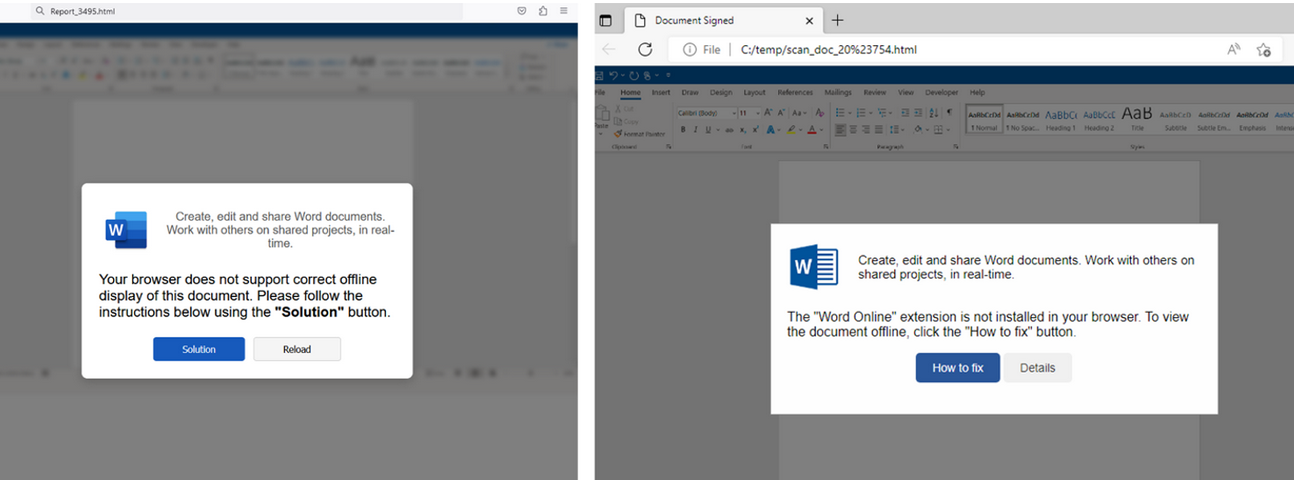
HTML files containing ClickFix instructions. Examples for attachments named “Report_” (on the left) and “scan_doc_” (on the right). Image: Proofpoint.
Organizations that wish to do so can take advantage of Microsoft Group Policy restrictions to prevent Windows from executing the “run” command when users hit the Windows key and the “R” key simultaneously.
Microsoft today unleashed updates to plug a whopping 161 security vulnerabilities in Windows and related software, including three “zero-day” weaknesses that are already under active attack. Redmond’s inaugural Patch Tuesday of 2025 bundles more fixes than the company has shipped in one go since 2017.
Rapid7‘s Adam Barnett says January marks the fourth consecutive month where Microsoft has published zero-day vulnerabilities on Patch Tuesday without evaluating any of them as critical severity at time of publication. Today also saw the publication of nine critical remote code execution (RCE) vulnerabilities.
The Microsoft flaws already seeing active attacks include CVE-2025-21333, CVE-2025-21334 and, you guessed it– CVE-2025-21335. These are sequential because all reside in Windows Hyper-V, a component that is heavily embedded in modern Windows 11 operating systems and used for security features including device guard and credential guard.
Tenable’s Satnam Narang says little is known about the in-the-wild exploitation of these flaws, apart from the fact that they are all “privilege escalation” vulnerabilities. Narang said we tend to see a lot of elevation of privilege bugs exploited in the wild as zero-days in Patch Tuesday because it’s not always initial access to a system that’s a challenge for attackers as they have various avenues in their pursuit.
“As elevation of privilege bugs, they’re being used as part of post-compromise activity, where an attacker has already accessed a target system,” he said. “It’s kind of like if an attacker is able to enter a secure building, they’re unable to access more secure parts of the facility because they have to prove that they have clearance. In this case, they’re able to trick the system into believing they should have clearance.”
Several bugs addressed today earned CVSS (threat rating) scores of 9.8 out of a possible 10, including CVE-2025-21298, a weakness in Windows that could allow attackers to run arbitrary code by getting a target to open a malicious .rtf file, documents typically opened on Office applications like Microsoft Word. Microsoft has rated this flaw “exploitation more likely.”
Ben Hopkins at Immersive Labs called attention to the CVE-2025-21311, a 9.8 “critical” bug in Windows NTLMv1 (NT LAN Manager version 1), an older Microsoft authentication protocol that is still used by many organizations.
“What makes this vulnerability so impactful is the fact that it is remotely exploitable, so attackers can reach the compromised machine(s) over the internet, and the attacker does not need significant knowledge or skills to achieve repeatable success with the same payload across any vulnerable component,” Hopkins wrote.
Kev Breen at Immersive points to an interesting flaw (CVE-2025-21210) that Microsoft fixed in its full disk encryption suite Bitlocker that the software giant has dubbed “exploitation more likely.” Specifically, this bug holds out the possibility that in some situations the hibernation image created when one closes the laptop lid on an open Windows session may not be fully encrypted and could be recovered in plain text.
“Hibernation images are used when a laptop goes to sleep and contains the contents that were stored in RAM at the moment the device powered down,” Breen noted. “This presents a significant potential impact as RAM can contain sensitive data (such as passwords, credentials and PII) that may have been in open documents or browser sessions and can all be recovered with free tools from hibernation files.”
Tenable’s Narang also highlighted a trio of vulnerabilities in Microsoft Access fixed this month and credited to Unpatched.ai, a security research effort that is aided by artificial intelligence looking for vulnerabilities in code. Tracked as CVE-2025-21186, CVE-2025-21366, and CVE-2025-21395, these are remote code execution bugs that are exploitable if an attacker convinces a target to download and run a malicious file through social engineering. Unpatched.ai was also credited with discovering a flaw in the December 2024 Patch Tuesday release (CVE-2024-49142).
“Automated vulnerability detection using AI has garnered a lot of attention recently, so it’s noteworthy to see this service being credited with finding bugs in Microsoft products,” Narang observed. “It may be the first of many in 2025.”
If you’re a Windows user who has automatic updates turned off and haven’t updated in a while, it’s probably time to play catch up. Please consider backing up important files and/or the entire hard drive before updating. And if you run into any problems installing this month’s patch batch, drop a line in the comments below, please.
Further reading on today’s patches from Microsoft:
Article tags
Microsoft today released updates to plug at least 70 security holes in Windows and Windows software, including one vulnerability that is already being exploited in active attacks.
The zero-day seeing exploitation involves CVE-2024-49138, a security weakness in the Windows Common Log File System (CLFS) driver — used by applications to write transaction logs — that could let an authenticated attacker gain “system” level privileges on a vulnerable Windows device.
The security firm Rapid7 notes there have been a series of zero-day elevation of privilege flaws in CLFS over the past few years.
“Ransomware authors who have abused previous CLFS vulnerabilities will be only too pleased to get their hands on a fresh one,” wrote Adam Barnett, lead software engineer at Rapid7. “Expect more CLFS zero-day vulnerabilities to emerge in the future, at least until Microsoft performs a full replacement of the aging CLFS codebase instead of offering spot fixes for specific flaws.”
Elevation of privilege vulnerabilities accounted for 29% of the 1,009 security bugs Microsoft has patched so far in 2024, according to a year-end tally by Tenable; nearly 40 percent of those bugs were weaknesses that could let attackers run malicious code on the vulnerable device.
Rob Reeves, principal security engineer at Immersive Labs, called special attention to CVE-2024-49112, a remote code execution flaw in the Lightweight Directory Access Protocol (LDAP) service on every version of Windows since Windows 7. CVE-2024-49112 has been assigned a CVSS (badness) score of 9.8 out of 10.
“LDAP is most commonly seen on servers that are Domain Controllers inside a Windows network and LDAP must be exposed to other servers and clients within an enterprise environment for the domain to function,” Reeves said. “Microsoft hasn’t released specific information about the vulnerability at present, but has indicated that the attack complexity is low and authentication is not required.”
Tyler Reguly at the security firm Fortra had a slightly different 2024 patch tally for Microsoft, at 1,088 vulnerabilities, which he said was surprisingly similar to the 1,063 vulnerabilities resolved in 2023 and the 1,119 vulnerabilities resolved in 2022.
“If nothing else, we can say that Microsoft is consistent,” Reguly said. “While it would be nice to see the number of vulnerabilities each year decreasing, at least consistency lets us know what to expect.”
If you’re a Windows end user and your system is not set up to automatically install updates, please take a minute this week to run Windows Update, preferably after backing up your system and/or important data.
System admins should keep an eye on AskWoody.com, which usually has the details if any of the Patch Tuesday fixes are causing problems. In the meantime, if you run into any problems applying this month’s fixes, please drop a note about in the comments below.
Microsoft today released security updates to fix at least 117 security holes in Windows computers and other software, including two vulnerabilities that are already seeing active attacks. Also, Adobe plugged 52 security holes across a range of products, and Apple has addressed a bug in its new macOS 15 “Sequoia” update that broke many cybersecurity tools.
One of the zero-day flaws — CVE-2024-43573 — stems from a security weakness in MSHTML, the proprietary engine of Microsoft’s Internet Explorer web browser. If that sounds familiar it’s because this is the fourth MSHTML vulnerability found to be exploited in the wild so far in 2024.
Nikolas Cemerikic, a cybersecurity engineer at Immersive Labs, said the vulnerability allows an attacker to trick users into viewing malicious web content, which could appear legitimate thanks to the way Windows handles certain web elements.
“Once a user is deceived into interacting with this content (typically through phishing attacks), the attacker can potentially gain unauthorized access to sensitive information or manipulate web-based services,” he said.
Cemerikic noted that while Internet Explorer is being retired on many platforms, its underlying MSHTML technology remains active and vulnerable.
“This creates a risk for employees using these older systems as part of their everyday work, especially if they are accessing sensitive data or performing financial transactions online,” he said.
Probably the more serious zero-day this month is CVE-2024-43572, a code execution bug in the Microsoft Management Console, a component of Windows that gives system administrators a way to configure and monitor the system.
Satnam Narang, senior staff research engineer at Tenable, observed that the patch for CVE-2024-43572 arrived a few months after researchers at Elastic Security Labs disclosed an attack technique called GrimResource that leveraged an old cross-site scripting (XSS) vulnerability combined with a specially crafted Microsoft Saved Console (MSC) file to gain code execution privileges.
“Although Microsoft patched a different MMC vulnerability in September (CVE-2024-38259) that was neither exploited in the wild nor publicly disclosed,” Narang said. “Since the discovery of CVE-2024-43572, Microsoft now prevents untrusted MSC files from being opened on a system.”
Microsoft also patched Office, Azure, .NET, OpenSSH for Windows; Power BI; Windows Hyper-V; Windows Mobile Broadband, and Visual Studio. As usual, the SANS Internet Storm Center has a list of all Microsoft patches released today, indexed by severity and exploitability.
Late last month, Apple rolled out macOS 15, an operating system update called Sequoia that broke the functionality of security tools made by a number of vendors, including CrowdStrike, SentinelOne and Microsoft. On Oct. 7, Apple pushed an update to Sequoia users that addresses these compatibility issues.
Finally, Adobe has released security updates to plug a total of 52 vulnerabilities in a range of software, including Adobe Substance 3D Painter, Commerce, Dimension, Animate, Lightroom, InCopy, InDesign, Substance 3D Stager, and Adobe FrameMaker.
Please consider backing up important data before applying any updates. Zero-days aside, there’s generally little harm in waiting a few days to apply any pending patches, because not infrequently a security update introduces stability or compatibility issues. AskWoody.com usually has the skinny on any problematic patches.
And as always, if you run into any glitches after installing patches, leave a note in the comments; chances are someone else is stuck with the same issue and may have even found a solution.
Article tags
Microsoft today released updates to fix at least 90 security vulnerabilities in Windows and related software, including a whopping six zero-day flaws that are already being actively exploited by attackers.
Image: Shutterstock.
This month’s bundle of update joy from Redmond includes patches for security holes in Office, .NET, Visual Studio, Azure, Co-Pilot, Microsoft Dynamics, Teams, Secure Boot, and of course Windows itself. Of the six zero-day weaknesses Microsoft addressed this month, half are local privilege escalation vulnerabilities — meaning they are primarily useful for attackers when combined with other flaws or access.
CVE-2024-38106, CVE-2024-38107 and CVE-2024-38193 all allow an attacker to gain SYSTEM level privileges on a vulnerable machine, although the vulnerabilities reside in different parts of the Windows operating system.
Microsoft’s advisories include little information about the last two privilege escalation flaws, other than to note they are being actively exploited. Microsoft says CVE-2024-38106 exists in the Windows Kernel and is being actively exploited, but that it has a high “attack complexity,” meaning it can be tricky for malware or miscreants to exploit reliably.
“Microsoft lists exploit complexity as high due to the attacker needing to win a race condition,” Trend Micro’s ZeroDay Initiative (ZDI) noted. “However, some races are easier to run than others. It’s times like this where the CVSS can be misleading. Race conditions do lead to complexity high in the CVSS score, but with attacks in the wild, it’s clear this bug is readily exploitable.”
Another zero-day this month is CVE-2024-38178, a remote code execution flaw that exists when the built-in Windows Edge browser is operating in “Internet Explorer Mode.” IE mode is not on by default in Edge, but it can be enabled to work with older websites or applications that aren’t supported by modern Chromium-based browsers.
“While this is not the default mode for most users, this exploit being actively exploited suggests that there are occasions in which the attacker can set this or has identified an organization (or user) that has this configuration,” wrote Kev Breen, senior director of threat research at Immersive Labs.
CVE-2024-38213 is a zero-day flaw that allows malware to bypass the “Mark of the Web,” a security feature in Windows that marks files downloaded from the Internet as untrusted (this Windows Smartscreen feature is responsible for the “Windows protected your PC” popup that appears when opening files downloaded from the Web).
“This vulnerability is not exploitable on its own and is typically seen as part of an exploit chain, for example, modifying a malicious document or exe file to include this bypass before sending the file via email or distributing on compromised websites,” Breen said.
The final zero-day this month is CVE-2024-38189, a remote code execution flaw in Microsoft Project. However, Microsoft and multiple security firms point out that this vulnerability only works on customers who have already disabled notifications about the security risks of running VBA Macros in Microsoft Project (not the best idea, as malware has a long history of hiding within malicious Office Macros).
Separately, Adobe today released 11 security bulletins addressing at least 71 security vulnerabilities across a range of products, including Adobe Illustrator, Dimension, Photoshop, InDesign, Acrobat and Reader, Bridge, Substance 3D Stager, Commerce, InCopy, and Substance 3D Sampler/Substance 3D Designer. Adobe says it is not aware of active exploitation against any of the flaws it fixed this week.
It’s a good idea for Windows users to stay current with security updates from Microsoft, which can quickly pile up otherwise. That doesn’t mean you have to install them on Patch Tuesday each month. Indeed, waiting a day or three before updating is a sane response, given that sometimes updates go awry and usually within a few days Microsoft has fixed any issues with its patches. It’s also smart to back up your data and/or image your Windows drive before applying new updates.
For a more detailed breakdown of the individual flaws addressed by Microsoft today, check out the SANS Internet Storm Center’s list. For those admins responsible for maintaining larger Windows environments, it pays to keep an eye on Askwoody.com, which frequently points out when specific Microsoft updates are creating problems for a number of users.
If your PC runs on Windows 10, you’re in very good company. The Microsoft operating system is the most widely used OS in the world.
However, the rollout to Windows 11 began in 2021, with Windows 10’s support lifecycle ending on October 14, 2025. After this date, Microsoft will stop providing free security updates, technical support, or software updates for Windows 10. If you are a Windows 10 user, this means you will need to upgrade to the newer OS or purchase extended security updates to continue using the old OS securely.
Unfortunately, its success as a widely used operating system makes Windows attractive to hackers. If malicious software could make a home in Windows, a lot of targets would ask how best to protect your Windows 10 or 11 device. Should you just use Windows Security — Microsoft’s free version of antivirus software — or buy additional protection?
Read on to learn what Microsoft Security covers and how additional virus protection can secure all of your connected devices.
Windows Defender is a free antivirus tool that’s built into the Windows operating system. Initially released as an anti-spyware program for Windows XP and Windows Server 2003, it became a full antivirus program with Windows 8 in 2012.
Today, Windows Defender antivirus is part of the Windows Security suite, which offers a comprehensive solution that includes Windows Firewall and Smart App Control for real-time protection against threats. While it’s considered one of the best free antivirus software programs, Windows Defender doesn’t have any extra features that might come with paid security software. If you’re just looking for good antivirus software, it can get the job done.
If you’re not using third-party antivirus protection, you’ll want to make sure that your Windows Defender antivirus coverage is working on your computer. Here’s how to check:
To make sure your Windows Security is running, follow these steps:
Windows Defender is a convenient and cost-effective way to protect your Microsoft device from viruses. With features like real-time protection, firewall integration, and cloud-based threat detection, it provides a solid baseline of security for your computer. This overview explores what Windows Defender does well and where it falls short:
While Windows Defender has vastly improved, it still has some limitations compared to other comprehensive security and antivirus suites.
While Windows Security and Windows Defender offer robust baseline malware protection, modern digital threats go far beyond simple viruses. To stay truly safe, you need to look at the bigger picture of online security. This is where a comprehensive security suite offers significant advantages over a standalone antivirus tool.
Here’s a quick comparison between the built-in Windows Defender and what a full-featured security suite offers:
| Feature | Windows Defender | Comprehensive Suites |
| Antivirus & malware protection | Yes (strong baseline) | Yes (advanced) |
| Firewall | Yes | Yes (advanced, customizable) |
| Secure VPN | No | Yes |
| Identity monitoring | No | Yes |
| Cross-device protection (Mac, Android, iOS) | No | Yes |
| Password manager | Limited (browser-based) | Yes (secure, cross-device) |
| Web protection | Yes (Edge browser) | Yes (all browsers) |
Cybercriminals constantly develop new malware, sophisticated phishing scams, elaborate ruses and zero-day exploits that target your behavior—like tricking you into clicking a malicious link, downloading a compromised file, or giving your personal information such as your bank and credit card numbers. Some scams even target your devices with risky apps or links on social media.
As thousands of new threat variants are discovered daily, having dedicated and up-to-date virus protection for Windows 11 is essential for comprehensive security. Ultimately, you don’t need to disable Windows Defender’s firewall, but adding a comprehensive security suite provides crucial layers of protection against phishing, identity theft, and unsecured Wi-Fi that are essential for staying safe online today. Having another antivirus program can make sure you have real-time protection and access to the latest security features. Better to be safe than sorry!
From Windows 10, the upgraded Windows 11 introduces significant security enhancements, thanks to a more robust security architecture that applies stricter hardware requirements. Mandatory features such as Trusted Platform Module (TPM) 2.0, Virtualization-Based Security (VBS), and Secure Boot create a much stronger “secure-by-default” defense against attacks that target the boot process and system integrity.
However, this enhanced baseline security does not eliminate the need for more diligent protection. The vast majority of cyberattacks target the user, not the hardware. Cybercriminals still employ phishing emails, malicious downloads, and insecure websites to compromise your device, regardless of the operating system’s strength. While it’s true that Windows 11 has made great strides in security, the threat landscape has evolved even faster. Installing a multi-layered security solution remains a critical tool for proactively protecting your personal data and online activities.
In Windows 11, you can augment the built-in Windows Defender with a free antivirus option, but it’s important to understand the trade-offs. Free antivirus solutions typically offer only basic malware protection and lack crucial features that are standard in paid suites, such as a secure VPN, identity monitoring services, advanced phishing protection, a password manager, and dedicated customer support. Some free software may also collect and sell your browsing data to third parties to generate revenue.
While free is tempting, investing in a paid suite with total protection provides peace of mind, knowing that all aspects of your digital life—from your device security to your personal identity and online privacy—are actively protected by an integrated, powerful solution.
Using Microsoft’s built-in antivirus software can protect your Windows devices from viruses and malware. Follow these basic Windows Defender management steps:
In most cases, you can retain your third-party antivirus when you move to Windows 11. Reputable antivirus providers ensure their software is fully compatible with new operating system releases. Before you upgrade to Windows 11, ensure your antivirus software is updated to the latest version. Your subscription should carry over to the new OS seamlessly.
The benefit of using a cross-platform security suite is that your license and protection extend beyond a single OS version. Whether you’re on Windows 10, Windows 11, a Mac, or a mobile device, your protection remains active and managed from a single account, avoiding the hassle of finding new software or purchasing new licenses every time you upgrade or change devices.
Windows Defender provides a solid starting point of security for your computer, but it is good to reinforce that capability with a comprehensive solution. Antivirus protection programs available in the market today aren’t all created equal. When looking for the best antivirus software for your needs, here are some things to consider for your devices running on Windows 11.
Today’s cybercriminals are relentlessly creating new threats every day to steal your identity, money, and personal data. Thinking of antivirus as just for viruses is outdated; modern security suites are about total digital wellness. McAfee+ was developed with an understanding of how cybercriminals operate. Our all-in-one protection includes:
Whether you’re using Windows 10 or the latest Windows 11, the built-in Microsoft Defender provides a good starting point for your device’s security. However, an antivirus is just one layer of security. To be truly protected from the full spectrum of today’s online threats, you need a more comprehensive approach. Adding a trusted security suite gains you layers of protection for your identity, privacy, and data that go far beyond basic antivirus defense.
When you install a third-party antivirus like McAfee Total Protection, it seamlessly takes over as the primary real-time protection provider, while Windows Defender can remain available for periodic scans, ensuring there are no conflicts. To check your security status, simply navigate to Windows Security > Virus & threat protection to see which provider is active.
For complete peace of mind, comprehensive solutions like McAfee Total Protection add critical features like a VPN for online privacy, identity monitoring, and protection for all your devices, not just your Windows personal computer.
The post Does Windows 10 or 11 Need Antivirus Software? appeared first on McAfee Blog.
Microsoft Corp. today issued software updates to plug at least 139 security holes in various flavors of Windows and other Microsoft products. Redmond says attackers are already exploiting at least two of the vulnerabilities in active attacks against Windows users.
The first Microsoft zero-day this month is CVE-2024-38080, a bug in the Windows Hyper-V component that affects Windows 11 and Windows Server 2022 systems. CVE-2024-38080 allows an attacker to increase their account privileges on a Windows machine. Although Microsoft says this flaw is being exploited, it has offered scant details about its exploitation.
The other zero-day is CVE-2024-38112, which is a weakness in MSHTML, the proprietary engine of Microsoft’s Internet Explorer web browser. Kevin Breen, senior director of threat research at Immersive Labs, said exploitation of CVE-2024-38112 likely requires the use of an “attack chain” of exploits or programmatic changes on the target host, a la Microsoft’s description: “Successful exploitation of this vulnerability requires an attacker to take additional actions prior to exploitation to prepare the target environment.”
“Despite the lack of details given in the initial advisory, this vulnerability affects all hosts from Windows Server 2008 R2 onwards, including clients,” Breen said. “Due to active exploitation in the wild this one should be prioritized for patching.”
Satnam Narang, senior staff research engineer at Tenable, called special attention to CVE-2024-38021, a remote code execution flaw in Microsoft Office. Attacks on this weakness would lead to the disclosure of NTLM hashes, which could be leveraged as part of an NTLM relay or “pass the hash” attack, which lets an attacker masquerade as a legitimate user without ever having to log in.
“One of the more successful attack campaigns from 2023 used CVE-2023-23397, an elevation of privilege bug in Microsoft Outlook that could also leak NTLM hashes,” Narang said. “However, CVE-2024-38021 is limited by the fact that the Preview Pane is not an attack vector, which means that exploitation would not occur just by simply previewing the file.”
The security firm Morphisec, credited with reporting CVE-2024-38021 to Microsoft, said it respectfully disagrees with Microsoft’s “important” severity rating, arguing the Office flaw deserves a more dire “critical” rating given how easy it is for attackers to exploit.
“Their assessment differentiates between trusted and untrusted senders, noting that while the vulnerability is zero-click for trusted senders, it requires one click user interaction for untrusted senders,” Morphisec’s Michael Gorelik said in a blog post about their discovery. “This reassessment is crucial to reflect the true risk and ensure adequate attention and resources are allocated for mitigation.”
In last month’s Patch Tuesday, Microsoft fixed a flaw in its Windows WiFi driver that attackers could use to install malicious software just by sending a vulnerable Windows host a specially crafted data packet over a local network. Jason Kikta at Automox said this month’s CVE-2024-38053 — a security weakness in Windows Layer Two Bridge Network — is another local network “ping-of-death” vulnerability that should be a priority for road warriors to patch.
“This requires close access to a target,” Kikta said. “While that precludes a ransomware actor in Russia, it is something that is outside of most current threat models. This type of exploit works in places like shared office environments, hotels, convention centers, and anywhere else where unknown computers might be using the same physical link as you.”
Automox also highlighted three vulnerabilities in Windows Remote Desktop a service that allocates Client Access Licenses (CALs) when a client connects to a remote desktop host (CVE-2024-38077, CVE-2024-38074, and CVE-2024-38076). All three bugs have been assigned a CVSS score of 9.8 (out of 10) and indicate that a malicious packet could trigger the vulnerability.
Tyler Reguly at Fortra noted that today marks the End of Support date for SQL Server 2014, a platform that according to Shodan still has ~110,000 instances publicly available. On top of that, more than a quarter of all vulnerabilities Microsoft fixed this month are in SQL server.
“A lot of companies don’t update quickly, but this may leave them scrambling to update those environments to supported versions of MS-SQL,” Reguly said.
It’s a good idea for Windows end-users to stay current with security updates from Microsoft, which can quickly pile up otherwise. That doesn’t mean you have to install them on Patch Tuesday. Indeed, waiting a day or three before updating is a sane response, given that sometimes updates go awry and usually within a few days Microsoft has fixed any issues with its patches. It’s also smart to back up your data and/or image your Windows drive before applying new updates.
For a more detailed breakdown of the individual flaws addressed by Microsoft today, check out the SANS Internet Storm Center’s list. For those admins responsible for maintaining larger Windows environments, it often pays to keep an eye on Askwoody.com, which frequently points out when specific Microsoft updates are creating problems for a number of users.
As ever, if you experience any problems applying any of these updates, consider dropping a note about it in the comments; chances are decent someone else reading here has experienced the same issue, and maybe even has a solution.
Microsoft today released updates to fix more than 50 security vulnerabilities in Windows and related software, a relatively light Patch Tuesday this month for Windows users. The software giant also responded to a torrent of negative feedback on a new feature of Redmond’s flagship operating system that constantly takes screenshots of whatever users are doing on their computers, saying the feature would no longer be enabled by default.
Last month, Microsoft debuted Copilot+ PCs, an AI-enabled version of Windows. Copilot+ ships with a feature nobody asked for that Redmond has aptly dubbed Recall, which constantly takes screenshots of what the user is doing on their PC. Security experts roundly trashed Recall as a fancy keylogger, noting that it would be a gold mine of information for attackers if the user’s PC was compromised with malware.
Microsoft countered that Recall snapshots never leave the user’s system, and that even if attackers managed to hack a Copilot+ PC they would not be able to exfiltrate on-device Recall data. But that claim rang hollow after former Microsoft threat analyst Kevin Beaumont detailed on his blog how any user on the system (even a non-administrator) can export Recall data, which is just stored in an SQLite database locally.
“I’m not being hyperbolic when I say this is the dumbest cybersecurity move in a decade,” Beaumont said on Mastodon.
In a recent Risky Business podcast, host Patrick Gray noted that the screenshots created and indexed by Recall would be a boon to any attacker who suddenly finds himself in an unfamiliar environment.
“The first thing you want to do when you get on a machine if you’re up to no good is to figure out how someone did their job,” Gray said. “We saw that in the case of the SWIFT attacks against central banks years ago. Attackers had to do screen recordings to figure out how transfers work. And this could speed up that sort of discovery process.”
Responding to the withering criticism of Recall, Microsoft said last week that it will no longer be enabled by default on Copilot+ PCs.
Only one of the patches released today — CVE-2024-30080 — earned Microsoft’s most urgent “critical” rating, meaning malware or malcontents could exploit the vulnerability to remotely seize control over a user’s system, without any user interaction.
CVE-2024-30080 is a flaw in the Microsoft Message Queuing (MSMQ) service that can allow attackers to execute code of their choosing. Microsoft says exploitation of this weakness is likely, enough to encourage users to disable the vulnerable component if updating isn’t possible in the short run. CVE-2024-30080 has been assigned a CVSS vulnerability score of 9.8 (10 is the worst).
Kevin Breen, senior director of threat research at Immersive Labs, said a saving grace is that MSMQ is not a default service on Windows.
“A Shodan search for MSMQ reveals there are a few thousand potentially internet-facing MSSQ servers that could be vulnerable to zero-day attacks if not patched quickly,” Breen said.
CVE-2024-30078 is a remote code execution weakness in the Windows WiFi Driver, which also has a CVSS score of 9.8. According to Microsoft, an unauthenticated attacker could exploit this bug by sending a malicious data packet to anyone else on the same network — meaning this flaw assumes the attacker has access to the local network.
Microsoft also fixed a number of serious security issues with its Office applications, including at least two remote-code execution flaws, said Adam Barnett, lead software engineer at Rapid7.
“CVE-2024-30101 is a vulnerability in Outlook; although the Preview Pane is a vector, the user must subsequently perform unspecified specific actions to trigger the vulnerability and the attacker must win a race condition,” Barnett said. “CVE-2024-30104 does not have the Preview Pane as a vector, but nevertheless ends up with a slightly higher CVSS base score of 7.8, since exploitation relies solely on the user opening a malicious file.”
Separately, Adobe released security updates for Acrobat, ColdFusion, and Photoshop, among others.
As usual, the SANS Internet Storm Center has the skinny on the individual patches released today, indexed by severity, exploitability and urgency. Windows admins should also keep an eye on AskWoody.com, which often publishes early reports of any Windows patches gone awry.
If only Patch Tuesdays came around infrequently — like total solar eclipse rare — instead of just creeping up on us each month like The Man in the Moon. Although to be fair, it would be tough for Microsoft to eclipse the number of vulnerabilities fixed in this month’s patch batch — a record 147 flaws in Windows and related software.
Yes, you read that right. Microsoft today released updates to address 147 security holes in Windows, Office, Azure, .NET Framework, Visual Studio, SQL Server, DNS Server, Windows Defender, Bitlocker, and Windows Secure Boot.
“This is the largest release from Microsoft this year and the largest since at least 2017,” said Dustin Childs, from Trend Micro’s Zero Day Initiative (ZDI). “As far as I can tell, it’s the largest Patch Tuesday release from Microsoft of all time.”
Tempering the sheer volume of this month’s patches is the middling severity of many of the bugs. Only three of April’s vulnerabilities earned Microsoft’s most-dire “critical” rating, meaning they can be abused by malware or malcontents to take remote control over unpatched systems with no help from users.
Most of the flaws that Microsoft deems “more likely to be exploited” this month are marked as “important,” which usually involve bugs that require a bit more user interaction (social engineering) but which nevertheless can result in system security bypass, compromise, and the theft of critical assets.
Ben McCarthy, lead cyber security engineer at Immersive Labs called attention to CVE-2024-20670, an Outlook for Windows spoofing vulnerability described as being easy to exploit. It involves convincing a user to click on a malicious link in an email, which can then steal the user’s password hash and authenticate as the user in another Microsoft service.
Another interesting bug McCarthy pointed to is CVE-2024-29063, which involves hard-coded credentials in Azure’s search backend infrastructure that could be gleaned by taking advantage of Azure AI search.
“This along with many other AI attacks in recent news shows a potential new attack surface that we are just learning how to mitigate against,” McCarthy said. “Microsoft has updated their backend and notified any customers who have been affected by the credential leakage.”
CVE-2024-29988 is a weakness that allows attackers to bypass Windows SmartScreen, a technology Microsoft designed to provide additional protections for end users against phishing and malware attacks. Childs said one of ZDI’s researchers found this vulnerability being exploited in the wild, although Microsoft doesn’t currently list CVE-2024-29988 as being exploited.
“I would treat this as in the wild until Microsoft clarifies,” Childs said. “The bug itself acts much like CVE-2024-21412 – a [zero-day threat from February] that bypassed the Mark of the Web feature and allows malware to execute on a target system. Threat actors are sending exploits in a zipped file to evade EDR/NDR detection and then using this bug (and others) to bypass Mark of the Web.”
Update, 7:46 p.m. ET: A previous version of this story said there were no zero-day vulnerabilities fixed this month. BleepingComputer reports that Microsoft has since confirmed that there are actually two zero-days. One is the flaw Childs just mentioned (CVE-2024-21412), and the other is CVE-2024-26234, described as a “proxy driver spoofing” weakness.
Satnam Narang at Tenable notes that this month’s release includes fixes for two dozen flaws in Windows Secure Boot, the majority of which are considered “Exploitation Less Likely” according to Microsoft.
“However, the last time Microsoft patched a flaw in Windows Secure Boot in May 2023 had a notable impact as it was exploited in the wild and linked to the BlackLotus UEFI bootkit, which was sold on dark web forums for $5,000,” Narang said. “BlackLotus can bypass functionality called secure boot, which is designed to block malware from being able to load when booting up. While none of these Secure Boot vulnerabilities addressed this month were exploited in the wild, they serve as a reminder that flaws in Secure Boot persist, and we could see more malicious activity related to Secure Boot in the future.”
For links to individual security advisories indexed by severity, check out ZDI’s blog and the Patch Tuesday post from the SANS Internet Storm Center. Please consider backing up your data or your drive before updating, and drop a note in the comments here if you experience any issues applying these fixes.
Adobe today released nine patches tackling at least two dozen vulnerabilities in a range of software products, including Adobe After Effects, Photoshop, Commerce, InDesign, Experience Manager, Media Encoder, Bridge, Illustrator, and Adobe Animate.
KrebsOnSecurity needs to correct the record on a point mentioned at the end of March’s “Fat Patch Tuesday” post, which looked at new AI capabilities built into Adobe Acrobat that are turned on by default. Adobe has since clarified that its apps won’t use AI to auto-scan your documents, as the original language in its FAQ suggested.
“In practice, no document scanning or analysis occurs unless a user actively engages with the AI features by agreeing to the terms, opening a document, and selecting the AI Assistant or generative summary buttons for that specific document,” Adobe said earlier this month.
Article tags
Microsoft Corp. today pushed software updates to plug more than 70 security holes in its Windows operating systems and related products, including two zero-day vulnerabilities that are already being exploited in active attacks.
Top of the heap on this Fat Patch Tuesday is CVE-2024-21412, a “security feature bypass” in the way Windows handles Internet Shortcut Files that Microsoft says is being targeted in active exploits. Redmond’s advisory for this bug says an attacker would need to convince or trick a user into opening a malicious shortcut file.
Researchers at Trend Micro have tied the ongoing exploitation of CVE-2024-21412 to an advanced persistent threat group dubbed “Water Hydra,” which they say has being using the vulnerability to execute a malicious Microsoft Installer File (.msi) that in turn unloads a remote access trojan (RAT) onto infected Windows systems.
The other zero-day flaw is CVE-2024-21351, another security feature bypass — this one in the built-in Windows SmartScreen component that tries to screen out potentially malicious files downloaded from the Web. Kevin Breen at Immersive Labs says it’s important to note that this vulnerability alone is not enough for an attacker to compromise a user’s workstation, and instead would likely be used in conjunction with something like a spear phishing attack that delivers a malicious file.
Satnam Narang, senior staff research engineer at Tenable, said this is the fifth vulnerability in Windows SmartScreen patched since 2022 and all five have been exploited in the wild as zero-days. They include CVE-2022-44698 in December 2022, CVE-2023-24880 in March 2023, CVE-2023-32049 in July 2023 and CVE-2023-36025 in November 2023.
Narang called special attention to CVE-2024-21410, an “elevation of privilege” bug in Microsoft Exchange Server that Microsoft says is likely to be exploited by attackers. Attacks on this flaw would lead to the disclosure of NTLM hashes, which could be leveraged as part of an NTLM relay or “pass the hash” attack, which lets an attacker masquerade as a legitimate user without ever having to log in.
“We know that flaws that can disclose sensitive information like NTLM hashes are very valuable to attackers,” Narang said. “A Russian-based threat actor leveraged a similar vulnerability to carry out attacks – CVE-2023-23397 is an Elevation of Privilege vulnerability in Microsoft Outlook patched in March 2023.”
Microsoft notes that prior to its Exchange Server 2019 Cumulative Update 14 (CU14), a security feature called Extended Protection for Authentication (EPA), which provides NTLM credential relay protections, was not enabled by default.
“Going forward, CU14 enables this by default on Exchange servers, which is why it is important to upgrade,” Narang said.
Rapid7’s lead software engineer Adam Barnett highlighted CVE-2024-21413, a critical remote code execution bug in Microsoft Office that could be exploited just by viewing a specially-crafted message in the Outlook Preview pane.
“Microsoft Office typically shields users from a variety of attacks by opening files with Mark of the Web in Protected View, which means Office will render the document without fetching potentially malicious external resources,” Barnett said. “CVE-2024-21413 is a critical RCE vulnerability in Office which allows an attacker to cause a file to open in editing mode as though the user had agreed to trust the file.”
Barnett stressed that administrators responsible for Office 2016 installations who apply patches outside of Microsoft Update should note the advisory lists no fewer than five separate patches which must be installed to achieve remediation of CVE-2024-21413; individual update knowledge base (KB) articles further note that partially-patched Office installations will be blocked from starting until the correct combination of patches has been installed.
It’s a good idea for Windows end-users to stay current with security updates from Microsoft, which can quickly pile up otherwise. That doesn’t mean you have to install them on Patch Tuesday. Indeed, waiting a day or three before updating is a sane response, given that sometimes updates go awry and usually within a few days Microsoft has fixed any issues with its patches. It’s also smart to back up your data and/or image your Windows drive before applying new updates.
For a more detailed breakdown of the individual flaws addressed by Microsoft today, check out the SANS Internet Storm Center’s list. For those admins responsible for maintaining larger Windows environments, it often pays to keep an eye on Askwoody.com, which frequently points out when specific Microsoft updates are creating problems for a number of users.
apple-1200


 FreshRSS