Reading view

Tax Scams Hit Nearly 1 in 4 Adults. Spot the Red Flags
John C. isn’t the person you picture getting scammed. 

He’s 36. He’s tech-savvy. He’s a mechanical engineer leading a team at a national energy lab in Denver. And he told us his story for one reason: “Scammers will target anyone.” 

It began with a phone call from someone claiming to be the IRS. They said John had underpaid his taxes and needed to resolve it quickly. The caller sounded polished and convincing, so convincing that John didn’t stop to question it. 

“I thought maybe they sent back too much money [in my refund], and they needed it back,” he said. “I was just so busy and overwhelmed that I never really stopped to think about the situation.” 

A follow-up email arrived with IRS logos, clean formatting, and a big payment button. John was trying to move fast between classes as he finished up his PhD, and he wanted to correct the situation as quickly as possible. 

“I was like, let me just hurry up and do this, get it over with.” 

He clicked. He paid. But later, when he checked his statement, he saw the charge didn’t look like an IRS payment at all. In fact, it was an international charge. The whole thing was a scam. 

John said the scammer on the phone had appealed to his emotions and been incredibly convincing.  

“It was absolutely masterful,” John said. “I would give him an Oscar for it. 

And new McAfee research shows John isn’t alone, with nearly 1 in 4 (23%) US adults surveyed revealing they’ve lost money to a tax scam.  
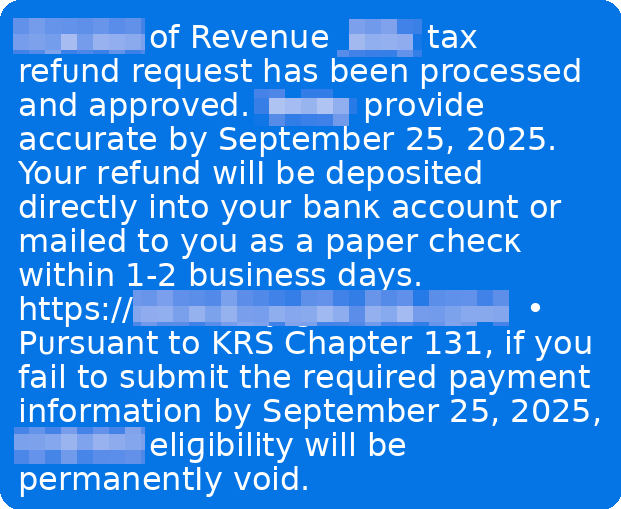
Example of a tax scam text message

Key findings from McAfee’s 2026 Tax Season Survey 

Here’s what our January 2026 survey of 3,008 U.S. adults found: 

The big picture: lots of worry, not enough confidence 

  • 82% of Americans say they’re concerned about tax fraud this season. 
  • 67% say they’re seeing the same or more tax scam messages than last year. 
  • 40% say tax scam messages are more sophisticated than last year. 
  • 84% are concerned about AI making tax scams more realistic. 
  • Only 29% say they’re very confident they could spot a deepfake tax scam. 

How often scams are reaching people 

  • 34% say they’ve been contacted by someone claiming to be the IRS or another tax authority (phone, text, or email). 
  • 38% say they’ve been asked to click a link or send payment related to a “tax issue.” 
  • Common asks include SSNs (15%), birth dates (11%), addresses (10%), “you owe back taxes” pressure (9%), and banking details (8%). 

Who is getting hit hardest 

  • Nearly 1 in 4 Americans (23%) say they’ve fallen for a tax scam. 
  • Young adults report the highest exposure: 42% of 18–24-year-olds say they’ve fallen for at least one tax scam. 
  • 11% of Americans report tax-related identity theft, rising to 17% among ages 25–34. 

The money is real 

  • Among people who say they’ve fallen for a tax scam, the average loss is $1,020. 
  • Separately, nearly 1 in 5 Americans say they’ve lost money to a tax scam. 

Tax filing is increasingly digital (and that changes the risk) 

  • 55% say they file taxes online (software or IRS Free File). 
  • 75% say they receive refunds or pay taxes electronically (direct deposit, cards, apps, EFTPS, etc.). 
  • 30% say they plan to use an AI tool (like ChatGPT) to help prepare taxes, especially younger adults. This is highly dangerous, even with platform security protections. For example, if an AI tool were compromised in a data breach, user messages with personal tax information (like social security numbers, home address, and more) could be made public.  

Tax Scams Now Hit Year-Round, McAfee Labs Finds 

In addition to our consumer survey findings, McAfee Labs analyzed malicious URLs, apps, texts, and emails in the months leading up to filing season. 

The major takeaway: tax scams don’t wait for April. 

Scam activity began climbing as early as November and has again continued building steadily into 2026. 

Between September 1, 2025, and February 19, 2026, McAfee Labs identified 1,468 malicious or suspicious tax-themed unique domains, an average of 43 new fake tax websites every day. 

In early November 2025 alone, the average number of new tax-themed malicious domains nearly doubled in just over a week. After a brief dip in late December, activity resumed climbing into February, a pattern we expect to intensify as the April filing deadline approaches. 
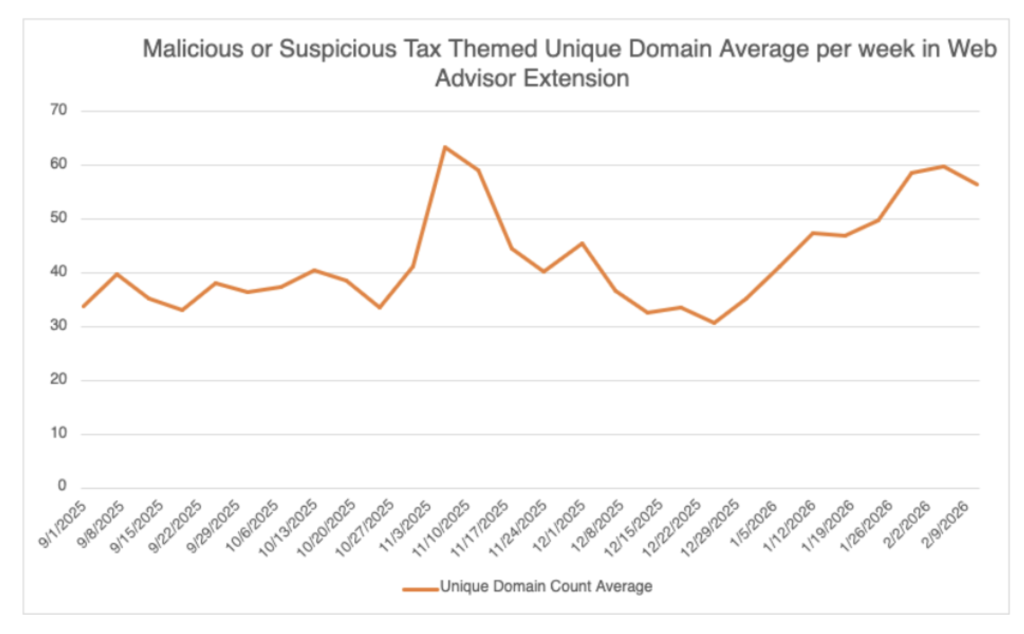
a chart showing the malicious domains blocked by McAfee's web advisor
A chart showing the unique, malicious domains detected by McAfee’s Web Advisor


Fake IRS Websites Are A Major Threat 

Scammers are rapidly creating lookalike IRS domains that mimic official government URLs.  

They use small changes, extra letters, added words, subtle misspellings, to trick taxpayers into believing they’re on a legitimate IRS site. 

Examples include domains that insert additional text around “irs.gov” or add misleading subdomains designed to pass a quick glance. 

These fake portals are used to: 

  • Steal login credentials 
  • Harvest Social Security numbers and tax IDs 
  • Capture payment details 
  • Charge bogus “processing fees” 

In some cases, these sites don’t just steal, they overcharge. 

McAfee Labs observed scam services offering to file for an EIN (Employer Identification Number), something the IRS provides for free, and charging as much as $319 for it. 
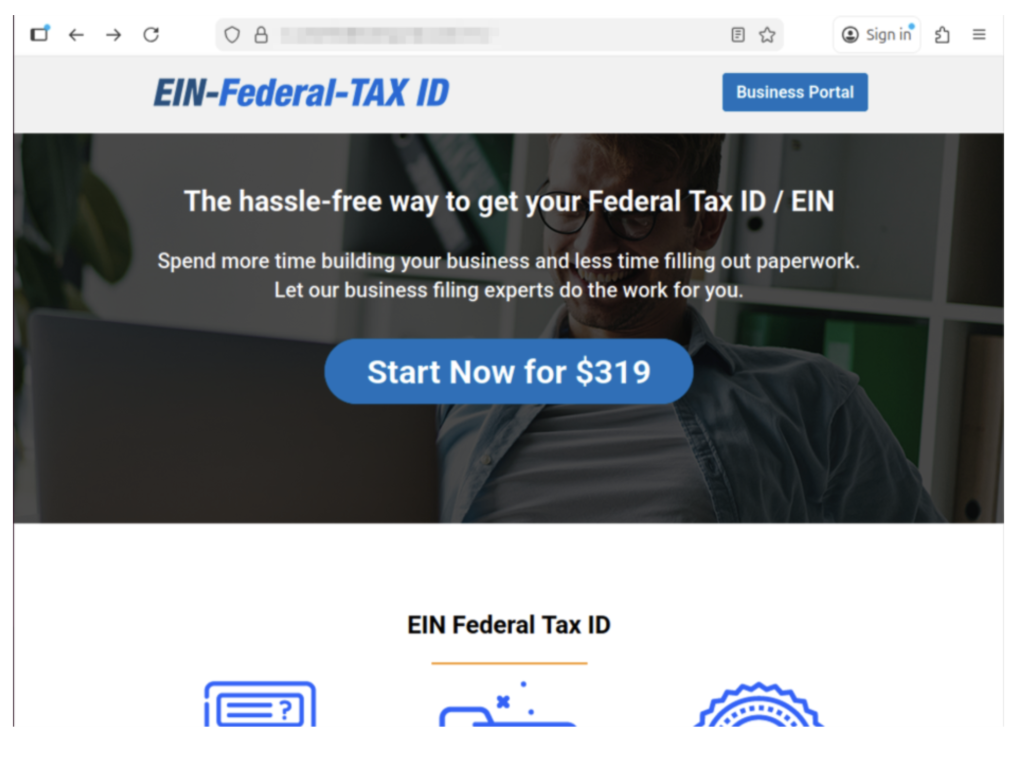
Example of a scam website we found charging for an EIN.

Example of a scam website we found charging for an EIN. 

The official IRS website explicitly warns: you never have to pay a fee to obtain an EIN. 

Other scam sites misuse legitimate policy terms, like the “Fresh Start Initiative,” to harvest personal data and enroll victims in aggressive robocall and marketing campaigns. 

Tax scams don’t always steal outright. Sometimes they monetize confusion. 
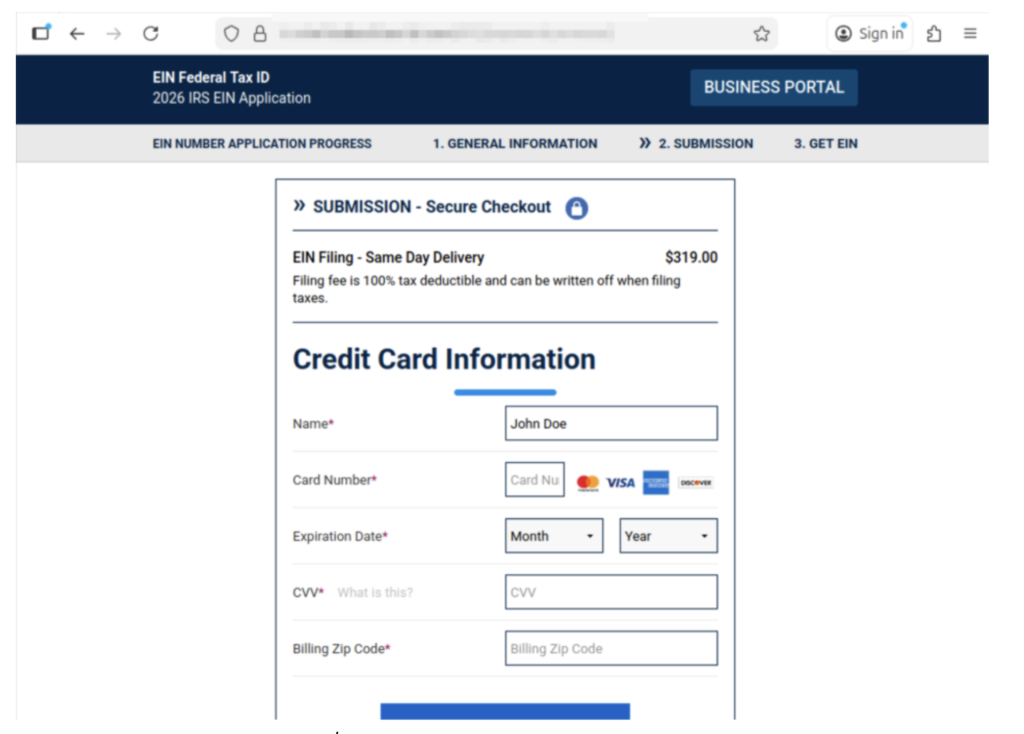
Here it shows them charging $319 for an EIN, and collecting their personal information.

How a Typical Tax Scam Unfolds 

Most tax scams aren’t one single message. They’re a sequence, designed to make you panic, click, and comply. 

Below is the common playbook, plus the red flags that show up repeatedly. 

*Note: Scammers may swap the details like AI voice, fake IRS videos, cloned websites, or impersonating tax software, but the pattern stays familiar. 

Step  What happens  Red flags you’ll see at this step  Red flags that are true every time  What to do instead 
1) The hook  You get a call, text, or email claiming there’s a tax issue (refund problem, underpayment, verification needed).  Message arrives out of nowhere, often during busy hours; “final notice” language; spoofed caller ID.  Unexpected contact + urgency.  Don’t engage. Pause. Go directly to IRS.gov or your tax provider’s official site (type it in). 
2) The authority move  They lean hard on being “the IRS” or “state tax authority,” sometimes with personal details.  They sound polished; may use AI voice cloning; may cite a “case number.” Fake or meaningless case numbers are very common.  They want you to trust the title, not verify the source.  Ask for written notice and time. Real tax issues can be verified through official channels. 
3) The link  They send a link to a “secure portal” or “refund page.”  Lookalike website, subtle misspellings, weird domain, shortened link, email button that says “Pay Now.”  They’re trying to pull you off official channels.  Never click the link. Navigate to the real site yourself. If unsure, delete it. 
4) The data grab  The site (or “agent”) asks for SSN, banking info, login credentials, or details from a prior return.  Requests that are broader than needed; “verify identity” prompts; form fields that feel too invasive.  They want sensitive info fast.  Stop. Don’t type anything. If you already did, assume it’s compromised and act quickly (see next section). 
5) The payment push  They demand payment to “avoid penalties,” “release your refund,” or “resolve a mistake.”  Gift cards, crypto, wire transfers, payment apps; pressure to pay today; threats.  Urgency + unusual payment method.  The IRS does not demand immediate payment via text/social, and doesn’t require gift cards or crypto. Verify independently. 
6) The escalation  If you hesitate, they intensify: threats, “law enforcement,” or AI video/audio that “proves” it’s real.  Deepfake IRS video, intimidating language, “you’ll be arrested,” “your license will be revoked.”  Fear is the product.  Hang up. Save evidence. Talk to a trusted person. Contact official support through verified numbers. 
7) The aftermath  You realize it was a scam—often after noticing a strange charge or login activity.  Charges from odd merchants; new accounts; IRS account alerts; failed tax filing due to “duplicate return.”  Shame keeps people quiet—scammers count on that.  Report it and protect your identity right away. You’re not alone, and it’s not your fault. 

Key point: A message can look “official” and still be fake. AI is making scam language smoother and scams more believable. The safest habit is simple: slow down, and verify using official sources you navigate to yourself. 

What to do if you’ve been involved in a tax scam 

First: take a breath. Scams are designed to trick you, especially when you’re overwhelmed, rushed, or just trying to fix a problem quickly. 

John said it plainly: “Don’t be embarrassed. It does happen. It’s common… they will target anyone.” 

And he’s right. The most important thing is what you do next. 

1) Stop the bleeding: cut off contact 

  • Stop replying 
  • Don’t click anything else 
  • Don’t send more information or money 

2) Capture proof (before it disappears) 

Take screenshots and save: 

  • Phone numbers, email addresses, usernames 
  • The message content 
  • Links (don’t click them, just copy) 
  • Payment receipts and transaction IDs 

3) Lock down your accounts (especially email) 

If a scammer gets into your email, they can reset passwords for everything else. 

Do this today: 

  • Change your email password first, then banking/tax accounts 
  • Turn on two-factor authentication (2FA) 
  • If you reused passwords anywhere, change those too 

Important: If you clicked a suspicious link, downloaded a file, or gave someone remote access to your computer, make sure you use a different, trusted device (like your phone or another computer) to change passwords. Why? If a scammer installed malware or has access to your computer, they may be able to see all of your brand-new passwords as you’re making them. 

Tip: A password manager like McAfee’s can help you create strong, unique passwords quickly, without having to memorize them all. 

4) Check for identity theft signals 

Tax scams often turn into identity theft. Watch for: 

  • IRS notices about a return you didn’t file 
  • Trouble e-filing because a return was already submitted 
  • Alerts about a new IRS online account you didn’t create 

If you suspect tax-related identity theft: 

  • Consider filing an IRS identity theft report (commonly done with IRS Form 14039, Identity Theft Affidavit). 
  • Create or log into your IRS account periodically to review account activity (John now does this every few months). 

McAfee’s Identity Monitoring can help restore your sense of security and privacy online.  

5) Report it (even if you feel weird about it) 

Reporting helps you and helps stop the next person from getting hit. 

Common reporting options include: 

  • FTC report: Report scams and identity theft at the FTC’s reporting site. 
  • IRS phishing email: If you received a scam email posing as the IRS, you can forward it to phishing@irs.gov. 
  • Your bank or card provider: If you paid, contact them immediately. Even if recovery isn’t guaranteed, speed matters. 

6) Clean up your digital footprint 

Scammers don’t just use what you give them. They also use what they can look up. 

Removing your personal details from risky data broker sites can reduce how easily scammers can target you again. Tools like Personal Data Cleanup can help you identify where your information is exposed and guide removal. 

7) Add protection for the next attempt 

Tax season scams often come in waves, especially if scammers think your info is “good.” 

Helpful layers include: 

  • Web protection to warn you about risky links and lookalike sites before you enter info – get our free WebAdvisor download here 
  • Scam detection that can flag suspicious messages 
  • Identity monitoring to alert you if key personal info shows up in risky places 
  • Run a free antivirus scan to check your device for malware or unwanted programs (especially if you clicked a link or downloaded anything) 

The key takeaway 

Tax season creates the perfect storm: time pressure, sensitive data, and a lot of official-looking communication. 

Our research shows most people are worried, and for good reason. Scammers are getting more convincing, and AI is raising the bar on what “real” looks and sounds like. 

“Tell your friends, tell your family,” John said. “Everyone I know at some point has heard this story, and it might just prevent someone from losing… thousands of dollars.” 

If you remember just three things this season, make them these: 

  1. Pause before you click. 
  2. Verify through official channels you navigate to yourself. 
  3. If something happens, act quickly, and don’t blame yourself. 

The post Tax Scams Hit Nearly 1 in 4 Adults. Spot the Red Flags appeared first on McAfee Blog.

  •  

X (Twitter) Account Hacked: What to Do Right Now

X (formerly Twitter) hacks tend to hit fast. 

One minute you’re scrolling like normal. The next, your account is posting crypto promotions, sending spam DMs, or following hundreds of random accounts you’ve never heard of. Sometimes you don’t even notice until a friend asks why you’re suddenly “giving away” gift cards. 

If you use X for work, your personal brand, or your business, a takeover can do real damage quickly. And in many cases, the hacker isn’t just trying to cause chaos, they’re trying to use your account to scam your followers while you still look trustworthy. 

This guide walks you through exactly what to do if your X account has been hacked: how to spot the warning signs, how to regain access, and what to change immediately so it doesn’t happen again. 

If you’re still locked out after trying these steps, X also offers an official support form for hacked or compromised accounts. 

Signs Your X Account May Be Compromised 

X account takeovers don’t always start with a full lockout. Often, the first signs are strange activity you didn’t authorize. 

Watch for these red flags

Unexpected posts: Tweets you didn’t write, especially spam, crypto links, or promotions. 

Unusual DMs: Messages sent from your account that you don’t remember sending. 

Account behavior changes: Random follows, unfollows, blocks, or profile changes you didn’t approve. 

Security notifications: Alerts from X that your account may be compromised. 

Account info changed: Notifications that your email, phone number, or password was updated without your permission. 

Password suddenly stops working: You’re prompted to reset your password even though you didn’t request it. 

If any of these are happening, assume your account is compromised and start recovery steps immediately. 

What to Change Immediately If Your X Account Was Hacked 

If your X account was hacked, assume your login details may have been stolen. 

That means simply getting back into your account isn’t enough, you also need to update the passwords and settings attackers could still use. 

Here’s what to change right away: 

  • Change your X password 
  • Change the password for the email account connected to X 
  • Turn on two-factor authentication (2FA) 
  • Confirm your email address and phone number are correct 
  • Revoke access for any suspicious third-party apps 
  • Review X Pro / Teams access (if you use it) and remove unfamiliar users 
  • Update any other accounts that share the same password 
  • Delete unauthorized posts and DMs (once you regain control) 

If you suspect the hack started through malware or phishing, it’s also smart to update passwords for other sensitive accounts tied to your identity, like banking apps, payment apps, or your Apple/Google account. 

Using a password manager like McAfee’s can help you create strong, unique passwords for every account, and store them securely in one place. 

Step-by-Step: How to Recover a Hacked X Account 

X offers different recovery options depending on whether you can still log in. 

Step  What to Do  Why It Matters 
1. Change your password immediately (if you can still log in)  Go into your X account settings and update your password to something strong and unique.  This is the fastest way to cut off unauthorized access. 
2. Reset your password if you’re locked out  Use the “Forgot password” option on the login screen to start account recovery.  This can help you regain access even if the hacker changed your password. 
3. Secure your email account  Change your email password and enable 2FA. Make sure only you can access it.  If your email is compromised, the hacker can keep resetting your X account. 
4. Reverse suspicious email changes if possible  If you receive an email about an account email change, check for an option to undo it.  This may allow you to regain control before the hacker fully locks you out. 
5. Revoke third-party app access  While logged in, review connected apps and remove anything you don’t recognize.  Some takeovers happen through malicious apps, not direct password guessing. 
6. Revoke mobile app sessions if needed  If suspicious activity continues, revoke access for X mobile apps from your settings so they’re forced to re-authenticate.  X notes that password changes may not automatically log out mobile sessions. 
7. Update your password anywhere it’s saved  If you use trusted apps or services that store your X password, update it there too.  Repeated failed login attempts can temporarily lock your account. 
8. Turn on 2FA  Enable two-factor authentication as soon as you regain control.  This adds a strong layer of protection even if your password gets stolen again. 
9. Contact X support if you still can’t regain access  Submit X’s hacked/compromised account request form. Include your username and the last date you had access.  If self-recovery fails, support may be able to help restore access. 

If you’re still unable to log in after attempting recovery, visit X’s official hacked account support form for next steps. 

Watch for Phishing “X Support” Scams 

One of the most common ways X accounts get hacked is through phishing. 

Scammers impersonate: 

  • X support 
  • “verified account” teams 
  • copyright warnings 
  • fake sponsorship offers 
  • fake security alerts claiming your account will be suspended 

They try to pressure you into clicking a link and logging in on a fake page designed to steal your password. 

If you receive a suspicious email or DM, don’t click. 

Instead, open X directly in the app or browser and check your account settings from there. 

Final Tips: Recovering From an X Hack 

A hacked X account can spread scams quickly, especially if the attacker uses your account to message followers directly. 

The most important steps are: 

  • Act quickly 
  • Change your password immediately 
  • Secure the email account connected to X 
  • Revoke suspicious third-party app access 
  • Review X Pro / Teams access if applicable 
  • Enable two-factor authentication (2FA) 
  • Delete unauthorized posts once you regain control 
  • Scan your device for malware 

McAfee offers a free antivirus scan that can help you detect malware or suspicious programs that may have compromised your account in the first place. 

And if you’re still locked out or something doesn’t look right, use X’s official support request form to report the account as hacked or compromised. 

Frequently Asked Questions 

Q: How do I know if my X account was hacked?
A: Common signs include posts or DMs you didn’t send, unusual follows/unfollows, account changes you didn’t authorize, security alerts from X, or a password that suddenly stops working. 
Q: If I change my password, will the hacker be logged out?
A: Changing your password is critical, but some mobile sessions may remain active. X recommends revoking app access in your settings if suspicious activity continues. 
Q: What should I do if my email address was changed?
A: Check your inbox for an email from X about the change. In some cases, you may be able to reverse it using the security link. If you can’t, start account recovery immediately and submit a support request if needed. 
Q: Should I remove third-party apps after a hack?
A: Yes. X notes that malicious or untrusted third-party apps can compromise your account. Remove anything you don’t recognize or no longer use. 
Q: What if I still can’t log in after resetting my password?
A: Submit a hacked account support request through X’s official form. Be sure to include your username and the last date you had access. 
Q: What’s the biggest mistake people make after their X account gets hacked?
A: Only changing their password. If the attacker still has access through connected apps, a compromised email account, or saved sessions, they can regain control quickly. 


The post X (Twitter) Account Hacked: What to Do Right Now appeared first on McAfee Blog.

  •  

My Instagram Has Been Hacked – What Do I Do Now?

Instagram hacks don’t always start with a dramatic “you’ve been locked out” moment. 

More often, it starts with something small: your followers asking why you just sent them a weird link. Your account suddenly following hundreds of random profiles. A post you didn’t write showing up in your feed. Or an email from Instagram saying your login details were changed. 

By the time you realize what’s happening, scammers may already be using your account to impersonate you, message your followers, or promote fake giveaways and crypto scams through your profile. 

This guide walks you through exactly what to do if your Instagram account has been hacked: how to spot the warning signs, how to regain access, and what to change immediately so it doesn’t happen again. 

And if you’re still having trouble at any stage, be sure to visit Instagram’s official recovery tools for additional support. 

Signs Your Instagram Account May Be Compromised 

Instagram account takeovers don’t always look obvious at first. In many cases, the first signs are subtle changes you didn’t make. 

Watch for these red flags: 

Password or email changes you didn’t request: You may receive an email saying your account information was updated. 

Suspicious login alerts: Notifications about a login attempt, new device, or verification code you didn’t request. 

Posts, Stories, or Reels you didn’t publish: Scammers often post crypto promotions, fake giveaways, or sketchy links. 

DMs you didn’t send: A common tactic is using your account to message your followers with phishing links. 

Your account starts following random accounts: Hackers may use compromised accounts to inflate scam pages or bot networks. 

Your profile info has been edited: Name, bio, profile photo, or website links changed without your permission. 

If any of these are happening, assume your account is compromised and start recovery steps immediately. 

What to Change Immediately If Your Instagram Account Was Hacked 

If your Instagram account was hacked, assume your login details may have been stolen. 

That means simply getting back into your account isn’t enough, you also need to update the passwords and settings attackers could still use. 

Here’s what to change right away: 

  • Change your Instagram password 
  • Change the password for the email account connected to Instagram 
  • Turn on two-factor authentication (2FA) 
  • Log out of all active sessions/devices 
  • Remove suspicious third-party apps connected to your account 
  • Confirm your phone number and email address are correct 
  • Check Accounts Center and remove linked accounts you don’t recognize 
  • Update any other accounts that share the same password 

If you suspect the hack started through malware or a phishing link, it’s also smart to update passwords for other sensitive accounts tied to your identity, like banking apps, payment apps, or your Apple/Google account. 

Using a password manager like McAfee’s can help you create strong, unique passwords for every account, and store them securely in one place. 

Step-by-Step: How to Recover a Hacked Instagram Account 

Instagram provides several recovery options depending on what information you still have access to (email, phone number, username, or trusted device). 

Step  What to Do  Why It Matters 
1. Visit Instagram’s hacked account recovery page  Use Instagram’s official hacked account recovery flow in your browser or app.  This is often the fastest way to secure your account and start recovery. 
2. Check your email for security messages from Instagram  Look for messages about password changes or email changes. If Instagram gives you a link to undo the change, use it immediately.  If a hacker changed your email address, this may be your quickest chance to reverse it. 
3. Request a login link  Use “Forgot password?” to request a login link sent to your email or phone number.  This can restore access even if your password was changed. 
4. Request a security code or additional support  If login links aren’t working, follow Instagram’s prompts to request further help. Use an email address only you can access.  If the attacker changed your contact info, you may need additional verification steps. 
5. Complete identity verification if prompted  Instagram may ask you to verify your identity, including submitting a video selfie if your account contains photos of you.  This helps Instagram confirm you’re the real account owner. 
6. Change your password immediately after regaining access  Reset your password to something strong and unique.  This cuts off access and helps prevent repeat takeovers. 
7. Remove suspicious linked accounts and apps  Check Accounts Center and remove anything unfamiliar. Revoke access for any third-party apps you don’t trust.  Hackers may leave behind access routes to get back in later. 
8. Turn on 2FA and login alerts  Enable two-factor authentication and set alerts for new logins.  This makes it much harder for attackers to regain access. 

If you’re still unable to recover your account, visit Instagram’s official support and recovery tools for additional help. 

Watch for Phishing “Instagram Support” Scams 

One of the most common ways Instagram accounts get hacked is through phishing. 

Scammers impersonate: 

  • Instagram support 
  • verification teams 
  • copyright violation notices 
  • “your account will be deleted” warnings 
  • fake giveaway collaborations 

Their goal is to pressure you into clicking a link and entering your password on a fake login page. 

If you receive a suspicious email or DM, don’t click. 

Instead, open Instagram directly in the app and check your security settings from there. 

If you think you entered your login info into a suspicious link, change your password immediately and secure your account right away. 

Final Tips: Recovering From an Instagram Hack 

A hacked Instagram account is stressful for a reason: it doesn’t just affect your profile. It affects your followers, your reputation, and your private messages. 

The most important steps are: 

  • Act quickly 
  • Check your email for Instagram security alerts 
  • Use Instagram’s official hacked account recovery tools 
  • Change your password immediately 
  • Log out of all active sessions 
  • Remove suspicious apps and linked accounts 
  • Enable two-factor authentication (2FA) 
  • Scan your device for malware 

McAfee offers a free antivirus scan that can help you detect malware or suspicious programs that may have compromised your account in the first place. 

And if you’re still locked out or something doesn’t look right, follow Instagram’s official recovery guidance and contact Instagram support directly. 

Frequently Asked Questions 

Q: How do I know if my Instagram account was hacked?
A: Common signs include password or email changes you didn’t request, suspicious login alerts, DMs you didn’t send, posts you didn’t publish, or unexpected changes to your profile details. 
Q: What if my Instagram email address was changed?
A: Check your inbox for an email from Instagram about the change. In some cases, Instagram may provide a security link that lets you reverse it. If you can’t undo the change, start the hacked account recovery process as soon as possible. 
Q: What if I can’t log in at all?
A: Use Instagram’s official hacked account recovery tools. Depending on your situation, Instagram may offer login links, security codes, or identity verification options to help you regain access. 
Q: Should I remove third-party apps after a hack?
A: Yes. Some account takeovers happen because an unsafe app was given access. Remove anything you don’t recognize or no longer use. 
Q: What’s the biggest mistake people make after getting hacked?
A: Only changing their Instagram password. If the attacker still has access through your email account, linked accounts, or suspicious third-party apps, they can regain control quickly. 
Q: Can Instagram ask me to verify my identity?
A: Yes. In some cases, Instagram may ask you to confirm ownership through verification steps. This can include submitting additional information or completing a video selfie process. 


The post My Instagram Has Been Hacked – What Do I Do Now? appeared first on McAfee Blog.

  •  

YouTube Channel Hacked? Restore Owner Access and Stop Live-Stream Scams

You don’t always realize your YouTube channel has been hacked right away. 

Sometimes it’s a sudden spike in notifications. Sometimes it’s a flood of confused comments. And sometimes it’s the worst-case scenario: you wake up to find your channel renamed, your videos hidden, and a scam livestream running under your brand. 

This is one of the most common forms of creator-targeted account takeover today. Attackers hijack real channels because they already have an audience, and then use that trust to promote fake crypto giveaways, “investment” livestreams, or malicious links in video descriptions. 

A YouTube channel hack can also put your account at risk of Community Guidelines strikes or monetization penalties, even if you didn’t upload the content yourself. 

This guide walks you through exactly what to do if your YouTube channel has been compromised: how to regain owner access, stop scam live streams fast, and secure your Google Account so it doesn’t happen again. 

Signs Your YouTube Channel May Be Compromised 

A hacked YouTube channel usually means your Google Account has also been compromised, since every YouTube channel is tied to at least one Google Account. 

Watch for these red flags: 

Changes you didn’t make: Your channel name, profile photo, handle, description, or external links were updated. 

Videos or live streams you didn’t create: You may see uploads you don’t recognize, scam live streams, or replays that weren’t posted by you. 

You receive warnings or strikes: YouTube may send emails about Community Guidelines violations, copyright claims, or suspicious activity tied to content you didn’t publish. 

You can’t log in or your password stops working: A sudden login failure may mean your password was changed or your account access was locked. 

Monetization or AdSense settings changed: Attackers may try to redirect revenue or alter payment associations. 

If any of these are happening, assume your channel is compromised and start recovery steps immediately. 

What to Change Immediately If Your YouTube Channel Was Hacked 

If your YouTube channel was hacked, assume your Google login details may have been stolen. 

That means simply getting back into your channel isn’t enough; you also need to update the passwords and settings attackers could still use. 

Here’s what to change right away: 

  • Change your Google Account password 
  • Enable two-factor authentication (2FA) 
  • Remove unknown devices and active sessions 
  • Check and update your recovery email and recovery phone number 
  • Remove any unfamiliar channel owners/managers/editors 
  • Remove suspicious connected apps or third-party access 
  • Review your AdSense/monetization settings for changes 
  • Update any other accounts that share the same password 

If you suspect the takeover started through malware or phishing, it’s also smart to update passwords for other sensitive accounts tied to your Google identity, like Gmail, Google Drive, banking accounts, or payment apps. 

Using a password manager like McAfee’s can help you create strong, unique passwords for every account, and store them securely in one place.  

Step-by-Step: How to Recover a Hacked YouTube Channel 

Step  What to Do  Why It Matters 
1. Recover your Google Account first  If you can still log in, change your password immediately. If you can’t, start Google’s account recovery process.  Your YouTube channel is tied to your Google Account. If your Google Account is compromised, your channel will remain vulnerable. 
2. Secure your Google Account  Enable 2FA, review recent logins, and remove unknown devices.  Hackers often stay logged in through active sessions even after a password change. 
3. Remove unknown channel access  Check channel permissions and remove any unfamiliar owners, managers, or editors.  Attackers may add themselves as a manager to keep access even after recovery. 
4. Stop scam live streams and remove suspicious uploads  End any unauthorized livestreams, delete scam videos, and remove malicious links from descriptions.  Scam streams can damage your reputation and trigger policy strikes quickly. 
5. Revert channel changes  Restore your channel name, branding, About section, links, and settings.  This helps prevent your channel from being used to impersonate a brand or run scams. 
6. Review YouTube Studio for strikes or policy issues  Check for Community Guidelines strikes, copyright claims, or monetization restrictions.  Hackers often upload policy-violating content that can put your channel at risk. 
7. Scan your device for malware  Run a trusted security scan to check for spyware or password-stealing malware.  If your device is infected, attackers can steal your new password immediately. 
8. Contact YouTube/Google support if you’re still locked out  Use YouTube’s hacked channel support tools or Google Account recovery help.  If self-recovery fails, YouTube may be able to help restore access or guide you through next steps. 

If you’re still having issues after completing these steps, be sure to visit YouTube and Google’s official support resources for hacked accounts. 

And, if you’re an eligible creator, you can also contact YouTube’s Creator Support Team. 

Watch for Phishing “YouTube Support” Scams 

One of the most common ways YouTube channels get hacked is through phishing. 

Scammers impersonate: 

  • YouTube support 
  • YouTube Partner Program emails 
  • Copyright violation notices 
  • Brand sponsorship offers 
  • Verification or monetization warnings 

They try to pressure you into clicking a link, downloading a file, or logging in through a fake Google sign-in page. 

If you receive a suspicious email or message, don’t click. 

Instead, open YouTube Studio directly and check your account status from inside the platform. 

Final Tips: Recovering From a YouTube Channel Hack 

A hacked YouTube channel is stressful for a reason: it doesn’t just affect your account. It affects your audience, your reputation, and your income, especially if monetization is involved. 

The most important steps are: 

  • Act quickly 
  • Recover your Google Account first 
  • Change your password and enable 2FA 
  • Remove unknown channel managers and owners 
  • End scam live streams immediately 
  • Remove suspicious uploads and links 
  • Review YouTube Studio for strikes or violations 
  • Scan your device for malware 

And if you’re still locked out or something doesn’t look right, follow YouTube’s official recovery guidance and contact Google/YouTube support directly. 

YouTube may be able to help restore access, reverse changes, or provide instructions for appealing a termination if your channel was taken down during the hack. 

McAfee also offers a free antivirus scan that can help you detect malware or suspicious programs that may have compromised your account in the first place. 

Frequently Asked Questions 

Q: How do I know if my YouTube channel was hacked?
A: Common signs include channel name or branding changes you didn’t make, scam livestreams, videos uploaded that aren’t yours, suspicious external links added to your channel, or being locked out of your account. 
Q: Why does a hacked YouTube channel usually mean my Google Account was hacked too?
A: Because YouTube channels are tied to Google Accounts. If your channel was taken over, your Google login credentials or active session may have been compromised. 
Q: What should I do if my channel is live-streaming a crypto scam?
A: End the livestream immediately if you still have access. Then change your Google password, remove unknown channel managers, enable 2FA, and remove scam links from your channel page and video descriptions. 
Q: Can I get strikes or lose my channel because of videos the hacker uploaded?
A: Potentially, yes. Scam uploads can trigger Community Guidelines or copyright violations. That’s why it’s important to remove unauthorized content quickly and review YouTube Studio for strikes. 
Q: What if I can’t log in at all?
A: Start Google’s account recovery process as soon as possible. If you’re still locked out after recovery attempts, visit YouTube’s official hacked channel support resources for next steps. 
Q: How do I know if the hacker is fully kicked out?
A: Review your Google Account security settings, logged-in devices, recovery email/phone settings, and channel permissions. Remove anything unfamiliar and enable 2FA to reduce the chance of re-entry. 


The post YouTube Channel Hacked? Restore Owner Access and Stop Live-Stream Scams appeared first on McAfee Blog.
  •  

Reddit Hacked? How to Regain Access and What to Change Immediately

Woman gamer confused at computer

It usually starts with a small, uneasy moment. 

A password reset email you don’t remember requesting. A login alert that doesn’t make sense. Strange comments showing up under your username that you swear you didn’t write. 

Sometimes you don’t notice at all…until someone messages you asking why you’re suddenly promoting crypto giveaways, posting spam links, or commenting across random subreddits. 

A hacked Reddit account isn’t just embarrassing. It can be a real security risk. Attackers often use compromised accounts to spread scams, steal personal information, or take advantage of your reputation in online communities. 

This guide walks you through exactly what to do if your Reddit account has been compromised: how to spot the warning signs, how to regain control, and what security steps to take so it doesn’t happen again. 

Signs Your Reddit Account May Be Compromised 

Reddit account takeovers don’t always look dramatic at first. The earliest warning signs often feel subtle. 

Watch for these red flags: 

Password or email changes you didn’t make: You may receive an email from Reddit saying your password or email address was updated. 

Posts, comments, votes, or chat messages you don’t recognize: Hackers often use your account to upvote scam content or spam communities. 

Authorized apps you don’t remember approving: Some attackers compromise accounts through unsafe third-party apps or browser extensions. 

Unusual login activity or unfamiliar IP history: Reddit allows you to review recent account activity, which may show logins from locations you’ve never visited. 

Sudden account lock or forced reset notice: In some cases, Reddit may lock your account or prompt a password reset as a security precaution. 

If any of these are happening, assume your Reddit account is compromised and start recovery steps immediately. 

What to Change Immediately If Your Reddit Account Was Hacked 

If your Reddit account was hacked, assume your login details may have been stolen. 

That means simply getting back into your account isn’t enough, you also need to update the passwords and settings attackers could still use. 

Here’s what to change right away: 

  • Change your Reddit password 
  • Change the password for the email account connected to Reddit 
  • Update any other accounts that share the same password 
  • Remove suspicious authorized apps 
  • Log out of all active sessions/devices 
  • Turn on two-factor authentication (2FA) 
  • Update your recovery options (email, phone, backup codes) 

If you think the hack started from malware or a phishing link, it’s also smart to update passwords for other sensitive accounts, like banking, payment apps, or your Apple/Google account. Using a password manager like McAfee’s can help you create strong, unique passwords for every account, and store them securely in one place. 

Step-by-Step: How to Recover a Hacked Reddit Account 

Step  What to Do  Why It Matters 
1. Reset your password immediately  Use Reddit’s password reset flow and create a strong new password.  This is the fastest way to cut off unauthorized access. Resetting your password can also log you out across devices. 
2. Check your inbox for Reddit security emails  Look for emails saying your password or email address was changed. Follow any “this wasn’t me” instructions if available.  If a hacker changed your account details, Reddit’s security email may be your best chance to reverse it quickly. 
3. Review account activity and active sessions  Check where your account is logged in and log out of unfamiliar sessions/devices.  Hackers often stay logged in even after making changes, especially if you don’t remove active sessions. 
4. Remove suspicious authorized apps  Review connected apps and revoke access for anything you don’t recognize or no longer use.  Some account takeovers happen through unsafe third-party apps, not password guessing. 
5. Scan your device for malware  Run a trusted security scan to check for spyware, password-stealing malware, or malicious browser extensions. McAfee offers a free antivirus scan service.  If your device is compromised, attackers can steal your new password(s) immediately. 
6. Secure the email account tied to Reddit  Change your email password and enable 2FA. Check recovery settings to make sure they’re yours.  If your email is compromised, the attacker can keep resetting your Reddit account and locking you out. 
7. Contact Reddit support if you’re still locked out  Submit a request and choose: Security problems → I think my account has been hacked. Include your username and details.  Reddit may be able to help restore access or reverse changes if self-recovery doesn’t work. 


Watch for Phishing “Reddit Support” Scams 

One of the most common ways accounts get compromised is through phishing. 

Scammers impersonate: 

  • Reddit moderators 
  • Reddit admin messages 
  • Security alerts 
  • Fake “copyright violation” notices 

They try to trick you into clicking a link and logging in on a fake site. 

If you receive a suspicious message, don’t click. 

Instead, open Reddit directly in your browser or app and check your account settings from there. 

Final Tips: Recovering From a Reddit Hack 

A hacked Reddit account can feel strangely personal, because your profile reflects your interests, communities, and identity online. 

The most important steps are: 

  • Act quickly 
  • Secure your email account first 
  • Reset your password and log out of all sessions 
  • Remove suspicious authorized apps 
  • Enable two-factor authentication (2FA) 
  • Scan your device for malware 

And if you’re still locked out or something doesn’t look right, follow Reddit’s official recovery guidance and contact Reddit support directly. 

Reddit may be able to confirm suspicious activity, restore access, or help reverse account changes. 

Frequently Asked Questions 

Q: How do I know if my Reddit account was hacked?

A: Common signs include password or email changes you didn’t request, unfamiliar authorized apps, unusual IP history, and posts/comments/votes you don’t remember making. If any of these appear, treat your account as compromised. 

Q: Will resetting my Reddit password log out the hacker?    

A: In many cases, yes. Reddit notes that resetting your password can log you out across devices, which is one of the fastest ways to cut off unauthorized access. 

Q: What if my Reddit email address was changed?  

A: Check your email inbox for a message from Reddit. Reddit may provide instructions to reverse the change, but you’ll typically need to input the original email address associated with the account. 

Q: What should I do if I can’t get my account back?  

A: Submit a support request and select: Security problems → I think my account has been hacked. Include your username and explain what suspicious activity you noticed. Reddit also suggests checking r/help for additional guidance. 

Q: Should I remove authorized apps after a hack?  

A: Yes. Reddit specifically warns that unsafe authorized apps can lead to account compromise. Remove anything you don’t recognize or no longer use. 

Q: What’s the biggest mistake people make after a Reddit hack?  

A: Only changing their Reddit password. If your email account or device is compromised, attackers can regain access quickly. You should secure your email, scan your device, and update reused passwords. 


The post Reddit Hacked? How to Regain Access and What to Change Immediately appeared first on McAfee Blog.

  •  

Facebook Hacked? How to Recover Your Account and Remove Rogue Page Admins 

It usually starts with a small, uneasy moment. 

A login alert you don’t remember triggering. A password that suddenly doesn’t work. A friend asking why you just posted something… bizarre. 

Sometimes it’s even worse: you open your Facebook Page and realize you’re no longer an admin. 

Facebook account takeovers often don’t look dramatic at first. They start quietly: a new device login, a recovery email you didn’t add, or a Page role you never approved. But once someone has access, they can lock you out fast, post scams to your followers, and even run unauthorized ads. 

This guide walks you through exactly what to do if your Facebook account or Page has been compromised: how to spot the warning signs, how to recover access if you’re locked out, how to remove rogue admins, and how to lock down your account so it doesn’t happen again. 

Signs Your Facebook Account May Be Compromised 

Facebook hacks often start quietly. The first signs usually look like small changes you don’t remember making. 

Watch for these red flags: 

  • Login alerts you didn’t trigger: Notifications about new devices, unfamiliar locations, or verification codes you didn’t request. 
  • Posts or messages you didn’t send: Spam posts, strange DMs, or comments that don’t sound like you. 
  • Account details changed: Your password, email address, phone number, or two-factor authentication settings were updated without you. 
  • Page or Business access changes: New admins added, your role downgraded, unknown partners connected, or ad accounts you don’t recognize. 
  • Unexpected ad spend or billing activity: Ads running that you didn’t create, new payment methods, or charges you can’t explain. 

If any of these are happening, assume your account is compromised and start recovery steps immediately. 

Step-by-Step: How to Regain Control of a Hacked Facebook Page 

Step  What to Do  Where to Go 
1. Secure your personal Facebook account first  Log out of all sessions, change your password, and enable two-factor authentication (2FA). If your profile is compromised, your Page will stay vulnerable.  Settings → Password and security 
2. Check whether you still have Page access  Go to your Page and see if you can access settings. If you still have partial access, move fast—attackers often remove legitimate admins quickly.  Your Facebook Page → Settings 
3. Review Page roles / Page access  Look for unfamiliar admins or anyone with “Full control.” Remove them immediately if you still have permission.  Page Settings → Page access / Page roles 
4. Check Meta Business Suite permissions  Hackers may add themselves through Business Manager instead of Page roles. Review who has access to the business and Page assets.  Meta Business Suite → Settings → Business settings → People 
5. Remove suspicious partners  If an unknown Business Manager or partner account is connected, remove it. Rogue partners can retain access even after passwords are changed.  Business settings → Partners 
6. Audit Ad Accounts and active campaigns  Check if unauthorized ads are running. Pause campaigns immediately and remove unfamiliar users tied to ad access.  Business settings → Ad accounts 
7. Review payment methods for fraud  Look for unfamiliar credit cards or PayPal accounts. If charges occurred, contact your payment provider immediately.  Business settings → Payments / Billing 
8. Start a Page admin dispute if you lost access  If all admins were removed or your role was downgraded, submit a Page admin dispute through Meta’s Business Help tools and begin the recovery process.  Meta Business Help Center → Page admin dispute / compromised Page support 
9. Gather proof of ownership  Prepare evidence like business documentation, domain verification, screenshots of prior Page access, and ad account billing history. The more proof you provide, the faster recovery usually moves.  Business documents + screenshots + domain records 
10. Lock down Page security after recovery  Remove rogue admins, reduce admin permissions, require 2FA for everyone, and limit who can manage ads. Treat this like a full security reset.  Page Settings + Meta Business Suite 

What to Do After You Regain Control of Your Page 

Once you’re back in, don’t stop there. 

Attackers often return if they still have access through third-party permissions or compromised admin accounts. 

Immediately: 

  • Remove rogue admins 
  • Remove unknown partners 
  • Reset Page access roles 
  • Review ad accounts and billing 
  • Turn on 2FA for everyone with Page access 
  • Reduce admin permissions wherever possible 

A good rule: most people don’t need Admin access. 

Use Editor, Advertiser, or Moderator roles unless someone truly needs full control. 

Lock Down Facebook Security So It Doesn’t Happen Again 

Getting back into your account is only half the job. The real goal is making sure the hacker can’t come back. 

Turn on login alerts 

Facebook can notify you every time a new device logs in. 

Go to: Settings → Password and security → Alerts about unrecognized logins 

Turn them on for email and notifications. 

Use stronger passwords everywhere 

Hackers often gain access through reused passwords from older data breaches. 

If you’ve used the same password across platforms, change it immediately. 

A reputable password manager like McAfee’s can help generate and store secure passwords so you don’t have to rely on memory. 

Revoke third-party app access 

Even if you removed suspicious apps earlier, do a full audit again after recovery. 

Go to: Settings → Apps and websites 

Remove anything you don’t actively use. 

Keep your phone and Facebook app updated 

Security updates matter. 

Running outdated apps makes it easier for attackers to exploit known vulnerabilities. 

Watch out for phishing “Meta Support” scams 

Many Facebook hacks don’t happen through technical hacking, they happen through social engineering. 

Common scams include: 

  • Fake copyright violation notices 
  • Fake Meta verification warnings 
  • Messages claiming your Page will be deleted 
  • “Support” DMs asking you to click a link and confirm login 

If you ever get one of these messages, don’t click. 

Open Facebook directly, go to Settings, and check your account status from inside the platform. 

Quick Recovery Table: What to Do If Your Facebook Account or Page Is Hacked 

Situation  What to Do (Step-by-Step)  Where to Go in Facebook 
You see a suspicious login alert  1) Log out of all sessions
2) Change your password immediately
3) Turn on two-factor authentication (2FA) 
Settings → Password and security → Where you’re logged in 
Your password suddenly doesn’t work  1) Tap Forgot password?
2) Follow recovery prompts
3) Use identity verification if needed 
Facebook login screen → Forgot password? 
You’re still logged in, but things look “off”  1) Remove unfamiliar devices
2) Check your email/phone info
3) Remove suspicious connected apps 
Settings → Accounts Center
Settings → Apps and websites 
Your email or phone number was changed  1) Check your email for Facebook security alerts
2) Click “This wasn’t me” if available
3) Start recovery and select No longer have access? 
Email inbox + recovery flow 
Your Facebook Page has a new admin you didn’t add  1) Secure your personal account first
2) Remove the unfamiliar admin immediately
3) Review Page roles for other changes 
Page Settings → Page access / Page roles 
You lost admin access to your Page  1) Secure your Facebook profile first
2) Check Meta Business Suite permissions
3) Start a Page admin dispute with Meta 
Meta Business Suite → Business settings 
Unauthorized ads are running  1) Pause all campaigns immediately
2) Remove unfamiliar users/partners
3) Check payment methods for fraud 
Business Manager → Ad accounts
Business settings → Payments 
You want to prevent this from happening again  1) Enable 2FA
2) Use a unique password
3) Turn on login alerts
4) Remove unnecessary admins 
Settings → Password and security 


Final Tips: Recovering From a Facebook Hack 

A Facebook hack is stressful for a reason: it doesn’t just affect your account. It can affect your reputation, your Page, your followers, and even your finances if ads are involved. 

The most important steps are: 

  • Act quickly 
  • Secure your email before finishing recovery 
  • Log out all sessions and reset your password 
  • Remove rogue admins and unknown partners 
  • Lock down Business Manager permissions 
  • Enable 2FA for every admin who touches your Page 

Once you take control back, reduce access to only the people who truly need it, and keep a close eye on logins and billing activity. 

With the right steps, you can recover a hacked Facebook account, remove unauthorized admins, and rebuild trust with your audience. 

And most importantly: you can make sure it doesn’t happen again. 

Finally, you can always reach out directly and seek support via Facebook’s help center and official contact channels if you still need help. 

Frequently Asked Questions 

Q: How do I log out of all devices on Facebook? 

A: Go to Settings → Password and security → Where you’re logged in, then select Log out of all sessions. After that, change your password and enable 2FA. 

Q: What if my email and phone number were changed? 

A: Start account recovery through Forgot password? and look for the option No longer have access to these? If you still have access to your original email inbox, check for Facebook security emails and use the “This wasn’t me” link to reverse changes. 

Q: How do I remove an admin from a Facebook Page? 

A: If you still have Page access, go to Page Settings → Page access / Page roles and remove the person. If you no longer have admin access, you may need to start a Page admin dispute through Meta Business Help Center. 

Q: What if someone is running ads from my Page? 

A: Go to Meta Business Suite → Business settings → Ad accounts and pause campaigns immediately. Remove unfamiliar users or partners and check billing settings for unauthorized charges. 

Q: Are authenticator apps safer than SMS codes? 

A: Yes. Authenticator apps (and hardware security keys) are generally stronger than SMS because they’re harder to intercept through SIM-swapping or text message compromise. 

Q: Should I warn my followers? 

A: If your Page or profile posted spam, sent DMs, or promoted suspicious links, yes. A short post warning followers not to click links or respond to messages can prevent others from getting scammed. 


The post Facebook Hacked? How to Recover Your Account and Remove Rogue Page Admins  appeared first on McAfee Blog.
  •  

1 in 7 Lose Money to Romance Scams. Spot the Red Flags:

“I signed up for an app because it felt like the only realistic way to meet people as a working single mom.” 

Jules, a healthcare professional in her 40s, turned to online dating while balancing work, school, and raising her child after the pandemic. Then she met “Andy.” 

He seemed like a great guy. He knew her area and even shared pictures of himself at restaurants, wineries, and neighborhood spots Jules recognized. Their early conversations felt ordinary and he seemed invested in her life and well-being. 

“He didn’t ask for money right away; he built trust first,” she said. “So when the investment came up, it didn’t feel risky. It felt like help.” 

Andy claimed he was successful in cryptocurrency and said he could show her how to pay down debt, get ahead financially, and finally have some breathing room. Jules decided, cautiously, to try it. And because the accounts appeared to show gains, and she was even able to withdraw small amounts of money, Jules believed the opportunity was real. 

But the crypto app wasn’t real. And neither was Andy. 

One day, weeks later, the account was suddenly frozen. A message popped up saying the only way to access her funds would be through a $25,000 “tax payment”. She paid the “tax,” worried about losing her investments. But the account immediately froze again, this time facing the claim of money laundering. 

That’s when she realized something wasn’t right. And Andy suddenly disappeared. 

By the time Jules realized it was a scam, she had lost more than $80,000. Jules said $25,000 of that was borrowed from her elderly mother.  

“The financial loss was devastating, but the emotional toll was worse. I felt ashamed and completely alone.”  

New research: Romance scams climb ahead of Valentine’s Day 

Jules isn’t alone. Unfortunately, this type of long-con romance scam is increasingly common. And AI-powered tools are only helping scammers increase their attack volume. 

According to McAfee’s 2026 Valentine’s Day research, 1 in 7 American adults (15%) say they have lost money to an online dating or romance scam.  

The cost of losses varied widely between age groups. American adults between ages 35 to 44 were among the most likely to report higher losses, over $5,000, while younger Gen Z victims reported smaller losses under $500.  

Of the people who’ve lost money to an online dating scam, just 1 in 4 (24%) were able to recover all their money. 

Exposure is widespread even when money is not lost. More than half of Americans say they have been asked to send money or share financial information by a potential romantic partner, often through payment apps, wire transfers, gift cards, QR codes, or cryptocurrency. 

McAfee Labs data reinforces what consumers are experiencing. During the peak dating season leading into Valentine’s Day, Labs blocked hundreds of thousands of romance-related malicious URLs and observed surging activity tied to fake profiles, cloned dating apps, and AI-driven chat behavior. In fact, Labs reported significant AI chat bot spam, with some users receiving more than 60 messages in 12 hours, even without a profile photo. 

At the same time, fewer scams relied on obvious malicious links, suggesting scammers are shifting toward persuasion and relationship-building instead. 

The research at a glance: Fast facts 

  • 47% of American adults have used an online platform to meet a romantic partner 
  • 35% have encountered fake profiles or AI-generated images while dating online 
  • 1 in 4 say they discovered they were interacting with a fake profile or AI bot 
  • 22% say they have been a victim of catfishing 
  • 53% have been asked to send money or financial info by a romantic interest
  • Payment apps are the most common path for money requests, especially among adults under 35 
  • 32% believe it is possible to develop romantic feelings toward an AI bot 
  • 9% say they have personally experienced romantic feelings for an AI chatbot 
  • Men are significantly more likely than women to encounter romance scams weekly 
  • Nearly everyone who experienced a romance scam says it had a lasting emotional impact 

How romance scams typically unfold 

While scams can take many forms, most follow a familiar pattern. Understanding the progression can help people recognize risk earlier. 

Stage  The Red Flags / How it Unfolds What the scammer wants  What to do instead 
1) The hook   A friendly DM, a “wrong number” text, a dating match, a comment reply, a follow request  A response. Any response.  Don’t move fast. Keep the convo on-platform. Don’t give out your number. 
2) Love bombing  Daily messages, fast intimacy, mirroring your interests, “I’ve never felt this way”  Trust and routine  Slow it down. Ask for a real-time video call and a specific, verifiable detail. 
3) Private channels  “Let’s talk on WhatsApp/Telegram/Signal.” “Don’t tell anyone yet.”  Control and privacy  If someone pushes you off-platform quickly, treat it as a red flag. 
4) Building credibility  A “job” story (military, oil rig, entrepreneur), polished photos, voice notes, even AI-assisted video  Believability  Verify independently. Reverse image search photos. Watch for inconsistencies. 
5) A financial request  A “small” emergency, a plane ticket, a crypto opportunity, “help me unlock my account,” gift cards, payment app request  Money or financial access  Never send money to someone you haven’t met. Never share financial info or account details. 
6) Escalation  “I need a verification code.” “Can you receive money for me?” “Open an account.” “Co-sign.”  Identity theft, account takeover, new credit  Never share MFA codes. Don’t open accounts for anyone. Lock credit if you’ve shared info. 
7) Ghosting  Ghosting, deleted accounts, new persona, rinse-and-repeat  Exit before consequences hit them  Preserve evidence, report, and secure your accounts immediately. 

Key point: the scariest scams may never send you a sketchy link. They may only send convincing words, and the pressure to act. 

Watch out for AI. 

AI reduces the “tells” that used to give scammers away. Deepfake audio and video can make someone appear real-time credible. Bot-driven chat can sound polished, attentive, and emotionally responsive. 

People who discovered they were dealing with a bot or fake profile said the biggest clues were: 

  • Responses felt scripted or repetitive (52%) 
  • They replied instantly and flawlessly (41%) 
  • Photos looked unnatural or AI-generated (38%) 
  • They avoided voice/video calls (32%) 
  • They made unusual requests early (26%) 

The important point is: a smooth conversation is not proof of authenticity. It may be proof of automation. 

What to do if you think you’re involved in a romance scam 

If you’re reading this and feeling that slow stomach-drop of recognition, the priority is to protect yourself before the situation escalates. 

1) Stop sending money and stop sharing information 

No more payments. No more screenshots. No more “verification” codes. No more personal details. 

If you’ve already shared sensitive info, don’t panic, but act quickly. 

2) Document everything 

Take screenshots. Save usernames, phone numbers, email addresses, payment handles, transaction confirmations, and any images they sent. If the account disappears, this may be all you have. 

3) Lock down your accounts 

  • Change passwords for email, banking, and the platform where you met them 
  • Turn on multi-factor authentication (MFA) everywhere 
  • If you reused passwords anywhere, change those too 

4) Check your financial exposure 

Romance scams often lead to identity misuse: new accounts, fraudulent applications, or attempts to access your credit. 

If you’ve shared identifying details (full name, address, DOB, SSN, photos of documents), consider a protective step that blocks new credit from being opened in your name. McAfee’s Credit Monitoring and Identity Monitoring can help regain security. 

5) Reduce your public data footprint 

Scammers don’t just use what you tell them. They use what they can look up. 

Your phone number, address, relatives, old accounts, and leaked details can be stitched together to make impersonation easier and manipulation more convincing. 

Unfriend the scammer on social platforms and tighten your account privacy. Consider options like McAfee’s Personal Data Cleanup  

6) Report it 

Report the account on the platform or app where you met. In the U.S., you can also report romance scams to the FTC. 

If you sent money, notify your bank/payment provider immediately. 

The takeaway:  

Romance scams work because they feel real. They exploit trust, vulnerability, and the very human desire for connection, especially in digital spaces where so much of our social and romantic lives now take place.

If you recognize pieces of your own experience in Jules’s story or the research here, you are not alone, and you have nothing to be ashamed of. These scams are designed to be convincing, and anyone can be targeted. 

Protections like McAfee’s Scam Detector are built to catch risky messages across text, email, and social channels, adding an extra layer of defense while you focus on building genuine connections. 

Awareness, support, and protection go a long way, and help is available when you need it. 

The post 1 in 7 Lose Money to Romance Scams. Spot the Red Flags: appeared first on McAfee Blog.
  •  

Filing Taxes? Why Identity Protection Matters More Than Ever This Season

Couple looking at computers

Tax season creates a rare and dangerous overlap: Americans are sharing their most sensitive personal information at the exact moment scammers are most alert. 

W-2s arrive. Payroll portals light up. Refund notifications start circulating. Messages from employers, tax services, and government agencies suddenly feel routine… expected, even. 

That’s the opening scammers wait for. 

According to McAfee’s 2025 tax season researchnearly half (48%) of Americans say they or someone they know has received a message falsely claiming to be from the IRS or a state tax authority. Those messages arrive via email, text, phone calls, social media, and increasingly through channels that don’t look suspicious at all. 

And when they work, the consequences can be severe. 

This tax season, the biggest risk isn’t just clicking the wrong link. It’s how easily personal information can be weaponized once it’s exposed, and how quickly identity theft and credit damage can follow.  

How tax-related identity theft happens 

Rather than a single “step-by-step” scam, tax fraud usually unfolds as a chain reaction once personal information is exposed. 

Here’s how the risk typically escalates: 

1) Information enters circulation 

W-2s, tax forms, and payroll data are shared across email, HR portals, cloud storage, and tax software accounts. Even legitimate workflows expand the attack surface. 

2) Scammers impersonate trusted entities 

Using stolen or scraped data, criminals pose as: 

  • The IRS or state tax agencies 
  • Payroll departments 
  • Tax preparation services like TurboTax or H&R Block 

In McAfee’s research: 

  • 48% encountered fake IRS messages
  • 33% saw impersonation of tax preparation services
  • 35% were baited with fake refund messages containing malicious prompts

3) Victims are pressured to “fix” a problem 

Messages claim a refund was rejected, taxes are overdue, or identity verification is required. The urgency is the point. 

4) Personal or financial data is harvested 

Once victims respond, scammers collect SSNs, bank details, credit card numbers, or authentication codes, often without ever sending a malicious link. 

5) Identity theft follows 

Refund fraud, unauthorized credit applications, and account takeovers often happen weeks or months later, when victims least expect it. 

This is why tax scams are so damaging: the real fallout often shows up long after filing season ends. 

How to protect yourself before you file 

Tax season rewards preparation. These steps help reduce risk before problems start. 

  1. File early if possible: Filing sooner reduces the window scammers have to submit fraudulent returns in your name. 
  2. Treat tax-related messages with skepticism: Unexpected messages asking for documents, payment, or verification should be independently confirmed through official channels. 
  3. Monitor your credit and identity: Identity theft often surfaces as unauthorized accounts or sudden credit changes. Regular monitoring helps catch issues early. 
  4. Reduce your online data footprint: Scammers often source contact details and background information from data broker sites. Limiting what’s publicly available reduces targeting. 
  5. Avoid clicking on tax-related links: Type official URLs directly into your browser instead of clicking links in messages or ads. 

credit lock and online account cleanup

Why McAfee+ Advanced is built for tax-season identity risk 

Tax scams expose a broader truth: protecting yourself today means limiting both exposure and impact. 

That’s why McAfee+ Advanced now includes expanded identity and financial protection officially rolling out to users today, designed for high-risk moments like tax season. 

Automatic personal info removal 

McAfee+ Advanced helps automatically locate and remove your personal information from high-risk data broker sites that publish phone numbers, addresses, and emails scammers rely on. 

Reducing this exposure makes it harder for criminals to impersonate you or target you during tax season. 

Credit monitoring with one-click credit lock 

If personal information is compromised, speed matters. 

McAfee+ Advanced includes credit monitoring and a one-click credit lock experience, making it easier to prevent unauthorized accounts from being opened in your name, a common escalation after tax-related identity theft. 

Scam Detector, included across all McAfee+ core plans 

In addition to identity and credit protections, all McAfee+ plans include Scam Detector, which helps flag suspicious texts, emails, links, and websites. That includes tax-related scam attempts that surface during filing season. 

Protection that lasts beyond tax season 

Tax scams may peak during filing season, but identity risk doesn’t follow a calendar. The same tools that help protect your W-2 and tax information also help reduce exposure to data breaches, account takeovers, and everyday fraud throughout the year. 

McAfee+ Advanced is designed for that reality; protecting your personal information, finances, and digital life not just during tax season, but year-round. 

The post Filing Taxes? Why Identity Protection Matters More Than Ever This Season appeared first on McAfee Blog.
  •  

Was My TikTok Hacked? How to Get Back Into Your Account and Lock Down Sessions

It usually starts with a small, uneasy moment. A notification you don’t recognize. A login code you didn’t request. A friend texting to ask why you just posted something… weird. 

If you’re staring at your phone wondering whether your TikTok account was hacked, you’re not alone, and you’re not being paranoid.  

Account takeovers often don’t look dramatic at first. They show up as subtle changes: a password that suddenly doesn’t work, a new device logged in overnight, or settings you swear you never touched. 

This guide walks you through exactly what to do if your TikTok account has been compromised: how to spot the warning signs, how to recover access if you’re locked out, and how to lock down active sessions so it doesn’t happen again.  

Signs Your TikTok Account May Be Compromised 

When someone else gets into your account, things usually start behaving in ways that don’t feel like you. Pay attention to changes like these: 

Profile or settings changes you didn’t make
Your display name, bio, password, linked email, phone number, or privacy settings look different, even though you never touched them. 

Content or activity you don’t recognize
Videos you didn’t post. Comments or DMs you didn’t send. New follows or likes that don’t match how you use the app. 

Login alerts that come out of nowhere
Notifications about a new device, verification codes you didn’t request, or emails confirming changes you didn’t initiate. 

Other warning signs include being locked out of your usual login method, missing recovery options, or friends telling you your account is sending strange messages. 

How to Regain Access to Your TikTok Account 

Speed matters here. The longer someone has access, the more they can change, or use your account to scam others. 

If you can still log in 

Secure the account immediately. 

  1. Change your password: Use the “Forgot password?” option if needed and choose a strong, unique password you haven’t used anywhere else. 
  2. Check your account details: Confirm the email address and phone number are yours. Remove anything you don’t recognize. 
  3. Look for unfamiliar devices or sessions: You’ll deal with this more thoroughly below, but flag anything that looks off. 

If you’re locked out 

Start TikTok’s recovery process right away. 

  1. On the login screen, tap “Report a problem” or visit the Help Center. 
  2. Be ready to prove ownership. That usually includes: 
  3. Your username 
  4. A previous email or phone number linked to the account 
  5. Devices you’ve used to log in before 
  6. Screenshots of changes, if you have them 

TikTok uses this information to verify that the account is yours and roll back unauthorized changes. 

Secure your email and phone, too 

This step is critical and often overlooked. 

  • Change the password on the email account linked to TikTok.  If someone controls your email, they can keep resetting your social accounts. 
  • Confirm your phone number is correct and remove any unfamiliar contact info. 

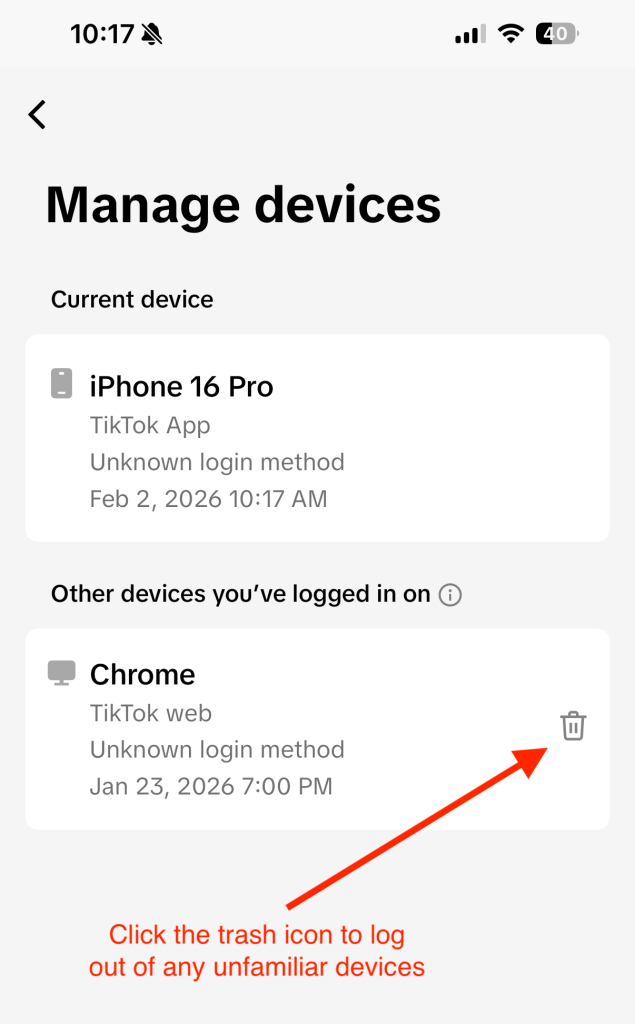
Once you regain access, clean up anything the attacker touched, delete suspicious posts, undo profile changes, and revoke access for any apps you don’t recognize. 

Figure 1: How to remove TikTok logins from other devices.

Figure 1: How to remove TikTok logins from other devices. 

Lock Down Sessions and Strengthen Your TikTok Security 

Getting back in is only half the job. The next step is making sure whoever got in can’t come back. 

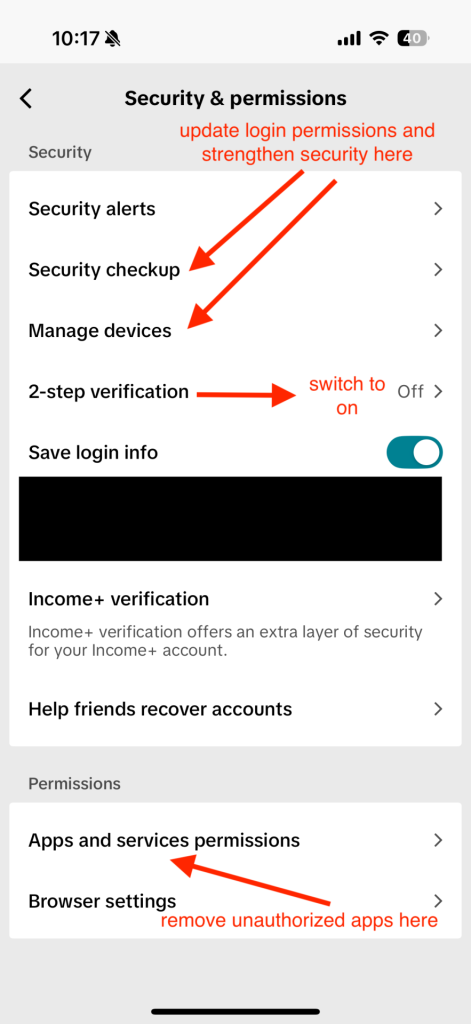
Turn on two-step verification 

In Settings & Privacy, enable two-factor verification (2FA) and choose your preferred method. An authenticator app offers the strongest protection, but SMS or email is still far better than nothing. 

Review active sessions and devices 

Head to Security and look for Manage devices or Active sessions. 

  • Remove any devices you don’t recognize. 
  • If available, use “Log out of all devices” to force everyone, including an attacker, out at once. 

Revoke third-party app access 

Check which apps or tools are connected to your TikTok account and remove anything you don’t use or trust. 

Use a strong, unique password 

Keep your app and phone updated 

Updates often include security fixes. Running outdated software makes it easier for attackers to exploit known issues. 

Be cautious with links and messages 

Unexpected DMs, “copyright warnings,” fake verification notices, or links asking you to log in again are common hacker tactics. When in doubt, don’t click, open the app directly instead. 

Figure 2: Where in “Security & permissions” to find security updates and 2FA.  

Figure 2: Where in “Security & permissions” to find security updates and 2FA. 

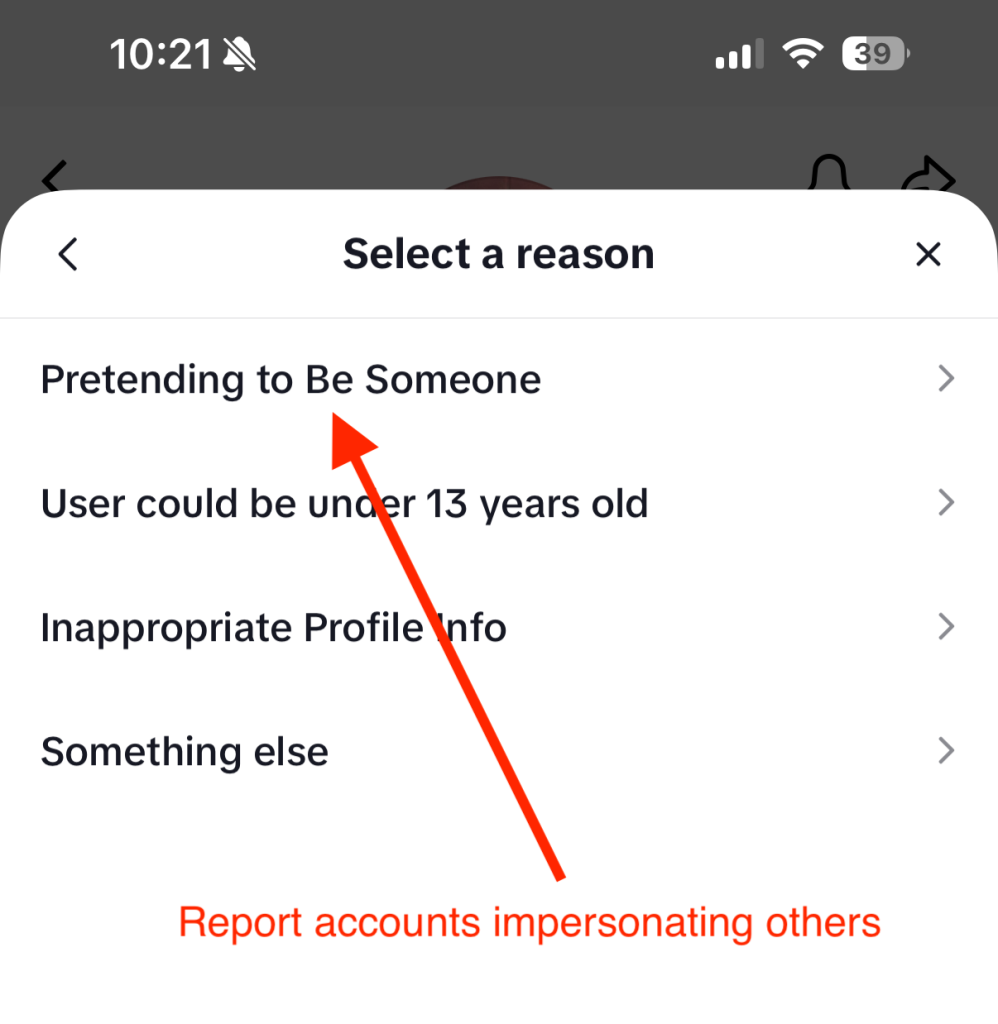
How to Report an Impersonation Account on TikTok 

Discovering a fake account that’s using your name, photos, or videos can feel like a second violation on top of having your account hacked.  

Luckily, TikTok has a way to flag these imposters, both from inside the app and, in some regions, through an official web form. 

  1. Open the impostor’s profile: Head to the account that’s pretending to be you. 
  2. Tap the share icon: On mobile, this is usually the arrow at  the top of the profile. 
  3. Select “Report”: Choose the option to report the account. 
  4. Choose “Report account” → “Pretending to Be Someone”: That’s TikTok’s way of flagging impersonation specifically. 
  5. Indicate who is being impersonated: Select Me if it’s your identity, or Celebrity/Another person if it’s someone else. Then submit.  
Figure 3: A screenshot showing where in TikTok you report fake profiles.

Figure 3: A screenshot showing where in TikTok you report fake profiles. 

If you’re in the U.S. and the fake profile is doing real damage, for example, scamming your followers or using official business assets, TikTok also offers a dedicated impersonation report form online: 

  • Choose whether you’re reporting or appealing an impersonation. 
  • Enter your email and country. 
  • Upload valid ID or other proof that you’re who you say you are. 
  • Confirm the statements and submit the form.  

For accounts outside the U.S., the public Help Center form lets you select Report a potential violation → Account violation → Impersonation and walk through similar steps.


Frequently Asked Questions 

Q: How do I lock down sessions on TikTok?
A: Go to Settings & Privacy → Security, then open Manage devices or Active sessions. Remove unfamiliar devices, log out of all sessions if possible, change your password, and enable two-step verification. 
Q: Can I recover my account if the email and phone number were changed?
A: Yes. Start an account recovery request through TikTok support and provide proof of ownership, including previous contact details and device information. 
Q: What if I keep getting verification codes I didn’t request?
A: That’s a sign someone is trying to get in. Change your password immediately, enable two-step verification, and review active sessions. If it continues, contact TikTok support 
Q: Should I warn my followers?
A: If your account posted or messaged others without your permission, yes. Let people know your account was compromised so they don’t engage with scam links or requests. 


The post Was My TikTok Hacked? How to Get Back Into Your Account and Lock Down Sessions appeared first on McAfee Blog.
  •  

Why You Still Get Spam Calls Even After Blocking Numbers

You block a caller, feel a moment of relief, and then the phone rings again. If you’re wondering why you still get spam calls even after blocking numbers, you’re not alone.  

Spammers evolve quickly. They rotate phone numbers, spoof caller IDs, and use automated dialers to bypass basic defences, which is why many people see blocked calls still coming through and ask, can blocked numbers call you?

In this guide, we’ll explain what’s happening behind the scenes, share proven steps for how to stop getting spam calls, and help you protect your privacy and finances with confidence. 

What Counts as a Spam Call? 

Spam calls are unsolicited calls that aim to sell, deceive, or defraud. They include aggressive sales pitches, fake giveaways, tech support scams, and impersonations of banks or government agencies. Some are placed by people, while many are robocalls that play prerecorded messages at scale. Legality often hinges on consent and compliance with regulations, but harmful calls tend to ignore the rules. 

The typical scam call red flags: 1) Urgent or threatening language. 2) Pressure to pay right now. 3) Requests for sensitive details like Social Security numbers, bank information, or one-time passcodes.

Robocalls drive much of the volume today. They’re inexpensive, fast, and highly automated. While appointment reminders or pharmacy updates can be helpful and legitimate, scam robocalls promote fake debt collection, prize schemes, or malicious tech support. Their scale is precisely why blocked calls still coming through remains a persistent frustration. 

The familiar site of a phone inbox full of spam calls

Inbox of spam calls feel familiar?

Why Blocking Numbers Doesn’t Stop Spam 

Blocking prevents repeat calls from the same caller ID. Spammers know this and adapt. They rotate through vast pools of numbers, so each attempt looks new. You block one, and the next call arrives from a different number. It’s a cat-and-mouse game that leads many to ask, can blocked numbers call you or why is a blocked number still calling? 

Caller ID spoofing amplifies the problem. Spoofing lets scammers display any number they want, including matching your area code or appearing as a trusted organisation. This undermines caller ID and weakens number-based blocking. Some spoofed calls even show familiar names, increasing the chance you’ll answer. 

Behind the scenes, spam operations acquire and discard numbers rapidly through VoIP services and disposable lines. Large campaigns can cycle through thousands of numbers daily, which makes manual blocking a limited defense. That’s why you still get spam calls even after blocking numbers and why many people wonder how to stop getting spam calls for good. 

Layered Measures to Reduce Spam Calls 

A stronger strategy combines smarter tools with practical policies that work together. Here’s how we approach it: 

Use call-protection apps: Choose reputable apps that leverage threat intelligence, crowdsourced reports, and machine learning. These tools detect patterns, silence high-risk calls, and warn you before you answer. Many provide enhanced caller ID and category-based filtering to cut down the noise. 

Register with the National Do Not Call Registry: Add your number at donotcall.gov to reduce lawful telemarketing. It won’t stop illegal spam calls, but it trims legitimate sales outreach and supports enforcement when violators call. 

Use your mobile carrier’s protections: Most phone carriers offer built-in features that help identify and block spam calls, often at no extra cost. When these tools are turned on, your phone may label suspicious calls as “Scam Likely,” warn you before you answer, or automatically block known spam numbers. Some carriers can also verify when a call is coming from a real business, which makes it harder for scammers to fake caller IDs and pretend to be someone they’re not. 

Used together, these layers reduce the chance that a blocked number still calling will get through and provide practical answers for how to stop getting spam calls without missing important calls. 

Best Practices for Handling Incoming Calls 

Build habits that make suspicious calls easier to spot and manage: 

Spot potential spam: Be cautious with unknown numbers, urgent demands, and offers that sound too good to be true. Don’t share personal information, one-time passcodes, or payment details. If someone claims to be from your bank, healthcare provider, or a government agency, hang up and call back using a verified number from their official website. 

Report spam quickly: File complaints with the Federal Trade Commission (FTC) at reportfraud.ftc.gov and the Federal Communications Commission (FCC) at consumercomplaints.fcc.gov. Include caller ID, time, message content, and any request for data or payment. Many call-protection apps and carriers support in-app reporting, which improves filters for everyone. 

Use call screening: Turn on features like Silence Unknown Callers on iOS or Filter Spam Calls on Android. Enable voicemail transcription and consider Do Not Disturb with exceptions for contacts and verified callers. Use screening assistants where available to prompt unknown callers to state their purpose. This reduces interruptions and blocks automated spam. 

Stay Safe from Social Engineering 

Phone scams often rely on social engineering. Recognising common tactics helps you pause and protect yourself. 

Spot voice phishing: Be wary of claims that your account is locked, a payment is overdue, or an immediate verification code is needed. Legitimate organisations do not ask for full Social Security numbers, passwords, or 2FA codes over the phone. If you’re concerned, contact the company through a trusted channel. 

Protect personal information: Keep sensitive data private. Don’t share account numbers, PINs, passwords, or security codes in response to an incoming call. Use strong, unique passwords and enable multi-factor authentication. If you receive a verification code you didn’t request, secure your account right away. 

If you responded to a spam call: If you disclosed financial details or made a payment, contact your bank or card issuer immediately. Change passwords, enable account alerts, and review recent activity. Report the incident to the FTC and local law enforcement if needed. Consider a credit freeze with the major credit bureaus. If a device may be compromised, run a trusted security app to scan and remove suspicious software. 

Quick Comparison of Anti-Spam Call Options 

Option  What It Does  Pros  Limitations 
Manual Number Blocking  Blocks repeat calls from a specific caller ID  Built into phones; easy to use  Spammers rotate and spoof numbers; limited reach 
Call-Protection Apps  Uses threat intelligence, AI, and community reports  Detects patterns; warns before you answer; auto-blocks known spam  May filter legitimate calls; requires setup and permissions 
Carrier Protections  Network-level filtering and caller authentication (STIR/SHAKEN)  Flags spoofed calls early; verified caller indicators  Effectiveness varies by carrier and plan 
Do Not Call Registry  Limits lawful telemarketing to registered numbers  Reduces legitimate sales calls; supports reporting  Does not stop illegal or scam calls 
Built-In Call Screening  Silences unknown callers and transcribes voicemail  Minimises interruptions; helps you review safely  May miss important calls from new contacts 

If you’re asking why you still get spam calls even after blocking numbers or seeing a blocked number still calling, this table shows how layered options work together to reduce risks. 

Go Beyond Blocking: Remove Your Number From the Dark Web and Data Broker Lists 

Blocking spam callers treats the symptom, not the source. One reason spam keeps coming is that your phone number may already be circulating in data broker databases or dark web marketplaces after a breach, app signup, or form fill. Once your number is out there, it gets resold, bundled, and targeted repeatedly. 

McAfee Data Cleanup tackles that upstream problem. It helps find where your personal data, including your phone number, appears online and works to remove it from risky sources. Fewer listings mean fewer lists for spammers to buy and fewer campaigns aimed at your number. 

How your number ends up being targeted 

Data brokers: Many sites legally collect and resell contact details. Spammers buy access and blast calls at scale. 

Breaches and leaks: Stolen databases often end up on underground forums, where numbers are traded and reused. 

Public profiles and apps: Old accounts, giveaways, and permissions can expose your number without you realising. 

What Data Cleanup adds to your defense 

Finds exposures: Scans for your number across broker sites and known risk areas. 

Removes listings: Submits opt-out and removal requests on your behalf, reducing where your data lives online. 

Keeps watch: Monitors for reappearance so your number doesn’t quietly get relisted later. 

Think of this as turning down the tap, not just mopping the floor. When fewer databases have your number, spam operations have fewer ways to reach you. 

If you’re serious about how to stop getting spam calls, add data cleanup to your toolkit. Reducing your digital footprint won’t eliminate every bad call overnight, but over time, it lowers exposure, cuts repeat targeting, and helps reclaim your phone from constant interruptions. 

Blocking Isn’t Protection. Layering Is. 

If spam calls feel endless, it’s because blocking numbers was never designed to stop modern scam operations. Today’s callers rotate numbers, spoof trusted IDs, and pull your phone number from massive data ecosystems that don’t disappear when you tap “Block.” 

The real fix is layered protection. Call filtering and carrier tools help stop suspicious calls at the door. Screening features reduce interruptions. And addressing the source, by limiting where your number exists online, cuts down the number of campaigns that ever reach you in the first place. 

No single tool will end spam calls overnight. But when you combine smart call protections, cautious habits, and proactive data cleanup, the volume drops, the risks shrink, and your phone becomes a lot quieter. 

If you’ve been asking why you still get spam calls even after blocking numbers, this is the answer. Blocking is reactive. Protection works best when it’s proactive. 

FAQs 

Q: Why do spam calls look like they’re from my area code? 

A: Scammers use caller ID spoofing to display local-looking numbers, increasing the chances you’ll answer. Spoofing can mimic legitimate numbers, so don’t rely on caller ID alone. If you’re seeing a blocked number still calling with a local prefix, turn on carrier protections and call screening. 

Q: Do call-blocking apps really help? 

A: Yes. Quality apps combine real-time threat intelligence with community reports and machine learning to spot patterns and flag risky calls. While no tool catches everything, they significantly reduce spam calls and help address why you still get spam calls even after blocking numbers. 

Q: Will the Do Not Call Registry stop all spam calls? 

A: No. It reduces lawful telemarketing but does not stop illegal or scam calls. Registering still helps cut legitimate outreach and supports enforcement against violators, which is an important step in how to stop getting spam calls. 

Q: What should I do after receiving a suspicious call? 

A: Don’t share information. Hang up, verify the caller using a trusted number, and report the incident to the FTC or FCC. If you clicked a link or provided details, secure your accounts and contact your bank or service provider right away. 

Q: Can my mobile carrier block spoofed calls? 

A: Carriers support caller authentication through STIR/SHAKEN, which helps identify and flag spoofed calls. Turn on your carrier’s spam protection features and screening options to reduce the chances of blocked calls still coming through. 


The post Why You Still Get Spam Calls Even After Blocking Numbers appeared first on McAfee Blog.
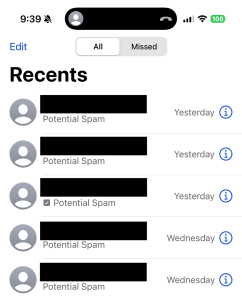
  •  

How to Delete or Deactivate Your Instagram Account

Deleting vs. Deactivating Instagram: Key Differences

When considering leaving Instagram, you have two main options: deactivating or deleting your account. Understanding the distinctions is key to making the right choice for your privacy and digital presence. Deactivation is a temporary measure. Your profile, photos, comments, and likes are hidden from other users, including your followers, as if your account doesn’t exist.

However, Instagram stores all your information, allowing you to reactivate your account at any time by logging back in. Your direct messages will still be visible to recipients. This option is ideal if you need a break or want to temporarily reduce your online visibility without losing your data or account history. If you are looking for how to deactivate an Instagram account, this is a reversible step.

On the other hand, learning how to delete an Instagram account permanently is the final step. Once you request deletion and a 30-day grace period passes (during which you can cancel by logging back in), your account and all associated data – photos, videos, followers, messages (from your end), and profile information – are permanently erased from Instagram’s main servers.

While some data may remain in backups for longer to support disaster recovery, you won’t be able to access it or recover your account. This is the choice if you want to permanently remove your footprint from the platform. Understanding how to delete your Instagram account is crucial if that is your goal.

Quick Comparison: Deactivating vs. Deleting Your Instagram Account

  • Visibility: Deactivation hides your profile; Deletion permanently removes it after a grace period.
  • Data (Photos, Profile, etc.): Deactivation preserves data (hidden); Deletion permanently erases data.
  • Messages: Deactivation keeps sent messages visible to recipients; Deletion removes your access, but recipients may still see past messages, often attributed to an “Instagram User”.
  • Follower Visibility: Deactivation makes your profile invisible to followers; Deletion removes you from their lists and your content from their view.
  • Permanence: Deactivation is temporary; Deletion is permanent.
  • Recovery Options: Deactivated accounts can be reactivated by logging in; Deleted accounts cannot be recovered after 30 days.
  • Data Retention by Instagram (Post-Action): Deactivation means Instagram retains all data for reactivation. Deletion means data is removed from active systems (usually within 90 days), though backups may exist longer.

Should You Deactivate or Delete? Factors to Consider

  • Mental Health Breaks: If you’re feeling overwhelmed by social media and need a pause for your mental well-being, deactivation is an excellent choice. It allows you to step away without the finality of deletion, and you can return when you feel ready.
  • Job Search Privacy: When actively job hunting, you might want to limit what potential employers can see. Temporarily deactivating your account hides your profile. Alternatively, you can make your account private.
  • Serious Security Concerns or Harassment: If you’re facing persistent harassment or bullying, or believe your account security has been severely compromised, permanently deleting your Instagram account may be necessary for your safety and peace of mind. In less severe cases, blocking users and reporting content, coupled with deactivation, might suffice.
  • Long-Term Digital Footprint Reduction: If your goal is to minimize your online presence and permanently remove your data from Instagram, then opting to delete Instagram account is the appropriate action. This is a long-term decision aimed at reducing your overall digital footprint.
  • Quick Self-Assessment Questions:
    • Do you plan to use your current Instagram profile, including its photos and connections, in the future? If yes, consider deactivation.
    • Is your primary concern data privacy, and do you want Meta to remove your information? If yes, and you’re sure you don’t want to return, consider permanent deletion.
    • Are you simply looking for a temporary escape from notifications and social pressures? If yes, deactivation is likely sufficient.
  • Recommendation Based on Goals: If you need a temporary pause, want to hide your profile for a while, or think you might return, learning how to deactivate your Instagram account is your best approach. If your objective is to sever ties and permanently remove your data, deleting your Instagram account is the right path.

How to Temporarily Disable Your Instagram Account

  1. Via Mobile App (iOS or Android):
    1. Open the Instagram app and navigate to your profile page.
    2. Tap the menu icon (three horizontal lines) located in the top-right corner.
    3. Select Settings and privacy from the menu.
    4. Tap on Accounts Center, which is usually the first option.
    5. Under the “Account settings” section, tap on Personal details.
    6. Choose Account ownership and control.
    7. Tap on Deactivation or deletion.
    8. Select the Instagram account you wish to deactivate if multiple accounts are listed.
    9. Ensure Deactivate account is selected and tap Continue.
    10. You will be prompted to enter your Instagram password for verification. Enter it and tap Continue.
    11. Instagram will ask for a reason for deactivation. Choose one from the list and tap Continue.
    12. Finally, confirm your decision by tapping Deactivate Account.
  2. Via Web Browser (Desktop or Mobile):
    1. Navigate to Instagram.com in your preferred web browser and log in to your account.
    2. Click on More (represented by three horizontal lines) in the bottom-left menu.
    3. Select Settings from the menu that appears.
    4. You should be directed to the Accounts Center. If not, click on it.
    5. Under “Account settings,” click Personal details.
    6. Click Account ownership and control.
    7. Choose Deactivation or deletion.
    8. Select your account, ensure Deactivate account is chosen, and click Continue.
    9. Enter your password when prompted and click Continue.
    10. Provide a reason for deactivating and then confirm the deactivation.
  3. Time Limits for Reactivation: There is no specific time limit imposed by Instagram for how long an account can remain deactivated. You can reactivate it at any time by logging back into your account with your username and password.
  4. Data Visibility During Deactivation: When your Instagram account is deactivated, your profile, photos, videos, Stories, comments, and likes will be hidden from all other users, including your followers. It will essentially appear as though your account does not exist. However, your information is not deleted from Instagram’s servers. Messages you have previously sent to other users may still be visible to them.

Step by Step: Permanently Delete Your Instagram Account

If you’ve decided to permanently delete your Instagram account, follow these steps carefully:

  1. Log in via a browser: Log into your Instagram account. Account deletion must be completed through a web browser on your mobile phone or personal computer.
  2. Go to Accounts Center: Click your profile picture at the top and navigate to Settings & Privacy > Accounts Center.
  3. Inside Accounts Center: Navigate to Personal Details > Account Ownership and Control. Select Deactivation or Deletion.
  4. Select the account you want to delete: If you manage multiple accounts, make sure you choose the correct one.
  5. Click Delete Account: Select Delete Account, then click Continue.
  6. Confirm your decision: Instagram will ask you to select a reason and re-enter your password. Once confirmed, your account will be scheduled for deletion.

Important to Know

  • Instagram provides a 30-day grace period. If you log back in during this time, the deletion request is canceled.
  • After 30 days, your account and data are permanently removed.
  • This process cannot be reversed once the grace period ends, so make sure you’re fully certain before proceeding.
  • Consider downloading your data, including photos, videos, messages, before deleting your account.

Back Up Your Instagram Photos and Data Before You Leave

Before you take the irreversible step of deleting your Instagram account, it is highly recommended that you back up your data. This ensures that you retain a copy of your photos, videos, messages, and other information you’ve shared on the platform.

Once an Instagram account is deleted, this data cannot be recovered. Instagram provides a built-in tool, often referred to as Meta’s “Download Your Information” feature, that lets you request a complete copy of your data. This includes content types such as your photos (including feed posts, Stories, and Reels you’ve archived or posted), videos, comments you’ve made, your profile information, and direct messages (DMs).

While some users might have manually saved individual photos or videos to their devices over time, using Instagram’s official download tool is the most comprehensive method to secure a full archive. This is a vital step before you learn how to delete Instagram and commit to removing your presence.

Request and Download a Copy of Your Instagram Data

  1. Requesting Your Data (iOS and Android Devices):
    1. Open the Instagram app on your mobile device and navigate to your profile by tapping your profile picture in the bottom-right corner.
    2. Tap the menu icon (three horizontal lines) in the top-right corner of your profile page.
    3. From the menu, select Your activity.
    4. Scroll down to the bottom of the “Your activity” screen and tap on Download your information.
    5. Tap Request a download. If you have multiple accounts linked through Accounts Center, select your Instagram profile.
    6. You’ll have the option to request a Complete copy of your data or to Select types of information if you only need specific data.
    7. Configure your file options: choose a format (HTML is generally easier for viewing, while JSON is better for transferring data to another service), select media quality (e.g., high, medium, low), and specify a date range if you don’t want all your data.
    8. Ensure your email address is correct, as this is where the download link will be sent. Tap Submit request.
  2. Requesting Your Data (Desktop/Web Browser):
    1. Open your web browser, go to Instagram.com, and log in to your account.
    2. Click on the More option (represented by three horizontal lines) found in the menu on the bottom-left side of the page.
    3. From the popup menu, select Your activity.
    4. Click on Download your information.
    5. Click the Request a download button. You’ll then follow similar prompts as on the mobile app: select the profile (if applicable), choose between a complete copy or specific types of information, and set your file options (format, media quality, date range). Submit the request.
  3. Email Delivery Times, File Formats: Instagram (Meta) states that it may take up to 14 days to collect your information and prepare it for download, though for many users, this process is much faster, often completed within a few hours or even minutes, especially for accounts with less data. You will receive an email at the address associated with your account containing a link to download your data. This link is typically valid for only a few days for security reasons, so download it promptly. The data is usually delivered as a ZIP file. Inside, you’ll find your information organized in folders, typically in HTML (for easy viewing in a browser) or JSON (a structured data format useful for developers or data transfer).
  4. How to Interpret the Archive Once Received: After downloading and unzipping the file, if you selected the HTML format, look for an `index.html` file. Opening this file in a web browser provides a navigable interface to view your data, including posts, messages, profile information, and more. Photos and videos will typically be in separate folders, often organized by date, in their original formats (e.g., JPG for photos, MP4 for videos). If you choose JSON, the files will contain raw data that can be parsed programmatically.

Troubleshooting: Why Can’t I Delete My Instagram Account?

  • Forgotten Password: To confirm your identity and proceed with account deletion, Instagram requires your current password. If you’ve forgotten it, use the “Forgot password?” option on the login page to reset it before attempting to delete your Instagram account again.
  • Two-Factor Authentication (2FA) Loops: If you have 2FA enabled but are unable to receive security codes, or your backup codes are not working, this can prevent you from completing the deletion process. Try to resolve the 2FA issue first, which might involve checking your SMS, authentication app, or using recovery codes. Refer to Instagram’s Help Center for 2FA troubleshooting.
  • Active Advertisements or Boosted Posts: If your Instagram account is running active ad campaigns or has recently boosted posts, you may need to pause these activities or wait for them to complete before the system allows deletion. Check your settings in Meta Ads Manager.
  • Linked Business Pages or Third-Party Applications: Connections to Facebook Business Pages, or certain third-party app integrations, might sometimes interfere with the Instagram delete account process. Review your linked accounts and app permissions, and consider unlinking them if necessary. Ensure your Instagram account isn’t the sole admin for a critical business asset.
  • Using an Incorrect Deletion Path: Ensure you are navigating through the correct menu options, typically via Accounts Center > Personal Details > Account Ownership and Control > Deactivation or Deletion, and specifically selecting “Delete account” rather than “Deactivate account.” The steps for how to delete instagram can sometimes change slightly with app updates.
  • Temporary System Glitches: Occasionally, the inability to delete might be due to temporary glitches or server-side issues on Instagram’s end. In such cases, waiting a few hours and trying again, or using a different device or web browser, can resolve the issue.
  • If you’ve tried these steps and still can’t delete your account, the most reliable source for assistance is Meta’s Instagram Help Center, which provides detailed guidance and solutions for common account issues.

How Long Does the Deletion Process Take?

When you submit a request to delete an Instagram account permanently, the removal isn’t immediate. Instagram implements a 30-day grace period starting from the moment you confirm your deletion request. During this 30-day window, your account, along with all your information like photos, videos, and profile details, becomes invisible to other users on the platform.

However, it’s not yet entirely deleted. If you change your mind and log back into your account at any time within these 30 days, the deletion request will be automatically cancelled, and your account will be reinstated. If you do not log in during this period, your account will be permanently deleted after the 30 days conclude.

Following this, Instagram states that the complete deletion of your data from their backend systems and servers can take up to an additional 90 days. Therefore, the entire process from request to potential full backend deletion can span up to 120 days.

It’s also important to note that even after the 90-day backend deletion window, copies of some of your content may remain in backup storage that Instagram uses for disaster recovery, software errors, or other data loss events, though this data is generally not accessible. Cached copies of your profile might also briefly appear in search engine results until their indexes are updated.

What Happens After You Delete Your Account?

After you successfully delete your Instagram account and the 30-day grace period has passed, your account is permanently removed from the platform. This means your profile, including all photos, videos, comments, likes, and followers, will be permanently removed.

You will no longer be able to log in or reactivate that specific account. Your username might become available for others to use in the future, although Instagram may have policies that prevent immediate reuse. Any Direct Messages (DMs) you sent will typically remain visible to the recipients; however, they will usually be attributed to a generic “Instagram User” or a similar placeholder, without any link back to your deleted profile or your profile picture.

Tags of your former account on other users’ photos will persist, but they will become inactive text rather than a clickable link to a profile. If you had embedded Instagram posts on external websites or blogs, these embeds will likely stop displaying your content or show an error message.

Any third-party applications or services that were connected to your Instagram account will lose their access and will no longer function with that account. While Instagram aims to delete your data, its policy notes that copies of some information (such as log records) may remain in its database but are disassociated from personal identifiers.

Furthermore, advertisers and Meta may retain aggregated, anonymized engagement metrics (e.g., if you clicked on an ad), but this data would not be linked to your specific, now-deleted, account.

Can You Recover or Reactivate a Deleted or Disabled Account?

Whether you can recover an Instagram account depends on whether it was disabled (deactivated) or permanently deleted. If you chose to deactivate your Instagram account, this is a temporary measure. You can reactivate a disabled account at any time simply by logging back in with your username and password. Upon reactivation, your profile, photos, comments, and likes will be restored to their previous state.

However, if you followed the steps to permanently delete an Instagram account, the situation is different. After you request deletion, Meta provides a 30-day window during which your account is hidden but not yet permanently erased. If you log back into your account within 30 days, the deletion request is cancelled, and your account is restored. If these 30 days lapse without your logging in, your account and all associated data will be permanently deleted and cannot be recovered by you or Instagram support. There is no way to get it back once this point is reached.

While you might be able to create a new account, you generally cannot reuse the same username immediately, as Instagram may hold it for a period, or it could be claimed by someone else. If you attempt recovery after the 30-day window for a permanently deleted account, it will fail.

Will Your Followers Know If You Leave Instagram?

Instagram does not send out a direct notification to your followers informing them that you have decided to delete your Instagram account or even if you’ve chosen to deactivate your Instagram account. However, your followers will notice your absence in different ways depending on your action. If you deactivate your account, your profile, along with all your posts, comments, and likes, becomes completely invisible on the platform.

If a follower searches for your username, they won’t find your account. It will appear as if you’ve vanished or your account never existed, until you decide to reactivate it by logging back in. If you proceed to delete your Instagram account permanently, after the 30-day grace period, your profile and all its content are permanently removed.

For your followers, this means they will no longer see your account in their follower lists or following lists. Any past comments or likes you made on their posts might disappear or become attributed to a generic “Instagram User.”

Essentially, your digital presence on Instagram ceases to exist. If you wish to leave quietly without drawing attention, both deactivation and deletion provide formal notification.

However, a sudden disappearance will likely be noticed by those who regularly interact with you or check your profile. You may choose to inform close friends or followers directly before deleting your Instagram account to manage their expectations.

Alternative to Deleting: Make Your Account Private and Protect Your Data

  1. Switching to a Private Profile on Mobile (iOS & Android):
    1. Open the Instagram app and go to your profile by tapping your profile picture.
    2. Tap the menu icon (three horizontal lines) in the top-right corner.
    3. Select Settings and privacy from the menu.
    4. Scroll down to the “Who can see your content” section and tap on Account privacy.
    5. Toggle the Private account switch to the on position. You may need to confirm your choice.
  2. Switching to a Private Profile on Web Browser:
    1. Go to Instagram.com and log in to your account.
    2. Click on More (three horizontal lines) in the menu on the bottom-left side of the screen.
    3. Select Settings from the pop-up menu.
    4. In the left navigation bar, click on Settings and privacy (or it may directly show “Account privacy” options).
    5. Under “Who can see your content,” find the Account privacy section and check the box next to Private Account.
  3. Privacy Trade-offs and Benefits: Making your account private means only your approved followers can see your posts, Stories, Reels, and list of followers/following. People who want to follow you must send a request, which you can approve or deny. This significantly increases your control over who views your content. Your bio and profile picture remain public. This doesn’t remove your data from Instagram’s servers like deletion would, but it limits public access to your shared content.
  4. How It Limits Data Sharing: While Instagram still collects your data as per its privacy policy, a private account restricts other users from easily accessing, sharing, or misusing your content. Your posts won’t appear in public hashtag searches or on the Explore page for non-followers.
  5. Why It May Be a Middle-Ground Solution: If your primary concern is controlling your audience and enhancing privacy without permanently leaving the platform or losing your content and connections, setting your account to private is an excellent alternative to deactivation or deletion. It offers a significant degree of control over your content’s visibility, making it a good middle-ground solution if you’re not ready to fully delete your Instagram account.

The post How to Delete or Deactivate Your Instagram Account appeared first on McAfee Blog.

  •  

What is Doxing?

Imagine someone putting your personal information out online for thousands of strangers to see—your home address, phone number, even details about your family members or workplace. This invasive practice, known as doxing, has become a significant concern in the digital age. It’s not just about privacy anymore; it’s about the potential for real-world harm. This article explains what doxing is and how to prevent it from happening to you.

Key Takeaways

  • Doxxing is the act of publicly exposing someone’s personal information online without their consent.
  • Doxxing is often intended to harass or intimidate victims online and in real life and can result in serious personal, professional, and safety-related harm.
  • Doxxing is not always illegal, sharing publicly available information is generally permissible, but hacking or sharing stolen, confidential data is illegal.
  • Protect yourself from doxxing by reducing your online personal information and using strong passwords, a VPN, and antivirus protection.
  • Use preventive habits to safeguard your privacy.

What is doxing?

Doxing (or “doxxing”) is the practice of revealing another individual’s personal information (home address, full name, phone number, place of work, and more) in an online public space without the person’s consent.

The term “doxing” comes from the hacker world and references the act of “dropping dox” (as in “docs”) with malicious intent to the victim. The severity of the personal data leak may also go beyond phone numbers and addresses to include releasing private photos, Social Security numbers (SSNs), financial details, personal texts, and other more invasive attacks.

What’s an example of doxing?

One of the first incidents of doxing took place back in the late 1990s when users of the online forum Usenet circulated a list of suspected neo-Nazis. The list included the suspected individuals’ email accounts, phone numbers, and addresses.

One of the most infamous examples of doxing was during 2014’s Gamergate controversy, involving issues of sexism and misogyny in the video game industry. Female video game developers and journalists were subjected to relentless harassment and doxing, placing their personal safety in jeopardy.

Several high-profile cases of celebrity doxing have made headlines over the years, serving as stark reminders of the dangers of online harassment and privacy invasion. In 2017, a woman hacked Selena Gomez’s email and leaked her Los Angeles-area home address online. In 2021, rapper Kanye West famously doxed Drake when he tweeted the star’s home address.

Is doxing illegal?

While doxing can hurt people, it’s not necessarily a crime. In some cases, a doxer finds publicly available information and shares it broadly. Since the data is public record, it’s not illegal to share it. A doxer might invite others to visit the home or workplace of their target rather than taking a specific action.

That said, it is illegal to hack a device or computer without permission from the owner — even if the information collected is never used. The legality of doxing must be taken on a case-by-case basis, and law enforcement must build its case based on existing applicable laws. For example, if the doxer attempted to apply for a credit card using your private data, they could be prosecuted for fraud or identity theft.

How to protect yourself from doxing

You can follow a few critical practices to help protect yourself from doxing. Start by limiting what you share online, using strong passwords, and taking advantage of secure technologies like virtual private networks (VPNs).

Limit the personal information you share online

Limiting the amount of personal information you share online is one of the best ways to protect yourself from doxing. Avoid oversharing personal details of your life (like your child’s name, pet’s name, or place of work), and maintain the highest possible privacy settings for any social media app or website.

You should also take caution when tagging friends, locations, and photos, as this may give doxers more access to your data. Check out our Ultimate Guide to Safely Sharing Online to learn more.

Check data broker websites for your information

Data brokers are companies that mine the internet and public records for financial and credit reports, social media accounts, and more. They then sell that data to advertisers, companies, or even individuals who may use it to dox somebody.

You might be surprised to see the amount of sensitive information available to anyone who wants it with an online search. Data brokers often have contact information, including real names, current and former addresses, birth dates, phone numbers, social media profiles, political affiliations, and other information that most consider private.

While you can remove your private information from many data broker sites, they tend to make the process tedious and frustrating. McAfee Personal Data Cleanup makes the process much easier. All you have to do is enter your name, date of birth, and home address, and we’ll scan it across high-risk data broker sites. We’ll then help you remove it.

Use strong passwords and keep them secure

Having strong passwords can make you less vulnerable to hackers and doxers. Keep yourself more secure by following a few simple rules.

  • Have long and strong passwords (at least eight to 10 characters).
  • Don’t create passwords that include any words from your social media sites (like pet or child names).
  • Change your passwords frequently — at least every three months.
  • Don’t use the same password for multiple online accounts — unique passwords only.
  • Use random sequences of letters and numbers without identifiable words.
  • Turn on two-factor or multi-factor authentication (MFA) for critical accounts (Gmail, LinkedIn, Facebook, online banking).
  • Don’t write down passwords (or keep them in a secure location if you must).

Make password management much easier by using a password manager and generator tool. True Key uses the strongest encryption available to decrypt your existing passwords and can help generate new strong passwords.

Use a virtual private network

When browsing on public Wi-Fi networks like those at airports and coffee shops, your data is at greater risk of being compromised by cybercriminals who may lift sensitive information for personal gain.

A virtual private network (VPN) service (like the one found in McAfee+) gives you an additional layer of protection by hiding your IP address and browsing activities when you’re on an unsecured network.

Protect your device with antivirus protection

Scammers, doxers, and hackers work hard to get personal information every day. With McAfee+, you can use the internet with confidence knowing you have the support of award-winning antivirus software to keep you and your family members safe online.

Get real-time threat protection through malware detection, quarantine, and removal, and schedule real-time or on-demand file and application scanning. You’ll also benefit from an advanced firewall for home network security.

Keep your online information secure with McAfee

We all increasingly rely on the internet to manage our lives. As a result, it’s important to address the risks that come with the rewards.

Comprehensive cybersecurity tools like those that come with McAfee+ can help you avoid scams, doxing attacks, identity theft, phishing, and malware. We can also help keep your sensitive information off the dark web with our Personal Data Cleanup.

With McAfee’s experts on your side, you can enjoy everything the web offers with the confidence of total protection.

The post What is Doxing? appeared first on McAfee Blog.
  •  

Didn’t Request an Instagram Password Reset? Here’s What to Do

If you recently received an unexpected email from Instagram asking you to reset your password, you are not alone. Over the past several days, thousands of users reported receiving legitimate password reset emails they did not request. 

The sudden wave of messages led to widespread confusion and concern about whether Instagram had suffered a data breach. Instagram and its parent company Meta deny that a breach occurred, stating instead that they fixed an issue that allowed an external party to trigger password reset emails for some users. 

While the exact source of the activity remains disputed, the situation highlights a broader and more important issue. Password reset emails, even when legitimate, are often the first signal users get that their information may be exposed, reused, or being targeted by attackers. 

Here is what we know so far and what this incident reveals about how password compromises really happen. 

Was Instagram Hacked? 

Instagram says no. 

In statements reported by the BBC and BleepingComputer, Meta said it resolved a problem that allowed an external party to request password reset emails on behalf of users. The company maintains there was no breach of its systems and that accounts remain secure. 

At the same time, cybersecurity researchers and firms, including Malwarebytes, have warned about a dataset circulating on hacking forums that allegedly contains information linked to more than 17 million Instagram accounts. According to reporting, that data may include usernames, email addresses, phone numbers, locations, and account IDs, but not passwords. 

Some researchers believe the dataset may be a compilation of older scraped data rather than evidence of a new breach. Others say the timing of the password reset emails and the appearance of the data raises unresolved questions. 

What matters for users is this: regardless of whether this was a new breach, old scraped data, or a technical abuse of password reset systems, attackers routinely use exposed personal information to launch phishing, account takeover attempts, and social engineering attacks. 

What Counts as a Data Breach and What Does Not 

A true data breach occurs when attackers gain unauthorized access to internal systems and steal protected data such as passwords, financial information, or private communications. 

In many cases, personal data is also exposed through: 

  • API scraping of publicly accessible information 
  • Older leaks that are resold or repackaged 
  • Credential stuffing using passwords stolen from unrelated sites 
  • Abuse of account recovery or password reset features 

That distinction matters because even when passwords are not leaked, exposed personal data can still be weaponized. Names, emails, phone numbers, and locations are often enough for scammers to craft convincing phishing messages that appear legitimate. 

Why You Might Receive a Password Reset Email You Did Not Request 

There are several common reasons this happens, and none of them require your Instagram password to be stolen. 

  • Someone may be testing whether your email address is linked to an account. 
  • Attackers may be attempting credential stuffing using passwords from past breaches. 
  • Your information may appear in older datasets that are being reused or resold. 
  • A platform bug or abuse of recovery systems may trigger reset emails at scale. 

Scammers often use these moments to send fake follow-up emails that look nearly identical to legitimate ones. That is why security experts consistently recommend going directly to the app or official website rather than clicking links in unexpected messages. 

What to Do If You Received an Instagram Password Reset Email 

If you did not request the reset:  

  1. Do not click links in the email. 
  2. Open the Instagram app or visit the official site directly to review security settings.  
  3. Check recent login activity and remove any unfamiliar sessions. 
  4. Enable two-factor authentication (2FA) if it is not already turned on. 

If you decide to change your password, make sure the new one is unique and not used anywhere else. 

Meta/IG Accounts Center Screenshot

Click “Review Settings” to enable 2FA in your Account Center

How to enable multi-factor authentication for Instagram 

  1. Click More in the bottom left, then click Settings. 
  2. Click See more in Accounts Center, then click Password and Security. 
  3. Click Two-factor (2FA) authentication, then select an account. 
  4. Choose the security method you want to add and follow the on-screen instructions. 

When you set up two-factor authentication on Instagram, you’ll be asked to choose one of three security methods: an authentication app, text message, or WhatsApp. 

And here’s a link to the company’s full walkthrough: https://help.instagram.com/566810106808145 

How to Manage Passwords the Right Way 

Remembering dozens of unique, strong passwords is not realistic for most people. That is why password managers exist. 

A password manager can: 

  • Generate strong, unique passwords for every account 
  • Store them securely so you do not need to remember them 
  • Alert you if your credentials appear in known breaches 
  • Reduce the risk of account takeover from reused passwords 

Using a password manager removes the pressure to reuse passwords and helps close one of the most common doors attackers walk through.  

McAfee’s password manager helps you secure your accounts by generating complex passwords, storing them and auto-filling your info for faster logins across devices. It’s secure and, best of all, you only have to remember a single password. 

FAQ: Instagram Password Reset Emails and Account Safety 

Was my Instagram password stolen?
There is no evidence that passwords were leaked in this incident. 
Should I reset my password anyway?
If you are unsure or reuse passwords elsewhere, resetting it directly in the app is a smart precaution. 
Are the emails real or phishing?
Some emails were legitimate, but scammers often mimic them. Always go directly to the app or website. 
Why is password reuse dangerous?
Because a breach on one site can expose all accounts that share the same password. 


The post Didn’t Request an Instagram Password Reset? Here’s What to Do appeared first on McAfee Blog.

  •  

What Is Quishing? How QR Code Scams Work and How to Avoid Them

qr code illustration

You thought you were scanning a menu. 

Or paying for parking. Or checking a package notice taped to your door. A quick scan, a familiar logo, a page that loads instantly on your phone. 

Nothing about it felt risky. 

That’s exactly why QR code scams are spreading so quickly. 

QR codes have become part of everyday life. They’re on restaurant tables, public signs, emails, mailers, and payment screens. We’re taught to treat them as shortcuts—faster than typing a URL, easier than downloading an app, safer than clicking a link. 

Scammers know that. 

Instead of asking you to click something suspicious, they ask you to scan something ordinary. Once you do, you can be routed to fake login pages, payment requests, or malicious sites designed to steal your information before you realize anything is wrong. 

This tactic has a name: quishing.

And as QR codes continue to replace links in the real world, understanding how quishing works is essential to staying safe online. 

What Is Quishing? 

Quishing is a form of phishing that uses QR codes instead of clickable links to trick people into visiting malicious websites or giving up sensitive information. 

The term combines QR and phishing, and it reflects a simple but dangerous shift in scam tactics: instead of asking you to click, scammers ask you to scan. 

Once scanned, a fake QR code can lead to: 

  • Credential-harvesting login pages 
  • Payment requests or fake invoices 
  • Malware downloads 
  • Fake customer support portals 
  • Subscription traps 

Because QR codes don’t show a visible URL before you scan, they remove one of the most important scam warning signs people rely on. 

Common QR Code Scams to Watch Out For

While quishing attacks vary, most fall into a few predictable patterns.

1. Fake parking and payment QR codes

Scammers place stickers over legitimate parking meter QR codes. When scanned, victims are taken to fake payment pages that steal card details.

Red flag: A QR code that asks for full payment details without redirecting to a known parking or city service.


2. Restaurant menu swaps

Fraudsters replace real menu QR codes with fake ones that redirect to phishing pages or malicious downloads.

Red flag: A menu page that asks you to “sign in,” download an app, or confirm personal details.


3. Delivery and package alerts

Flyers or door tags claim you missed a delivery and instruct you to scan a QR code to reschedule.

Red flag: Vague delivery details and pressure to act quickly.


4. Fake account security warnings

QR codes claim your bank, streaming service, or email account needs verification.

Red flag: Any QR code that demands immediate action for “security reasons.”


5. Subscription traps and fake offers

Some QR codes promise discounts, refunds, or rewards but quietly enroll users in recurring charges.

Red flag: Fine print that’s hard to find, or missing entirely.


What Makes Quishing Especially Dangerous

QR scams succeed not because people are careless, but because they exploit trust and routine.

Unlike traditional phishing emails, quishing:

  • Happens offline and online at the same time
  • Often appears in trusted physical locations
  • Feels faster and more “legit”
  • Bypasses visual link inspection

Once a victim lands on a fake site, the damage can escalate quickly, from stolen credentials to drained accounts to identity theft.


How to Spot a Fake QR Code Before You Scan

You don’t need to avoid QR codes entirely, but you do need to slow down.

Check the physical context

Is the QR code taped on, scratched, or layered over another code? That’s a common tactic.

Look for branding inconsistencies

Misspellings, generic logos, or mismatched colors are red flags.

Preview the link

Most phone cameras now show the URL before opening it. Take a second to read it.

Be skeptical of urgency

Any QR code that pressures you to act immediately deserves extra scrutiny.


How to Protect Yourself From QR Scams

Step 1: Treat QR codes like links

A QR code is a shortcut to a website. Apply the same caution you would to any link.

Step 2: Avoid entering sensitive information

Legitimate services rarely ask for passwords, payment info, or personal details via QR codes.

Step 3: Use mobile security tools

Security software can help detect malicious sites and block risky downloads before damage is done.

Step 4: When in doubt, go direct

Instead of scanning, manually visit the official website or app you trust.


What to Do If You Scanned a Suspicious QR Code

If you think you interacted with a malicious QR code:

  • Stop engaging with the site immediately
  • Do not enter additional information
  • Monitor your financial accounts for unusual activity
  • Change passwords if credentials were entered
  • Run a security scan on your device, check out our free trial
  • Report the incident to the business or location involved

Early action can limit long-term fallout.


Frequently Asked Questions

What is quishing in simple terms?
Quishing is phishing that uses QR codes to trick people into visiting fake or malicious websites.

Are QR codes inherently unsafe?
No, but they can be exploited. The risk comes from where they lead, not the code itself.

Can scanning a QR code install malware?
In some cases, yes, especially if it prompts a download or redirects to a malicious site.

Are QR scams increasing?
Yes. As QR codes become more common, scammers are increasingly using them to bypass traditional defenses.

The post What Is Quishing? How QR Code Scams Work and How to Avoid Them appeared first on McAfee Blog.
  •  

How To Create The Strongest Passwords

Some of the strongest passwords you can use are the ones you don’t have to remember. While that may sound strange, it’s true. The key is using a password manager, a tool that creates and securely stores strong, unique passwords for each of your accounts.

Remembering dozens of different passwords seems like an impossible task. This leads many people to create simple, predictable passwords or reuse the same one across multiple accounts. A 2025 study by Cybernews revealed that of 19 million breached passwords, 94% were reused, with “123456” and “password” still being the most-used passwords.

Hackers count on this. When you create short or reused passwords, a single data breach can unlock your entire digital life, from email to online banking. This guide will cover the latest advice on password security for 2026, so you can learn how to protect your digital accounts effectively.

Key Takeaways

  • NIST updated 2026 guidance: Prioritize password length (12-16+ characters) over complexity. Avoid forced special character use and frequent changes.
  • Use passphrases: Combine 3–4 random words (e.g., “SunnyBeach2026Walking”) to create memorable but unpredictable credentials that are harder to crack.
  • Enabling multi-factor authentication adds an essential layer of protection beyond passwords alone.
  • Reusing passwords is a top security threat: Use a password manager to securely store, generate, and autofill passwords for all your accounts.

The Risks of a Weak Password

Weak passwords remain a top cause of security incidents. When attackers gain access to an account, the impact can be severe, leading to identity theft or financial fraud. These incidents are more common than you might think. We’ve seen massive data leaks exposing millions of customer records, often because people reused the same password across different platforms.

It’s not just about your personal accounts. When your local school district, healthcare provider, or utility company suffers a password-related breach, your personal information could be exposed. Strong passwords create a baseline of security that protects entire communities, not just individual users.

The Latest Advice for Strong Passwords in 2026

Password guidance has changed significantly. Passwords that were previously considered “strong” aren’t strong anymore. Decades of data proved that old rules, like forcing frequent password changes, often led to weaker habits. Research and updated recommendations from authorities like the National Institute of Standards and Technology (NIST) now point to a simpler, more effective approach.

The new focus is on length over complexity.

The old requirement to include a symbol, number, and capital letter often resulted in predictable patterns like “P@ssw0rd!1”. Today, NIST encourages using longer passphrases of 12-16 characters or more. This approach is much harder for attackers to crack.

The updated guidance recommends:

  • Focusing on length, with support for passphrases.
  • Allowing up to 64 characters, including spaces.
  • Dropping forced, periodic password changes unless there is evidence of a compromise.

→ Related: The Difference Between Passwords and Passphrases

Strong vs Weak Passwords

Strong Passwords:

  • Long: At least 12–16 characters (the longer, the better).
  • Unique: A different password for each account.
  • Unpredictable: Uses random words, not personal info or common phrases.
  • May include: Numbers, symbols, and both lowercase & uppercase letters.

Weak Passwords:

  • Short: Fewer than 12 characters.
  • Reused: The same password across multiple accounts.
  • Predictable: Includes personal details (like birthdays or pet names), common words, or easily guessed patterns (like “123456” or “password”).
  • Minimal variation: Simple substitutions (like “P@ssw0rd”) that are easily cracked.

A strong password protects your account even in the face of automated hacking tools, while a weak password can be guessed in seconds.

Tips to Build a Strong Password or Passphrase

Creating a strong password doesn’t have to be a headache. A passphrase strings together several random words, making it easy for you to remember but difficult for an attacker to guess.

1. Aim for 15+ Characters

A passphrase with 16 or more characters is significantly harder to crack than a short, complex password. The key is to create a story or image that is memorable to you but not obvious to others. For example, “CorrectHorseBatteryStaple” is much stronger than “P@ssw0rd!”.

2. Choose 3 to 4 Random Words That Aren’t Commonly Paired

String together random words to create your passphrase. Instead of a random string like “xK9$mPz2#qL,” you might create something like “SunnyBeach2026Walking!” or “Coffee-Morning-Mountain-Trail15.”

3. Add Numbers or Symbols That Mean Something to You

Find a number with meaning to help you remember it but make sure it’s only meaningful and memorable to you. It could be the total number of your mother’s siblings, or the number of minutes it takes you to commute from your home to the office, or the number of steps down the stairs from your apartment floor to the ground floor. “123456” is not acceptable.

4. Make It Unique for Each Account

Uniqueness is non-negotiable. If your password is unique, a breach at one site doesn’t put your other accounts at risk. You can create a base phrase and modify it slightly for each service in a way that isn’t obvious. For example, “TealElephantIndia602~RollerbladinG,” with the final “G” standing for your Gmail account.

5. Use a Password Manager

Maintaining unique, long passphrases for all your accounts is nearly impossible without help. A password manager is an essential tool. It generates strong, random passwords, stores them securely in an encrypted vault, and autofills them for you. You only need to remember one strong master passphrase, and the manager handles the rest. Many also alert you if your passwords appear in known data breaches.

6. Add Multi-Factor Authentication

Even the strongest passphrase can be compromised. A multi-factor authentication (MFA) adds protection by requiring the user to key in a second factor. A stolen passphrase alone won’t grant an attacker access. Enable MFA on all your important accounts: email, banking, social media, and your password manager itself.

Want more tips? Read 15 Tips for Better Password Security.

Your 2026 Passphrase Action Plan

Knowing what to do is only half the battle. This action plan breaks the process into manageable steps, helping you strengthen your most important accounts first and build better password habits over time.

Week 1: Secure Your Vault

  • Choose a reputable password manager and install it on your devices.
  • Create a strong master passphrase of 15+ characters to secure your manager.
  • Enable MFA on your password manager account.

Week 2: Protect Your Most Important Accounts

  • Prioritize your primary email, banking, and financial accounts.
  • Use your password manager to generate and save a new, unique passphrase for each one.
  • Enable MFA for each account, preferably using an authenticator app.

Weeks 3-4: Work Through Secondary Accounts

  • Move on to shopping sites (especially those with saved payment methods), work-related accounts, and social media platforms.
  • Update each with a unique passphrase stored in your manager.

Ongoing: Make it a Habit

  • Add new accounts and passphrases to your manager as you create them.
  • Review your password manager’s security dashboard monthly for weak or reused passwords.
  • Act immediately on any breach alerts.

For ongoing guidance, our comprehensive guide to keeping your passwords secure provides year-round support.

Family Guidance

Teaching young children and teens about passphrase security is also teaching them life skills in the digital age. Start them early with age-appropriate lessons, adding more lessons as they grow.

  • Elementary age: Allow them to create simple passphrases they can remember, and introduce basic privacy concepts. Remind them never to share passwords, passphrases, and other personal information.
  • Middle school: Introduce them to a trusted password manager tool, explaining why reusing passwords is risky and reminding them about the principles of creating passphrases and MFA. Consider family password managers that let you share certain credentials securely while maintaining individual vaults.
  • High school: At this stage, they should be well-versed in full passphrase hygiene and MFA. They should have, at the very least, an awareness of phishing attempts and other online scams.

Final Thoughts

Passwords may seem inconsequential, but they are important components of your digital security. By focusing on length, uniqueness, and the right tools, you can significantly strengthen your password and safeguard your data.

Managing dozens of unique, strong passwords across all your accounts is challenging, but a password manager makes it easy. By generating and securely storing complex passwords for every account, a password manager saves you time and ensures your credentials stay protected. With features like encrypted storage, secure autofill, and the ability to update passwords quickly, your accounts remain both secure and convenient to access. McAfee’s Password Manager offers industry-leading protection, including advanced encryption and multi-factor authentication, helping you safeguard your digital identity with confidence.

The post How To Create The Strongest Passwords appeared first on McAfee Blog.
  •  

How to Check If a Website Is Safe: Simple Tips for Secure Browsing

It’s important to know that not all websites are safe to visit. In fact, some sites may contain malicious software (malware) that can harm your computer or steal your personal contact information or credit card numbers.

Phishing is another common type of web-based attack where scammers try to trick you into giving them your personal information, and you can be susceptible to this if you visit a suspicious site.

Identity theft is a serious problem, so it’s important to protect yourself when browsing the web. Online security threats can be a big issue for internet users, especially when visiting new websites or following site links.

So how can you tell if you’re visiting a safe website or an unsafe website? You can use a few different methods. This page discusses key things to look for in a website so you can stay safe online.

Key signs a website is safe

When you’re visiting a website, a few key indicators can help determine whether the site is safe. This section explores how to check the URL for two specific signs of a secure website.

Check for ”Https:” in the website URL

“Https” in a website URL indicates that the website is safe to visit. The “s” stands for “secure,” and it means that the website uses SSL (Secure Sockets Layer) encryption to protect your information. A verified SSL certificate tells your browser that the website is secure. This is especially important when shopping online or entering personal information into a website.

When you see “https” in a URL, the site is using a protocol that encrypts information before it’s sent from your computer to the website’s server. This helps prevent anyone from intercepting and reading your sensitive information as it’s transmitted.

There is a lock icon near your browser’s URL field

The padlock icon near your browser’s URL field is another indicator that a webpage is safe to visit. This icon usually appears in the address bar and means the site uses SSL encryption. Security tools and icon and warning appearances depend on the web browser.

Let’s explore the cybersecurity tools on the three major web browsers:

  • Safari. In the Safari browser on a Mac, you can simply look for the lock icon next to the website’s URL in the address bar. The lock icon will be either locked or unlocked, depending on whether the site uses SSL encryption. If it’s an unsafe website, Safari generates a red-text warning in the address bar saying “Not Secure” or “Website Not Secure” when trying to enter information in fields meant for personal data or credit card numbers. Safari may also generate an on-page security warning stating, “Your connection is not private” or “Your connection is not secure.”
  • Google Chrome. In Google Chrome, you’ll see a gray lock icon (it was green in previous Chrome versions) on the left of the URL when you’re on a site with a verified SSL certificate. Chrome has additional indicator icons, such as a lowercase “i” with a circle around it. Click this icon to read pertinent information on the site’s cybersecurity. Google Safe Browsing uses security tools to alert you when visiting an unsafe website. A red caution symbol may appear to the left of the URL saying “Not secure.” You may also see an on-page security message saying the site is unsafe due to phishing or malware.
  • Firefox. Like Chrome, Mozilla’s Firefox browser will tag all sites without encryption with a distinctive marker. A padlock with a warning triangle indicates that the website is only partially encrypted and may not prevent cybercriminals from eavesdropping. A padlock with a red strike over it indicates an unsafe website. If you click on a field on the website, it’ll prompt you with a text warning stating, “This connection is not secure.”

Look for website trust seals

When you’re browsing the web, it’s important to be able to trust the websites you’re visiting. One way to determine if a website is trustworthy is to look for trust seals. Trust seals are logos or badges that indicate a website is safe and secure. They usually appear on the homepage or checkout page of a website.

There are many types of trust seals, but some of the most common include the Better Business Bureau (BBB) seal, VeriSign secure seal, and the McAfee secure seal. These seals indicate that a third-party organization has verified the website as safe and secure.

While trust seals can help determine whether a website is trustworthy, it’s important to remember that they are not foolproof. Website owners can create a fake trust seal, so it’s always important to do your own research to ensure a website is safe before entering personal information.

In-depth ways to check a website’s safety and security

Overall, the ”https” and the locked padlock icon are good signs that your personal data will be safe when you enter it on a website. But you can ensure a website’s security is up to par in other ways. This section will explore five in-depth methods for checking website safety.

Use McAfee WebAdvisor

McAfee WebAdvisor is a free toolbar that helps keep you safe online. It works with your existing antivirus software to provide an extra layer of protection against online threats. WebAdvisor also blocks unsafe websites and lets you know if a site is known for phishing or other malicious activity. In addition, it can help you avoid online scams and prevent you from accidentally downloading malware. Overall, McAfee WebAdvisor is a useful tool that can help you stay safe while browsing the web.

Check for a privacy policy

Another way to determine if a website is safe to visit is to check for a privacy policy. A privacy policy is a document that outlines how a website collects and uses personal information. It should also state how the site protects your data from being accessed or shared by scammers, hackers, or other unauthorized individuals.

If a website doesn’t have a privacy policy, that’s a red flag that you shouldn’t enter any personal information on the site. Even if a website does have a privacy policy, it’s important to read it carefully so you understand how the site uses your personal data.

Check third-party reviews

It’s important to do some preliminary research before visiting a new website, especially if you’re shopping online or entering personal data like your address, credit card, or phone number. One way to determine if a website is safe and trustworthy is to check third-party reviews. Several websites provide reviews of other websites, so you should be able to find several reviews for any given site.

Trustpilot is one example of a website that provides reviews of other websites.Look for common themes when reading reviews. If most of the reviews mention that a website is safe and easy to use, it’s likely that the site is indeed safe to visit. However, if a lot of negative reviews mention problems with viruses or malware, you might want to avoid the site.

Look over the website design

You can also analyze the website design when deciding whether a website is safe to visit. Look for spelling errors, grammatical mistakes, and anything that appears off. If a website looks like it was made in a hurry or doesn’t seem to be well-designed, that’s usually a red flag that the site might not be safe.

Be especially careful of websites that have a lot of pop-ups. These sites are often spammy or contain malware. Don’t download anything from a website unless you’re absolutely sure it’s safe. These malicious websites rarely show up on the top of search engine results, so consider using a search engine to find what you’re looking for rather than a link that redirects you to an unknown website.

Download McAfee WebAdvisor for free and stay safe while browsing

If you’re unsure whether a website is safe to visit, download McAfee WebAdvisor for free. McAfee WebAdvisor is a program that helps protect you from online threats, such as malware and viruses. It also blocks pop-ups and other intrusive ads so you can browse the web without worry. Plus, it’s completely free to download and use.

Download McAfee WebAdvisor now and stay safe while browsing the web.

The post How to Check If a Website Is Safe: Simple Tips for Secure Browsing appeared first on McAfee Blog.

  •  

How to Spot a Fake GLP-1 Weight-Loss Drug Before You Buy

weight loss drugs

“I thought I was getting a trusted weight-loss medication, but instead, I ended up sick and scammed. I never imagined something like this could happen to me.” 

Fiona, like many others, turned to Ozempic as a way to lose weight. With high demand making it difficult to find and prices soaring, she turned to an online pharmacy she found on social media. After placing an order, she received the medication and began taking it, only to experience severe side effects, including migraines, dizziness, and nausea.

“When my symptoms got worse, I knew something was wrong,” she told McAfee. Concerned, she sought professional advice. “doctor friend showed me what real Ozempic packaging looks like—and it was nothing like what I had received.” 

“I was putting something in my body that I thought was safe. Instead, I was taking an unknown substance that made me seriously ill,” she told McAfee. “That’s terrifying.” 

When she reached out to the pharmacy for a refund, they cut off all communication. Nearly a year later, Fiona still avoids online shopping altogether and hopes her experience will warn others to research online pharmacies carefully before making a purchase. 

“As soon as I questioned the pharmacy about the product, they vanished. No refund, no explanation. Just silence. That’s when I knew I had been completely scammed.” 

Unfortunately, Fiona’s story is one of many as surging interest in GLP-1 medications spurs scammers into action. 

If you’ve searched for GLP-1 medications online, you’ve probably noticed how crowded and confusing it’s become. Between ads, telehealth offers, and social media posts promising easy access, it can be hard to tell what’s real. 

That confusion isn’t accidental. McAfee’s researchers previously reported a wave of fake pharmacy sites and scam messages designed to catch people in exactly that moment of uncertainty.  

What are GLP-1 medications? 

GLP-1 (glucagon-like peptide-1) medications are prescription drugs that help regulate blood sugar and appetite. Doctors have used them to treat Type 2 diabetes for nearly two decades, and some have also been approved to support weight management. 

Because these medications affect insulin levels and digestion, they require medical supervision and a valid prescription. There is currently no legitimate over-the-counter version that works the same way. 

Why GLP-1 scams are exploding 

GLP-1 drugs have moved from a specialized medical treatment to a mainstream topic almost overnight, with a recent poll finding that 1 in 8 U.S. adults say they are currently taking a GLP-1 for weight loss.  

Whenever high demand, high prices, and limited supply collide online, scammers move in 

McAfee’s threat researchers have previously found that phishing attempts and fake websites tied to GLP-1 drugs increased by more than 180% during periods when interest in these medications surged. Hundreds of risky domains and hundreds of thousands of scam messages have been linked to searches for weight-loss drugs. 

At the same time, consumer watchdogs such as the Better Business Bureau (BBB) report a spike in complaints from people who clicked on fake ads, visited fraudulent pharmacies, or received scam texts promising instant access to GLP-1 prescriptions. 

Google Trends data showing the growth in searches around weight-loss drugs.

Common GLP-1 scams to watch out for

1. AI-generated celebrity and doctor endorsements

Scammers are using artificial intelligence to create realistic-looking videos and images of public figures and medical professionals promoting weight-loss products. One recent incident saw a fake, AI Oprah selling scam weight loss drugs  

These ads often appear in social media feeds and look legitimate, but the endorsements are fabricated.  

The goal is to build trust quickly with a familiar face and then push people toward a purchase page. From there, you’re left with a fake product, or no product at all, and your information exposed. 

Red flag: Any ad claiming a celebrity or doctor is selling GLP-1 drugs through a link or social media page. 

2. Fake prescription texts and emails

Some scams arrive as urgent messages saying you are “approved” or “eligible” for GLP-1 treatment. These messages typically include a link to a fake medical website that collects personal, insurance, or payment information. 

Red flag: Real prescriptions are not issued through unsolicited texts, emails, or DMs. 

3. Fake online pharmacies

Fraudulent websites advertise GLP-1 medications at discounted prices. After payment, victims may receive nothing, diluted products, or face repeated unauthorized charges. 

Consumer reports describe sites that look professional but provide only chat-box support and ignore cancellation requests. 

Red flag: Pharmacies that don’t require a prescription or don’t list a physical U.S. address and phone number. 

4. Subscription traps

Some scam offers quietly enroll buyers in recurring billing. Be wary of a “company” trying to offer a minimal “membership” or free “trial” with plans locking you into larger, more expensive future subscription plan without your clear consent. 

Red flag: Vague billing terms or hidden subscription language.

5. Missing or fake shipments

Some scam sites provide tracking numbers that never update, claim packages were lost, or ask for more shipping fees … while continuing to charge customers. 

Red flag: No real customer service and no way to cancel or dispute orders. 

What makes these scams especially dangerous 

Unlike many online scams, GLP-1 fraud carries real health risks. 

Some victims report receiving substances that do not match what was advertised, including mislabeled or unverified injectables. 

Because GLP-1 medications affect blood sugar and metabolism, taking the wrong substance or dosage can be dangerous. 

In addition to the medical risks, illegitimate storefronts pose a real threat to your private information. During your purchase, you may be tricked into sharing our address, contact info, payment details, and insurance information.  

How to safely pursue GLP-1 treatment 

If you’re considering GLP-1 medications for health or weight management, these steps can help reduce risk: 

Step 1: Start with a licensed healthcare provider 

Only a doctor or licensed medical professional can determine if GLP-1 treatment is appropriate for you. 

Step 2: Use verified pharmacies 

If you use telehealth or online pharmacies, confirm they are properly licensed and require a prescription. 

Step 3: Research before you pay 

Look up unfamiliar pharmacies through trusted consumer-protection resources before entering payment or insurance information. If you’re in doubt, it’s better not to share any personal info. 

Step 4: Be skeptical of miracle claims 

There is no over-the-counter or legal “natural GLP-1,” patch, salt trick, or supplement that produces the same effect as prescription medication. 

What to do if you think you were targeted: 

If you clicked a link, entered information, or made a purchase: 

  1. Stop communicating with the seller 
  2. Monitor your bank and credit accounts for unusual activity 
  3. If you notice suspicious charges, contact your bank directly
  4. Change any passwords you shared 
  5. Run a security scan on your device (here’s our free trial) 
  6. Report the incident to consumer-protection agencies 

Reporting helps stop the same scams from spreading to others. This is where you can get more information from the FDA and report scams.

How to Spot a Fake GLP-1 Weight-Loss Drug If You’ve Already Bought One 

If you’ve already ordered a GLP-1 weight-loss drug and something feels off, trust that instinct. Counterfeit GLP-1 products are increasingly convincing at first glance, but many show clear warning signs once you look closely. 

Here’s what to check: 

Packaging and Label Red Flags 

Poor print quality or spelling errors
Examine the carton, label, and insert carefully. Misspelled words, inconsistent fonts, blurry printing, or incorrect manufacturer details are common signs of counterfeit medication. 

Packaging that looks tampered with or unfamiliar
Authentic GLP-1 medications come in sealed, tamper-resistant packaging. If the box appears opened, resealed, relabeled, or noticeably different from what you’ve received from a legitimate pharmacy before, stop using it and contact a pharmacist. 

Incorrect or missing language
Medications sold legally in the U.S. should include labeling and instructions in English. Missing inserts or foreign-language packaging can be a red flag. 

Unusual product form
Be especially cautious of GLP-1 products sold as powders in vials that require mixing. These formulations are not authorized and have been linked to serious health risks. 

Check Lot and Serial Numbers 

Most legitimate GLP-1 medications include lot numbers or serial information that can be verified. 

If your product includes these details, compare them against information published by the manufacturer or alerts from regulators. If the numbers don’t match, or are missing entirely, that’s a warning sign. 

What to Do If You’re Unsure 

If anything about your medication doesn’t match what you expect: 

  • Stop using the product 
  • Contact a licensed pharmacist or healthcare provider 
  • Avoid purchasing refills from the same source 

When it comes to injectable medications, uncertainty isn’t something to push through. If you can’t confidently verify what you have, it’s safer to assume it may not be real. 

Final Thoughts 

Wanting to get healthier in the new year is a good thing. Falling for fake prescriptions, AI-generated endorsements, or fraudulent pharmacies is not. 

McAfee is here to help keep your devices, identity, and finances safe while you focus on your goals in 2026. 

Frequently Asked Questions 

For clarity, and because these questions come up often, here’s the straightforward explanation: 

Are GLP-1 drugs available without a prescription?
No. Legitimate GLP-1 medications require a prescription and medical oversight. 
Are social media GLP-1 ads real?
It depends. While there are certainly real ads out there, many are fake. AI-generated celebrity and doctor endorsements are commonly used in scams. So be wary and verify who is behind a post. 
Are GLP-1 patches, gummies, or “salt tricks” legitimate?
No over-the-counter product works the same way as prescription GLP-1 medication. 
Why do scammers use crypto or payment apps?
These payment methods are harder to reverse, which makes them attractive for fraud. 


The post How to Spot a Fake GLP-1 Weight-Loss Drug Before You Buy appeared first on McAfee Blog.

  •  

New Year Reset: A Quick Guide to Improving Your Digital Hygiene in 2026

Scams didn’t slow down in 2025—and all signs point to the problem getting worse in 2026.

While the final numbers aren’t in yet, reported losses are already on track to break records. Through just the first half of 2025, the Federal Trade Commission (FTC) cited nearly $6.5 billion in scam-related losses, putting the year on pace to surpass 2024’s total. And it’s not just isolated incidents: 73% of Americans say they’ve experienced at least one scam or online attack.

As scams become more convincing, often powered by AI and designed to blend into everyday digital life, basic “spot the red flag” advice isn’t enough anymore. Protecting yourself now means tightening up your digital hygiene: how you manage passwords, personal data, online accounts, and the everyday tools you rely on to stay safe.

The good news is that modern protection has evolved just as quickly as the threats. Many of the most effective safeguards can be set up quickly and then work in the background over time.

Below, we’ll walk through practical steps you can take to improve your digital hygiene for 2026, using protections included with McAfee+ to help reduce your exposure to scams, data misuse, and identity theft.

1) Replace every weak password, starting with your email. 

Think about your passwords and everything they give you access to … your finances, online shopping accounts, banking, and of course every important thing in your email account. 

Now are any of those passwords weak, re-used, or highly similar? Don’t worry if the answer to that is “yes.” You can switch them over to strong, unique passwords across all your accounts. Using a password manager like ours helps you create strong, unique while also storing them securely. Quickly. 

Q&A   Q: Should I use a password manager? 

A: Yes. It’s the easiest way to create strong, unique passwords for all your online accounts, which protects you from data breaches and hacks.  


So, what makes up a “strong and unique” password? 

It contains a mix of 16 uppercase and lowercase letters, numbers, and symbols while never reusing that password elsewhere. That makes the password incredibly tough to crack and protects your other accounts if that password gets caught up in a breach (it won’t work on any other account). 

Yes, creating strong and unique passwords for your dozens and dozens of accounts can be … demanding. But that’s where a password manager comes in. It does that work for you. 

2) Delete those old accounts and protect yourself from data breaches. 

Speaking of all the accounts you have, how many of them do you really need? And how many of them have you forgotten about altogether? It’s time to track them down and close them up. Why? Data breaches of various sizes hack into an estimated 3.5 million accounts on average each day, so the odds of an old account of yours getting compromised are better than you might think. But where do you even start? 


Q&A 

 Q: Should I delete my old accounts? 

A: Yes. When you delete old accounts, you reduce your digital footprint and lower the risk of exposure to data breaches, both of which help protect your personal info.  


Our Online Account Cleanup can track down those old accounts for you. It scans for accounts you no longer use and helps you delete the ones you choose, along with your personal info. In our McAfee+ Advanced and McAfee+ Ultimate plans, you get full-service Online Account Cleanup, which sends the data deletion requests for you. 

3) Keep spammers and scammers at bay by removing personal info from the internet. 

Data brokers sell all kinds of info that power all kinds of spam and scams. It’s one way spammers and scammers get contact info like emails and phone numbers, and it’s yet another way they get detailed info to target their ads and their attacks. 

For example, beyond your full name, home address, phone numbers, email addresses, and date of birth, many also have info about your family members, employment, and past purchases. Data brokers might gather and sell other info like religious and political leanings, health conditions, and employment history. Simply put, this detailed profile makes it easier for spammers and scammers to target you. 


Q&A 


 Q: Can people find my detailed personal info online?  

Yes, and some of the easiest places to find it are on data broker sites. They collect and analyze up to hundreds of bits of personal info, often without your knowledge or consent. Further, they’ll sell it to any buyer, including scammers. 


Where do they harvest this info? From public records, shopper loyalty programs, and even from app data—all kinds of sources. And that underscores the problem, some data brokers keep exhaustive amounts of data about people, all in one place.  

And they’ll sell it to anyone who pays for it. You can help reduce those scam texts and calls by removing your info from those sites. A service like our Personal Data Cleanup can do that work for you. It scans some of the riskiest data broker sites, shows you which ones are selling your personal info, and helps you remove it. 

4) Protect privacy with a VPN (it’s not just for travel anymore). 

One of the first things that comes to mind about VPNs is travel, a great way you can stay secure while using public Wi-Fi in airports and cafes. It works at home as well, giving you an extra layer of security when you bank, shop, or do anything that involves sensitive info. Yet it offers another big benefit. It helps make you more private, because it’s not just hackers who want to snoop on you online. 


Q&A Block 


 Q: What is a VPN? 

 A: A VPN, or Virtual Private Network, hides your IP address and encrypts your internet connection in a secure “tunnel” that shields your online activity from snoops, advertisers, and your Internet Service Provider (ISP). 


For example, some ISPs collect your browsing data. In the United States and many other countries, ISPs can legally monitor and record info about the websites you visit and the apps you use. They can use it for advertising and analytics purposes, and, in some cases, they may share it with third parties. 

When you use a VPN, it encrypts all the data leaving your device and routes it through a secure server. As a result, your ISP can only see that you are connected to a VPN server, and it can’t track which websites you visit or the data you send and receive. Without a doubt, going online with a VPN makes you safer and keeps you more private.  

5) As AI scams become the norm, get a scam detector working for you. 

We saw big spikes in several types of scams over the year, and naturally a spike in reported losses followed. One reason for the jump is that AI tools have made it even easier for scammers to create convincing texts, emails, and deepfake videos designed to rip people off.   


Q&A 

 Q: How bad are scams today? 

 A: According to a 2025 Pew Research Center survey, 73% of U.S. adults said they’ve experienced at least one online scam or attack, with 32% reporting an incident within the past year.iv  


They’re getting tougher to spot too. In the earlier days of AI-created content, you could often spot the telltale signs of a fake. That’s not always the case anymore, and scams are looking more and more sophisticated as AI tools evolve. 

But you have tools of your own. Our Scam Detector protects you across text, email, and video by spotting scams and detecting deepfake videos (like the one of a deepfaked Taylor Swift promoting a bogus cookware offer). You also have our Web Protection which detects links to scam sites and other sketchy corners of the internet while you browse. Both will alert you if a link might take you to a sketchy site. It’ll also block those sites if you accidentally tap or click on a bad link. 

6) And just in case, get the reassurance of identity theft protection. 

So, let’s say the unfortunate happens to you. You get scammed. Maybe it’s a few bucks, maybe it’s more. You’re faced with a couple issues. One, that money could be gone for good depending on how you paid the scammer. Two, also depending on the payment method, the scammer might have your financial info.   


Q&A Block 


 Q: What is the cost of identity theft? 

A: Based on reports to the FTC, the median loss was about $500 in 2024, with more than 10% of victims claiming they lost $10,000 or more. However, it levels an emotional cost as well. The time and stress involved in resolving identity theft can be significant. 


This is where something like our ID Theft & Restoration Coverage comes in. It gives you up to $2 million in identity theft coverage and identity restoration support if it’s determined you’re a victim of identity theft.​ Further, it puts a licensed recovery pro on the case to restore your credit and your identity, which takes that time-consuming burden off your shoulders. 

The post New Year Reset: A Quick Guide to Improving Your Digital Hygiene in 2026 appeared first on McAfee Blog.

  •  

Black or Scrambled Phone Screen? Here’s How to Spot a Hacked vs Broken Phone

It’s the screen you never want to see.

Something is seriously wrong with your phone. Or is it? You might not have a broken phone at all. Instead, you might have a hacked phone.

This is a form of scareware, an attack that frightens you into thinking your device is broken or infected with a virus
Source: Mobile Hacker

What you see above is a form of scareware, an attack that frightens you into thinking your device is broken or infected with a virus. What the hacker wants you to do next is panic. They want you to tap on a bogus link that says it’ll run a security check, remove a virus, or otherwise fix your phone before the problem gets worse.

Of course, tapping that link takes you to a malware or phishing site, where the hacker takes the next step and installs an even nastier form of malware on your phone. In other cases, they steal your personal info under the guise of a virus removal service. (And yes, sometimes they pose as McAfee when they pull that move. In fact,

Note that in this example above, the hacker behind the phony broken screen is arguably going for a user who’s perhaps less tech savvy. After all, the message atop the “broken” screen appears clear as day. Still, in the heat of the moment, it can be convincing enough.

How does scareware get on phones?

Scareware typically finds its way onto phones through misleading ads, fake security alerts, or hacked websites. In other cases, downloading apps from places other than an official app store can lead to scareware (and other forms of malware too).

As for malware on phones, you’ll find different risk levels between Android and iOS phones. While neither platform is completely immune to threats, Android phones are reportedly more susceptible to viruses than iPhones due to differences in their app downloading policies. On Android phones, you can install apps from third-party sources outside the official Google Play Store, which increases the risk of downloading malicious software.

In contrast, Apple restricts app installations to its official App Store, making it harder for malware to get on iOS devices. (That’s if you haven’t taken steps to jailbreak your iPhone, which removes the software restrictions imposed by Apple on its iOS operating system. We absolutely don’t recommend jailbreaking because it may void warranties and make it easier for malware, including scareware, to end up on your phone.)

If you think you’ve wound up with a case of scareware, stay calm. The first thing the hacker wants you to do is panic and click that link. Let’s go over the steps you can take.

How to remove malware from your Android phone

If you don’t already have mobile security and antivirus for your phone, your best bet is to get the latest virus removal guidance from Android, which you can find on this help page.

Moving forward, you can get protection that helps you detect and steer clear of potential threats as you use your phone. You can pick up McAfee Security: Antivirus VPN in the Google Play store, which also includes our Scam Detector and Identity Monitoring. You can also get it as part of your McAfee+

How to remove malware from your iPhone

Step 1: Restart your phone

Hold down the iPhone power button until you see slide to power off on your screen. Slide it, wait for the phone to power down, and then press the power button to restart your iPhone.

Step 2: Download updates 

Having the latest version of iOS on your phone ensures you have the best protection in place. Open the Settings app.  Look for Software Update in the General tab. Select Software Update. Tap Download and Install to the latest iPhone update.

Step 3: Delete suspicious apps 

Press a suspicious app icon on your screen and wait for the Remove App to pop up. Remove it and repeat that as needed for any other suspicious apps.

More steps you can take …

If those steps don’t take care of the issue, there are two stronger steps you can take. The first involves restoring your phone from a backup as described by Apple here.

The most aggressive step you can take is to reset your phone entirely. You can return it to the original factory settings (with the option to keep your content) by following the steps in this help article from Apple.

How to avoid malware on your phone

Clearly these attacks play on fear that one of the most important devices in your life has a problem—your phone.

  1. Protect your phone.

Comprehensive online protection software can secure your phone in the same ways that it secures your laptops and computers. Installing it can protect your privacy, keep you safe from attacks on public Wi-Fi, automatically block unsafe websites and links, and detect scams, just to name a few things it can do.

  1. Update your phone’s operating system.

Along with installing security software, keeping your phone’s operating system up to date can greatly improve your security. Updates can fix vulnerabilities that hackers rely on to pull off their malware-based attacks. It’s another tried-and-true method of keeping yourself safe—and for keeping your phone running great too.

  1. Avoid third-party app stores.

Google Play and Apple’s App Store have measures in place to review and vet apps to help ensure that they are safe and secure. Third-party sites might very well not, and they might intentionally host malicious apps as part of a front. Further, Google and Apple are quick to remove malicious apps from their stores when discovered, making shopping there safer still.

The post Black or Scrambled Phone Screen? Here’s How to Spot a Hacked vs Broken Phone appeared first on McAfee Blog.
  •  

How To Spot Health Insurance Scams This Open Enrollment Season

If you’re in the market for insurance right now, keep an eye out for scammers in the mix. They’re out in full force once again this open enrollment season.

As people across the U.S. sign up for, renew, or change their health insurance plans, scammers want to cash in as people rush to get their coverage set. And scammers have several factors working in their favor.

For starters, many people find the insurance marketplace confusing, frustrating, and even intimidating, all feelings that scammers can take advantage of. Moreover, concerns about getting the right level of coverage at an affordable price also play into the hands of scammers.

Amidst all this uncertainty and time pressure, health insurance scams crop up online. Whether under the guise of helping people navigate the complex landscape or by offering seemingly low-cost quotes, scammers prey on insurance seekers by stealing their personal information, Social Security numbers, and money.

According to the FBI, health insurance scams cost families millions each year. In some cases, the costs are up front. People pay for fraudulent insurance and have their personal info stolen. And for many, the follow-on costs are far worse, where victims go in for emergency care and find that their treatment isn’t covered—leaving them with a hefty bill.

Like so many of the scams we cover here in our blogs, you can spot health insurance scams relatively quickly once you get to know their ins and outs.

What Kind Of Health Insurance Scams Are Out There Right Now?

Here’s how some of those scams can play out.

The Phishing Strategy

Some are “one and done scams” where the scammer promises a policy or service and then disappears after stealing money and personal info—much like an online shopping scam. It’s a quick and dirty hit where scammers quickly get what they want by reaching victims the usual ways, such as through texts, emails, paid search results, and social media. In the end, victims end up on a phishing site where they think they’re locking in a good deal but handing over their info to scammers instead.

The Long Con

Other scams play a long con game, milking victims for thousands and thousands of dollars over time. The following complaint lodged by one victim in Washington state provides a typical example:

A man purchased a plan to cover himself, his wife, and his two children, only to learn there was no coverage. He was sold a second policy, with the same result, and offered a refund if he purchased a third policy. When he filed a complaint, his family still had no coverage, and he was seeking a refund for more than $20,000 and reimbursement for $55,000 in treatments and prescriptions he’d paid out of pocket.

Scams like these are known as ghost broker scams where scammers pose as insurance brokers who take insurance premiums and pocket the money, leaving victims thinking they have coverage when they don’t. In some cases, scammers initially apply for a genuine policy with a legitimate carrier, only to cancel it later, while still taking premiums from the victim as their “broker.” Many victims only find out that they got scammed when they attempt to file a claim.

The “Fake” Cancellation Scam

Another type of scam comes in the form of policy cancellation scams. These work like any number of other account-based scams, where a scammer pretends to be a customer service rep at a bank, utility, or credit card company. In the insurance version of it, scammers email, text, or call with some bad news—the person’s policy is about to get cancelled. Yet not to worry, the victim can keep the policy active they hand over some personal and financial info. It’s just one more way that scammers use urgency and fear to steal to commit identity theft and fraud.

What Are The Signs Of A Health Insurance Scam?

As said, health insurance scams become relatively easy to spot once you know the tricks that scammers use. The Federal Trade Commission (FTC) offers up its list of the ones they typically use the most:

1)Someone says they’re from the government and need money or your personal info.Government agencies don’t call people out of the blue to ask them for money or personal info. No one from the government will ask you to verify your Social Security, bank account, or credit card number, and they won’t ask you to wire money or pay by gift card or cryptocurrency.

If you have a question about Health Insurance Marketplace®, contact the government directly at: HealthCare.gov or 1-800-318-2596

2) Someone tries to sell you a medical discount plan. Legitimate medical discount plans differ from health insurance. They supplement it. In that way, they don’t pay for any of your medical expenses. Rather, they’re membership programs where you pay a recurring fee for access to a network of providers who offer their services at pre-negotiated, reduced rates. The FTC strongly advises thorough research before participating in one, as some take people’s money and offer very little in return. Call your caregiver and see if they really participate in the program and in what way. And always review the details of any medical discount plan in writing before you sign up.

3) Someone wants your sensitive personal info in exchange for a price quote. The Affordable Care Act’s (ACA’s) official government site is HealthCare.gov. It lets you compare prices on health insurance plans, check your eligibility for healthcare subsidies, and begin enrollment. But HealthCare.gov will only ask for your monthly income and your age to give you a price quote. Never enter personal financial info like your Social Security number, bank account, or credit card number to get a quote for health insurance.

4) Someone wants money to help you navigate the Health Insurance Marketplace. The people who offer legitimate help with the Health Insurance Marketplace (sometimes called Navigators or Assisters) are not allowed to charge you and won’t ask you for personal or financial info. If they ask for money, it’s a scam. Go to HealthCare.govand click “Find Local Help” to learn more.

How to Avoid Health Insurance Scams

1)For health insurance, visit a trusted source like HealthCare.gov or your state marketplace. Doing so helps guarantee that you’ll get the kind of fully compliant coverage you want.

2) Make sure the insurance covers you in your state. Not every insurer is licensed to operate in your state. Double-check that the one you’re dealing with is. A good place to start is to visit the site for your state’s insurance commission. It should have resources that let you look up the insurance companies, agents, and brokers in your state.

3) For any insurance, research the company offering it. Run a search with the company name and add “scam” or “fraud” to it. See if any relevant news or complaints show up. And if the plan you’re being offered sounds too good to be true, it probably is.

4) Watch out for high-pressure sales. Don’t pay anything up front and be cautious if a company is forcing you to make quick decisions.

5) Guard your personal info. Never share your personal info, account details, or Social Security number over text or email. Make sure you’re really working with a legitimate company and that you submit any info through a secure submissions process.

6) Block bad links to phishing sites. Many insurance scams rely on phishing sites to steal personal info. A  combination of our Web Protection and Scam Detector can steer you clear of them. They’ll alert you if a link might take you to one. It’ll also block those sites if you accidentally tap or click on a bad link.

7) Monitor your identity and credit. In some health insurance scams, your personal info winds up in wrong hands, which can lead to identity fraud and theft. And the problem is that you only find out once the damage is done. Actively monitoring your identity and credit can spot a problem before it becomes an even bigger one. You can take care of both easily with our identity monitoring and credit monitoring.

Additionally, our identity theft coverage can help if the unexpected happens with up to $2 million in identity theft coverage and identity restoration support if determined you’re a victim of identity theft.​

You’ll find these protections and more in McAfee+.

The post How To Spot Health Insurance Scams This Open Enrollment Season appeared first on McAfee Blog.

  •  
❌