 Login
Login
Faking it on the phone: How to tell if a voice call is AI or not
Can you believe your ears? Increasingly, the answer is no. Here’s what’s at stake for your business, and how to beat the deepfakers.


The malware landscape is growing more complex and costly by the minute, as indicated by the rising number of cyberattacks that grow each year. According to the Federal Bureau of Investigation, in 2024, approximately $1.4 million in losses were reported due to malware. Meanwhile, complaints of ransomware, a type of malware that locks your files until a ransom is paid to release them, rose by 9% from the year prior, with losses totaling nearly $12.5 million.
With the continued growth of e-commerce, online banking, and artificial intelligence, we can count on even more new cyber threats for all kinds of devices—be it Android, iPhone, PC, or Mac. No device under your family’s roof is immune to cyberattacks. As we speak, one or more of your devices may have already been infected. But would you know it?
In this blog, we’ll dive into the types of viruses and malware that infiltrate devices and their indications, the ways you can remove them, and tips to protect your phones moving forward.
Malware is malicious software designed to harm your device, steal your personal information, or disrupt your digital life. On mobile devices, malware can take many forms—from apps that secretly collect your data to programs that bombard you with unwanted ads or even lock your device for ransom.
Mobile devices, including smartphones and tablets, can be infected with malware and other digital threats, even when their operating systems have built-in security features. How does this happen? Your phone can catch viruses and malware in several ways:
Malware doesn’t always announce itself with a big flashing sign. On the contrary, it slips quietly into your devices and starts causing trouble behind the scenes. Before long, you will see noticeable changes in its behavior. Here are five key signs of malware or a virus to watch for and catch the problem early, before the damage spreads:
As our phones and tablets become extensions of our daily lives, cybercriminals have developed sophisticated malware explicitly designed to infiltrate them, such as:
Sometimes the warning signs are obvious, but at other times, malware operates quietly in the background, stealing data or draining resources without drawing attention. Find out for sure if your device has a virus or malware by following these steps:
Here are more specific measures to ascertain the presence of a virus or malware, based on your mobile device’s operating system:
If you discover malicious apps and profiles in your phone, a clear, step-by-step action plan will help you remove them and restore your device to a secure state. Here’s how to tackle mobile malware confidently and get your device back to normal:
With a few smart habits and simple tools, you can create a safer digital environment for your family members. Here are some practical ways to safeguard family devices and keep threats at bay.
While the threat of malware and viruses continues to evolve, you now have the knowledge and tools to stay digitally protected. The signs we’ve discussed—from unexpected device behavior to suspicious pop-ups—serve as warnings, helping you catch problems before they escalate into major security incidents.
Your best defense combines proactive security measures and vigilant behavior. Applying simple, solid digital habits such as updating software, using strong passwords, and staying alert to suspicious activity will thwart the vast majority of common threats. By incorporating these practices into your routine, along with the right online security tools, you are building a robust defense that works around the clock.
The post 5 Signs Your Device May be Infected with Malware or a Virus appeared first on McAfee Blog.

There are plenty of phish in the sea.
Millions of bogus phishing emails land in millions of inboxes each day with one purpose in mind—to rip off the recipient. Whether they’re out to crack your bank account, steal personal information, or both, you can learn how to spot phishing emails and keep yourself safe.
And some of today’s phishing emails are indeed getting tougher to spot.
They seem like they come from companies you know and trust, like your bank, your credit card company, or services like Netflix, PayPal, and Amazon. And some of them look convincing. The writing and the layout are crisp, and the overall presentation looks professional. Yet still, there’s still something off about them.
And there’s certainly something wrong with that email. It was written by a scammer. Phishing emails employ a bait-and-hook tactic, where an urgent or enticing message is the bait and malware or a link to a phony login page is the hook.
Once the hook gets set, several things might happen. That phony login page may steal account and personal information. Or that malware might install keylogging software that steals information, viruses that open a back door through which data can get hijacked, or ransomware that holds a device and its data hostage until a fee is paid.
Again, you can sidestep these attacks if you know how to spot them. There are signs.
Let’s look at how prolific these attacks are, pick apart a few examples, and then break down the things you should look for.
In the U.S. alone, more than 300,000 victims reported a phishing attack to the FBI in 2022. Phishing attacks topped the list of reported complaints, roughly six times greater than the second top offender, personal data breaches. The actual figure is undoubtedly higher, given that not all attacks get reported.
Looking at phishing attacks worldwide, one study suggests that more than 255 million phishing attempts were made in the second half of 2022 alone. That marks a 61% increase over the previous year. Another study concluded that 1 in every 99 mails sent contained a phishing attack.
Yet scammers won’t always cast such a wide net. Statistics point to a rise in targeted spear phishing, where the attacker goes after a specific person. They will often target people at businesses who have the authority to transfer funds or make payments. Other targets include people who have access to sensitive information like passwords, proprietary data, and account information.
As such, the price of these attacks can get costly. In 2022, the FBI received 21,832 complaints from businesses that said they fell victim to a spear phishing attack. The adjusted losses were over $2.7 billion—an average cost of $123,671 per attack.
So while exacting phishing attack statistics remain somewhat elusive, there’s no question that phishing attacks are prolific. And costly.
Nearly every phishing attack sends an urgent message. One designed to get you to act.
Some examples …
When set within a nice design and paired some official-looking logos, it’s easy to see why plenty of people click the link or attachment that comes with messages like these.
And that’s the tricky thing with phishing attacks. Scammers have leveled up their game in recent years. Their phishing emails can look convincing. Not long ago, you could point to misspellings, lousy grammar, poor design, and logos that looked stretched or that used the wrong colors. Poorly executed phishing attacks like that still make their way into the world. However, it’s increasingly common to see far more sophisticated attacks today. Attacks that appear like a genuine message or notice.
Case in point:
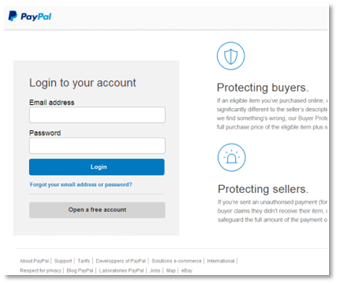
Say you got an email that said your PayPal account had an issue. Would you type your account information here if you found yourself on this page? If so, you would have handed over your information to a scammer.
We took the screenshot above as part of following a phishing attack to its end—without entering any legitimate info, of course. In fact, we entered a garbage email address and password, and it still let us in. That’s because the scammers were after other information, as you’ll soon see.
As we dug into the site more deeply, it looked pretty spot on. The design mirrored PayPal’s style, and the footer links appeared official enough. Yet then we looked more closely.
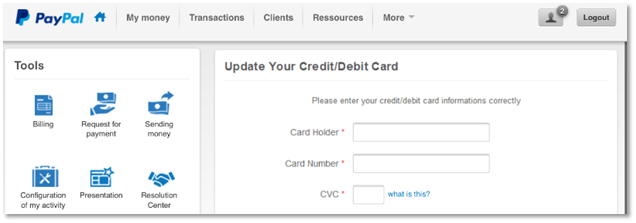
Note the subtle errors, like “card informations” and “Configuration of my activity.” While companies make grammatical errors on occasion, spotting them in an interface should hoist a big red flag. Plus, the site asks for credit card information very early in the process. All suspicious.
Here’s where the attackers really got bold.
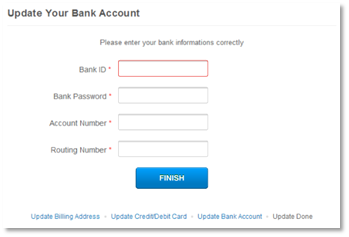
They ask for bank “informations,” which not only includes routing and account numbers, but they ask for the account password too. As said, bold. And entirely bogus.
Taken all together, the subtle errors and the bald-faced grab for exacting account information clearly mark this as a scam.
Let’s take a few steps back, though. Who sent the phishing email that directed us to this malicious site? None other than “paypal at inc dot-com.”

Clearly, that’s a phony email. And typical of a phishing attack where an attacker shoehorns a familiar name into an unassociated email address, in this case “inc dot-com.” Attackers may also gin up phony addresses that mimic official addresses, like “paypalcustsv dot-com.” Anything to trick you.
Likewise, the malicious site that the phishing email sent us to used a spoofed address as well. It had no official association with PayPal at all—which is proof positive of a phishing attack.
Note that companies only send emails from their official domain names, just as their sites only use their official domain names. Several companies and organizations will list those official domains on their websites to help curb phishing attacks.
For example, PayPal has a page that clearly states how it will and will not contact you. At McAfee, we have an entire page dedicated to preventing phishing attacks, which also lists the official email addresses we use.
Not every scammer is so sophisticated, at least in the way that they design their phishing emails. We can point to a few phishing emails that posed as legitimate communication from McAfee as examples.
There’s a lot going on in this first email example. The scammers try to mimic the McAfee brand, yet don’t pull it off. Still, they do several things to try to act convincing.

Note the use of photography and the box shot of our software, paired with a prominent “act now” headline. It’s not the style of photography we use. Not that people would generally know this. However, some might have a passing thought like, “Huh. That doesn’t really look like what McAfee usually sends me.”
Beyond that, there are a few capitalization errors, some misplaced punctuation, and the “order now” and “60% off” icons look rather slapped on. Also note the little dash of fear it throws in with a mention of “There are (42) viruses on your computer …”
Taken all together, someone can readily spot that this is a scam with a closer look.
This next ad falls into the less sophisticated category. It’s practically all text and goes heavy on the red ink. Once again, it hosts plenty of capitalization errors, with a few gaffes in grammar as well. In all, it doesn’t read smoothly. Nor is it easy on the eye, as a proper email about your account should be.

What sets this example apart is the “advertisement” disclaimer below, which tries to lend the attack some legitimacy. Also note the phony “unsubscribe” link, plus the (scratched out) mailing address and phone, which all try to do the same.
This last example doesn’t get our font right, and the trademark symbol is awkwardly placed. The usual grammar and capitalization errors crop up again, yet this piece of phishing takes a slightly different approach. 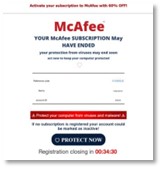
The scammers placed a little timer at the bottom of the email. That adds a degree of scarcity. They want you to think that you have about half an hour before you are unable to register for protection. That’s bogus, of course.
Seeing any recurring themes? There are a few for sure. With these examples in mind, get into the details—how you can spot phishing attacks and how you can avoid them altogether.
Just as we saw, some phishing attacks indeed appear fishy from the start. Yet sometimes it takes a bit of time and a particularly critical eye to spot.
And that’s what scammers count on. They hope that you’re moving quickly or otherwise a little preoccupied when you’re going through your email or messages. Distracted enough so that you might not pause to think, is this message really legit?
One of the best ways to beat scammers is to take a moment to scrutinize that message while keeping the following in mind …
Fear. That’s a big one. Maybe it’s an angry-sounding email from a government agency saying that you owe back taxes. Or maybe it’s another from a family member asking for money because there’s an emergency. Either way, scammers will lean heavily on fear as a motivator.
If you receive such a message, think twice. Consider if it’s genuine. For instance, consider that tax email example. In the U.S., the Internal Revenue Service (IRS) has specific guidelines as to how and when they will contact you. As a rule, they will likely contact you via physical mail delivered by the U.S. Postal Service. (They won’t call or apply pressure tactics—only scammers do that.) Likewise, other nations will have similar standards as well.
Scammers also love urgency. Phishing attacks begin by stirring up your emotions and getting you to act quickly. Scammers might use threats or overly excitable language to create that sense of urgency, both of which are clear signs of a potential scam.
Granted, legitimate businesses and organizations might reach out to notify you of a late payment or possible illicit activity on one of your accounts. Yet they’ll take a far more professional and even-handed tone than a scammer would. For example, it’s highly unlikely that your local electric utility will angrily shut off your service if you don’t pay your past due bill immediately.
Gift cards, cryptocurrency, money orders—these forms of payment are another sign that you might be looking at a phishing attack. Scammers prefer these methods of payment because they’re difficult to trace. Additionally, consumers have little or no way to recover lost funds from these payment methods.
Legitimate businesses and organizations won’t ask for payments in those forms. If you get a message asking for payment in one of those forms, you can bet it’s a scam.
Here’s another way you can spot a phishing attack. Take a close look at the addresses the message is using. If it’s an email, look at the email address. Maybe the address doesn’t match the company or organization at all. Or maybe it does somewhat, yet it adds a few letters or words to the name. This marks yet another sign that you might have a phishing attack on your hands.
Likewise, if the message contains a web link, closely examine that as well. If the name looks at all unfamiliar or altered from the way you’ve seen it before, that might also mean you’re looking at a phishing attempt.
Online protection software can protect you from phishing attacks in several ways.
For starters, it offers web protection that warns you when links lead to malicious websites, such as the ones used in phishing attacks. In the same way, online protection software can warn you about malicious downloads and email attachments so that you don’t end up with malware on your device. And, if the unfortunate does happen, antivirus can block and remove malware.
Online protection software like ours can also address the root of the problem. Scammers must get your email address from somewhere. Often, they get it from online data brokers, sites that gather and sell personal information to any buyer—scammers included.
Data brokers source this information from public records and third parties alike that they sell in bulk, providing scammers with massive mailing lists that can target thousands of potential victims. You can remove your personal info from some of the riskiest data broker sites with our Personal Data Cleanup, which can lower your exposure to scammers by keeping your email address out of their hands.
In all, phishing emails have telltale signs, some more difficult to see than others. Yet you can spot them when you know what to look for and take the time to look for them. With these attacks so prevalent and on the rise, looking at your email with a critical eye is a must today.
The post How to Spot Phishing Emails and Scams appeared first on McAfee Blog.

Online scams are evolving faster than ever, with cybercriminals using AI, deepfake technology, and social engineering to trick unsuspecting users.
In the past year, Americans have been targeted by an average of 14 scam messages per day, and deepfake scams have surged 1,740% in North America, according to McAfee’s State of the Scamiverse report.
These scams go beyond simple phishing emails—scammers now impersonate trusted companies, friends, and even loved ones, making it critical to recognize the warning signs before falling victim.
Here’s how you can spot an online scam and protect yourself:
Scams are scary, but you can prevent yourself from falling for one by knowing what to look for. Here are a few tell-tale signs that you’re dealing with a scammer.
If you get a message that you’ve won a big sum of cash in a sweepstakes you don’t remember entering, it’s a scam. Scammers may tell you that all you need to do to claim your prize is send them a small fee or give them your banking information.
When you enter a real sweepstakes or lottery, it’s generally up to you to contact the organizer to claim your prize. Sweepstakes aren’t likely to chase you down to give you money.
Scammers will often ask you to pay them using gift cards, money orders, cryptocurrency (like Bitcoin), or through a particular money transfer service. Scammers need payments in forms that don’t give consumers protection.
Gift card payments, for example, are typically not reversible and hard to trace. Legitimate organizations will rarely, if ever, ask you to pay using a specific method, especially gift cards.
When you have to make online payments, it’s a good idea to use a secure service like PayPal. Secure payment systems can have features to keep you safe, like end-to-end encryption.
Scammers may try to make you panic by saying you owe money to a government agency and you need to pay them immediately to avoid being arrested. Or the criminal might try to tug at your heartstrings by pretending to be a family member in danger who needs money.
Criminals want you to pay them or give them your information quickly — before you have a chance to think about it. If someone tries to tell you to pay them immediately in a text message, phone call, or email, they’re likely a scammer.
Many scammers pretend to be part of government organizations like the Internal Revenue Service (IRS). They’ll claim you owe them money. Criminals can even use technology to make their phone numbers appear legitimate on your caller ID.
If someone claiming to be part of a government organization contacts you, go to that organization’s official site and find an official support number or email. Contact them to verify the information in the initial message.
Scammers may also pretend to be businesses, like your utility company. They’ll likely say something to scare you, like your gas will be turned off if you don’t pay them right away.
Most legitimate organizations will thoroughly proofread any copy or information they send to consumers. Professional emails are well-written, clear, and error-free. On the other hand, scam emails will likely be full of grammar, spelling, and punctuation errors.
It might surprise you to know that scammers write sloppy emails on purpose. The idea is that if the reader is attentive enough to spot the grammatical mistakes, they likely won’t fall for the scam.
There are certain scams that criminals try repeatedly because they’ve worked on so many people. Here are a few of the most common scams you should watch out for.
A phishing scam can be a phone or email scam. The criminal sends a message in which they pretend to represent an organization you know. It directs you to a fraud website that collects your sensitive information, like your passwords, Social Security number (SSN), and bank account data. Once the scammer has your personal information, they can use it for personal gain.
Phishing emails may try anything to get you to click on their fake link. They might claim to be your bank and ask you to log into your account to verify some suspicious activity. Or they could pretend to be a sweepstakes and say you need to fill out a form to claim a large reward.
During the coronavirus pandemic, new phishing scams have emerged, with scammers claiming to be part of various charities and nonprofits. Sites like Charity Navigator can help you discern real groups from fake ones.
These scams also became much more prominent during the pandemic. Let’s say you’re preparing to fly to Paris with your family. A scammer sends you a message offering you an insurance policy on any travel plans you might be making. They’ll claim the policy will compensate you if your travel plans fall through for any reason without any extra charges.
You think it might be a good idea to purchase this type of insurance. Right before leaving for your trip, you have to cancel your plans. You go to collect your insurance money only to realize the insurance company doesn’t exist.
Real travel insurance from a licensed business generally won’t cover foreseeable events (like travel advisories, government turmoil, or pandemics) unless you buy a Cancel for Any Reason (CFAR) addendum for your policy.
Grandparent scams prey on your instinct to protect your family. The scammer will call or send an email pretending to be a family member in some sort of emergency who needs you to wire them money. The scammer may beg you to act right away and avoid sharing their situation with any other family members.
For example, the scammer might call and say they’re your grandchild who’s been arrested in Mexico and needs money to pay bail. They’ll say they’re in danger and need you to send funds now to save them.
If you get a call or an email from an alleged family member requesting money, take the time to make sure they’re actually who they say they are. Never wire transfer money right away or over the phone. Ask them a question that only the family member would know and verify their story with the rest of your family.
You get an email from a prince. They’ve recently inherited a huge fortune from a member of their royal family. Now, the prince needs to keep their money in an American bank account to keep it safe. If you let them store their money in your bank account, you’ll be handsomely rewarded. You just need to send them a small fee to get the money.
There are several versions of this scam, but the prince iteration is a pretty common one. If you get these types of emails, don’t respond or give out your financial information.
Your online experience is rudely interrupted when a pop-up appears telling you there’s a huge virus on your computer. You need to “act fast” and contact the support phone number on the screen. If you don’t, all of your important data will be erased.
When you call the number, a fake tech support worker asks you for remote access to your device to “fix” the problem. If you give the scammer access to your device, they may steal your personal and financial information or install malware. Worse yet, they’ll probably charge you for it.
These scams can be pretty elaborate. A scam pop-up may even appear to be from a reputable software company. If you see this type of pop-up, don’t respond to it. Instead, try restarting or turning off your device. If the device doesn’t start back up, search for the support number for the device manufacturer and contact them directly.
Scammers will often pose as popular e-commerce companies by creating fake websites. The fake webpages might offer huge deals on social media. They’ll also likely have a URL close to the real business’s URL but slightly different.
Sometimes, a criminal is skilled enough to hack the website of a large online retailer. When a scammer infiltrates a retailer’s website, they can redirect where the links on that site lead. This is called formjacking.
For example, you might go to an e-commerce store to buy a jacket. You find the jacket and put it in your online shopping cart. You click “check out,” and you’re taken to a form that collects your credit card information. What you don’t know is that the checkout form is fake. Your credit card number is going directly to the scammers.
Whenever you’re redirected from a website to make a payment or enter in information, always check the URL. If the form is legitimate, it will have the same URL as the site you were on. A fake form will have a URL that’s close to but not exactly the same as the original site.
These scams are similar to tech support scams. However, instead of urging you to speak directly with a fake tech support person, their goal is to get you to download a fake antivirus software product (scareware).
You’ll see a pop-up that says your computer has a virus, malware, or some other problem. The only way to get rid of the problem is to install the security software the pop-up links to. You think you’re downloading antivirus software that will save your computer.
What you’re actually downloading is malicious software. There are several types of malware. The program might be ransomware that locks up your information until you pay the scammers or spyware that tracks your online activity.
To avoid this scam, never download antivirus software from a pop-up. You’ll be much better off visiting the website of a reputable company, like McAfee, to download antivirus software.
Dealing with credit card debt can be extremely stressful. Scammers know this and try to capitalize off it. They’ll send emails posing as credit experts and tell you they can help you fix your credit or relieve some of your debt. They might even claim they can hide harmful details on your credit report.
All you have to do is pay a small fee. Of course, after you pay the fee, the “credit expert” disappears without helping you out with your credit at all. Generally, legitimate debt settlement firms won’t charge you upfront. If a credit relief company charges you a fee upfront, that’s a red flag.
Before you enter into an agreement with any credit service, check out their reputation. Do an online search on the company to see what you can find. If there’s nothing about the credit repair company online, it’s probably fake.
Admitting that you’ve fallen for an online scam can be embarrassing. But reporting a scammer can help stop them from taking advantage of anyone else. If you’ve been the victim of an online scam, try contacting your local police department and filing a report with the Federal Trade Commission (FTC).
Several other law enforcement organizations handle different types of fraud. Here are a few examples of institutions that can help you report scams.
Fraudsters shouldn’t stop you from enjoying your time online. Just by learning to spot an online scam, you can greatly strengthen your immunity to cybercrimes.
For an even greater internet experience, you’ll want the right tools to protect yourself online. McAfee+ can help you confidently surf the web by providing all-in-one protection for your personal info and privacy. This includes identity protection — which comes with 24/7 monitoring of your email addresses and bank accounts — and antivirus software to help safeguard your internet connection.
Get the peace of mind that comes with McAfee having your back.
The post How to Recognize an Online Scammer appeared first on McAfee Blog.

It’s the month of top seeds, big upsets, and Cinderella runs by the underdogs. With March Madness basketball cranking up, a fair share of online betting will be sure to follow—along with online betting scams.
Since a U.S. Supreme Court ruling in 2018, individual states can determine their own laws for sports betting. Soon after, states leaped at the opportunity to legalize it in some form or other. Today, nearly 40 states and the District of Columbia have “live and legal” sports betting, meaning that people can bet on single-game sports through a retail or online sportsbook or a combination of the two in their state.
And it has made billions of dollars for the government.
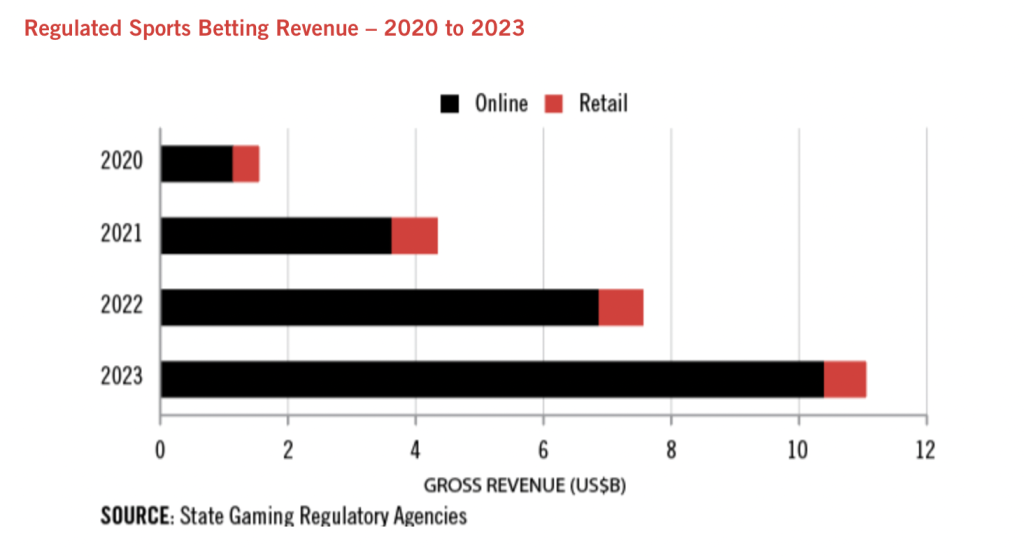
If you’re a sports fan, this news has probably been hard to miss. Or at least the outcome of it all has been hard to miss. Commercials and signage in and around games promote several major online betting platforms. Ads have naturally made their way online too, complete with all kinds of promo offers to encourage people to get in on the action. However, that’s also opened the door for scammers who’re looking to take advantage of people looking to make a bet online, according to the Better Business Bureau (BBB). Often through shady or outright phony betting sites.
Let’s take a look at the online sports betting landscape, some of the scams that are cropping up, and some things you can do to make a safer bet this March or any time.
Among the 30 states that have “live and legal” sports betting, 19 offer online betting, a number that will likely grow given various state legislation that’s either been introduced or will be introduced soon.
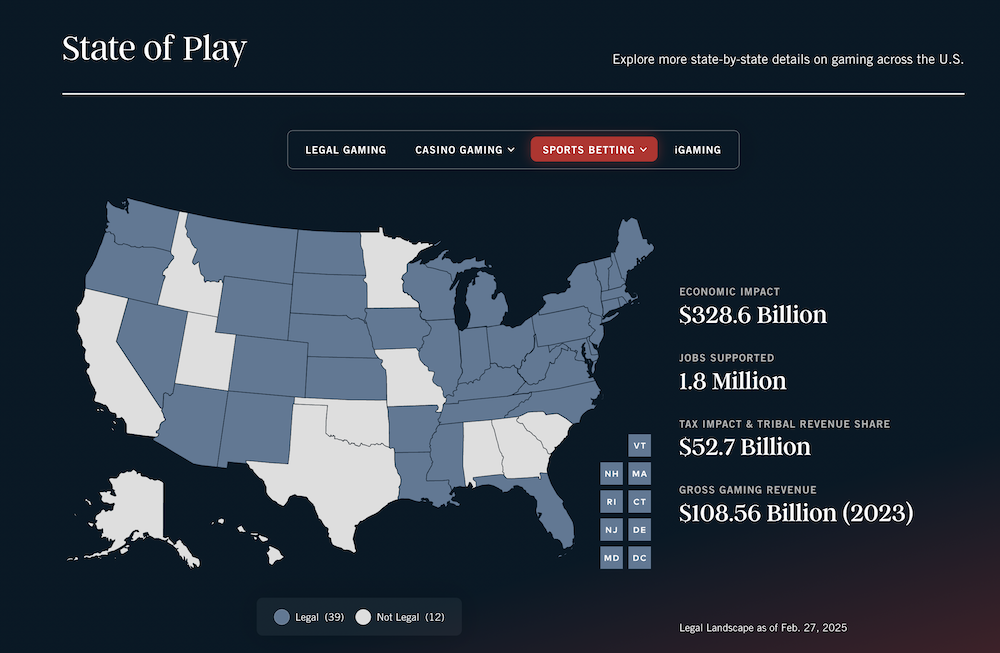
If you’re curious about what’s available in your state, this interactive map shows the status of sports betting on a state-by-state level. Further, clicking on an individual state on the map will give you yet more specifics, such as the names of retail sportsbooks and online betting services that are legal in the state. For anyone looking to place a bet, this is a good place to start. It’s also helpful for people who are looking to get into online sports betting for the first time, as this is the sort of homework that the BBB advises people to do before placing a sports bet online. In their words, you can consider these sportsbooks to be “white-labeled” by your state’s gaming commission.
However, the BBB stresses that people should be aware that the terms and conditions associated with online sports betting will vary from service to service, as will the promotions that they offer. The BBB accordingly advises people to closely read these terms, conditions and offers. For one, “Gambling companies can restrict a user’s activity,” meaning that they can freeze accounts and the funds associated with them based on their terms and conditions. Also, the BBB cautions people about those promo offers that are often heavily advertised, “[L]ike any sales pitch, these can be deceptive. Be sure to read the fine print carefully.”
Where do scammers enter the mix? The BBB points to the rise of consumer complaints around bogus betting sites:
“You place a bet, and, at first, everything seems normal. But as soon as you try to cash out your winnings, you find you can’t withdraw a cent. Scammers will make up various excuses. For example, they may claim technical issues or insist on additional identity verification. In other cases, they may require you to deposit even more money before you can withdraw your winnings. Whatever you do, you’ll never be able to get your money off the site. And any personal information you shared is now in the hands of scam artists.”
If there’s a good reason you should stick to the “white labeled” sites that are approved by your state’s gaming commission, this is it. Take a pass on any online ads that promote betting sites, particularly if they roll out big and almost too-good-to-be-true offers. These may lead you to shady or bogus sites. Instead, visit the ones that are approved in your state by typing in their address directly into your browser.
In addition to what we mentioned above, there are several other things you can do to make your betting safer.
In addition to choosing a state-approved option, check out the organization’s BBB listing at BBB.org. Here you can get a snapshot of customer ratings, complaints registered against the organization, and the organization’s response to the complaints, along with its BBB rating, if it has one. Doing a little reading here can be enlightening, giving you a sense of what issues arise and how the organization has historically addressed them. For example, you may see a common complaint and how it’s commonly resolved. You may also see where the organization has simply chosen not to respond, all of which can shape your decision whether to bet with them or not.
Credit cards are a good way to go. One reason why is the Fair Credit Billing Act, which offers protection against fraudulent charges on credit cards by giving you the right to dispute charges over $50 for goods and services that were never delivered or otherwise billed incorrectly. Your credit card companies may have their own policies that improve upon the Fair Credit Billing Act as well. Debit cards don’t get the same protection under the Act.
Comprehensive online protection software will defend you against the latest virus, malware, spyware, and ransomware attacks plus further protect your privacy and identity. In addition to this, it can also provide strong password protection by generating and automatically storing complex passwords to keep your credentials safer from hackers and crooks who may try to force their way into your accounts. And, specific to betting sites, online protection can help prevent you from clicking links to known or suspected malicious sites.
With online betting cropping up in more and more states for more and more people, awareness of how it works and how scammers have set up their presence within it becomes increasingly important. Research is key, such as knowing who the state-approved sportsbooks and services are, what types of betting are allowed, and where. By sticking to these white-label offerings and reading the fine print in terms, conditions, and promo offers, people can make online betting safer and more enjoyable.
Editor’s Note: If gambling is a problem for you or someone you know, you can seek assistance from a qualified service or professional. Several states have their own helplines, and nationally you can reach out to resources like http://www.gamblersanonymous.org/ or https://www.ncpgambling.org/help-treatment/.
The post How to Protect Yourself from March Madness Scams appeared first on McAfee Blog.
